Step-by-step guide
Buying and downloading a paid tool
How to buy a one-time download, keep your private recovery code and get your ZIP after Paddle confirms payment.
You have read a paid product listing under /store/ and want to buy it, download it again later, or open it on another computer.
Before you start
- A desktop browser with JavaScript enabled (the checkout page does not work without it).
- A payment method accepted in Paddle's checkout. Paddle is the merchant of record and shows the final total and any taxes before you confirm.
- A safe place for a private recovery code, for example a password manager.
Your first result
Check the listing first
Open the product page, read What it helps you do, What is in your download, Before you buy and Compatibility & limits. Check the price, screenshot and example. Each download is a one-time purchase of the stated version. Click Continue to checkout when ready.
Start checkout
The checkout page (/checkout/?product=<slug>) opens with your product already selected under “Choose your product”. Click “Continue to secure checkout”.
Save your recovery code before paying
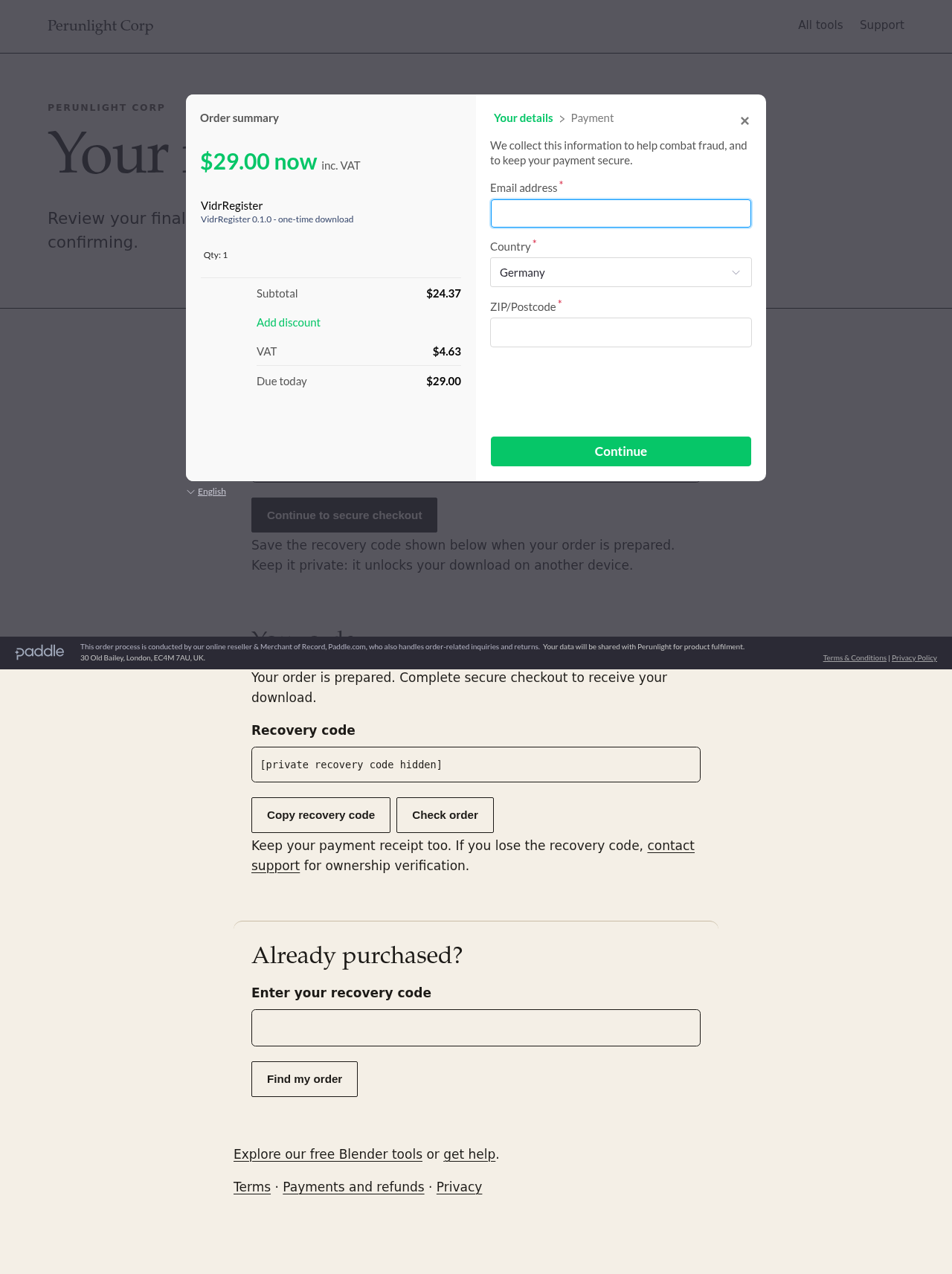
A “Your order” box appears with a “Recovery code”. Click “Copy recovery code” and store it somewhere private. The code is the only key to your download: anyone who has it can download your file, and you need it to download again on another device or after closing the browser tab. The page keeps the order only while that browser tab stays open. If the Paddle payment window covers the code, close that window without paying, copy the code, then click Continue to secure checkout again to reopen the same order.
Pay in Paddle's secure checkout
Paddle's checkout window opens over the page. Enter the details it asks for (such as email address and country), review the final total and taxes, and confirm the payment there. Keep the payment receipt: support may ask for its transaction or receipt identifier.
Wait for confirmation and download
After you pay, the page shows “Payment submitted. Your order will be confirmed after payment verification.” and checks the order automatically for a few minutes. When it shows “Your download is ready.”, click “Download your file”. Your browser saves a ZIP named after the product, for example vidr-register-0.1.0.zip, in its usual downloads folder. If the page still says it is waiting, click “Check order” again a few minutes later.
Unpack the ZIP
Extract the ZIP with your computer’s usual archive tool. Open the included GUIDE.html, INSTALL or README instructions and retain the license notices. Folder names vary by product: a browser edition contains an app folder; a tool bundle contains its original installer ZIP under program/. Follow the product’s own guide before opening or installing it. Blender installs the inner plugin ZIP, not the outer guide bundle.
Download again later or on another computer
Open /checkout/, go to “Already purchased?”, paste the code into “Enter your recovery code” and click “Find my order”. When “Your download is ready.” appears, click “Download your file”.
A worked example
Downloading a purchased tool on a second computer
Input: The recovery code you copied when you bought the tool (a 43-character string of letters, digits, - and _). No example file is needed; never share a real code.
- On the second computer, open /checkout/ in a desktop browser.
- Under “Already purchased?”, paste the code into “Enter your recovery code”.
- Click “Find my order”.
- When the status says “Your download is ready.”, click “Download your file”.
Expected result: The same ZIP you bought (for example vidr-register-0.1.0.zip) is saved in the browser's downloads folder. A shortened or mistyped code shows “Enter the complete recovery code saved with your order.”; a code that matches no order is rejected with “Order access could not be verified.”
Troubleshooting
“Waiting for payment confirmation. If you already paid, allow a few minutes before checking again.”
Payment confirmation comes from Paddle and can take a few minutes. Keep the tab open or save your recovery code, then click “Check order” later (or use “Already purchased?” on /checkout/). The download is released only after the payment is confirmed.
I closed the tab before downloading.
Open /checkout/ and use “Already purchased?” with your recovery code. Without the code the page cannot find your order.
I lost the recovery code after paying.
Contact support (see /support/) with the transaction or receipt identifier from your Paddle receipt. Recovery needs verified ownership. Never send full card numbers or passwords.
“This order needs a support review.” or “This order is no longer available for download.”
Keep your payment receipt and contact support. The second message also appears for orders that are no longer active, for example after a refund.
“New purchases are paused. You can still access an existing order.” or “Purchases are not open yet.”
New purchases are temporarily unavailable. Existing buyers can still use “Already purchased?” with their recovery code.
The ZIP does not work for my use.
See /refunds/: a refund can be requested within 30 days of purchase by email or through Paddle at paddle.net, with the transaction or receipt identifier. Paddle decides the final refund status under its policy.
Compatibility & limits
- The file is delivered only on the checkout page; it is not sent by email.
- No accounts, subscriptions, license keys or activation. The recovery code is the only access key, so keep it private.
- Buying a paid tool does not change or unlock any free preview; free previews remain separate free downloads.
- The license covers the purchased version on your own devices; no future updates or support response time are promised (see /license/ and the LICENSE.txt in the ZIP).
Need a hand?
Tell us the product, host application and version, what you tried, and the exact error. Contact support with a fictional example; keep private customer files and passwords out of your message.