Step-by-step guide
Frigella
Create knitting colourwork charts and printable PDFs. Draw a colourwork chart cell by cell, choose colours, repeat a motif and export a chart with a colour legend as PDF.
You are planning stranded colourwork (for example Fair Isle or Nordic patterns) and want a clean, printable chart with stitch counts.
Before you start
- Desktop Google Chrome or another Chromium-based browser. The tool was checked in desktop Chrome; other browsers are not verified.
- No files are needed to start: three sample charts are built in.
- Install Node.js 20.12 or newer. In this extracted folder run: node start.mjs
Open http://127.0.0.1:8787/ in desktop Google Chrome. Keep the terminal open; Ctrl+C stops it.
Your first result
Open the downloaded local edition
Buy and extract the Frigella ZIP, then open its Frigella folder. Install Node.js 20.12 or newer. In this extracted folder run: node start.mjs
Open http://127.0.0.1:8787/ in desktop Google Chrome. Keep the terminal open; Ctrl+C stops it. The same workflow can be explored in the online browser preview.Open Frigella
In your open local copy, follow the controls described below. The toolbar holds the drawing tools, Export PDF..., New, Open..., Save, Save as..., the Load a sample chart... list, Undo, Redo and zoom.
Start a chart
Choose a sample in Load a sample chart... (Nordic star band (flat), Snowflake yoke (in the round) or Chevron repeat (raport practice)), or click New. Under Chart size set Width (stitches) and Height (rows), from 1 to 200, and click Apply size.
Draw stitches
Pick a colour in Palette (keys 1–9 and 0 select the first ten), then use Pencil (P), Line (L), Rectangle (R) or Fill (G) on the chart. Eraser (E) clears and Pick colour (I) copies a colour. Each colour has a Colour name, a Colour and a one-character Symbol that is printed in the cells.
Repeat and transform
Use Select (S) to mark an area, then Transform (Mirror across (H), Mirror down (V), Rotate 90 deg) or Repeat (Mark as repeat, Copies across (total), Copies down (total), Tile whole chart). Reading direction sets flat or in-the-round knitting and where row 1 is.
Export a PDF
Click Export PDF... to open the export settings: Page (A4 or US Letter), Orientation, Scaling (Fit the chart on one page, or Fixed cell size that tiles over pages), colour or black and white, symbols and grid lines. Click Export PDF to download the chart.
Save your chart
Click Save or Save as... to write a .frigella.json chart file. Chrome opens a save dialog so you can choose the folder; browsers without that dialog download the file instead. Use Open... to load a saved chart.
A worked example
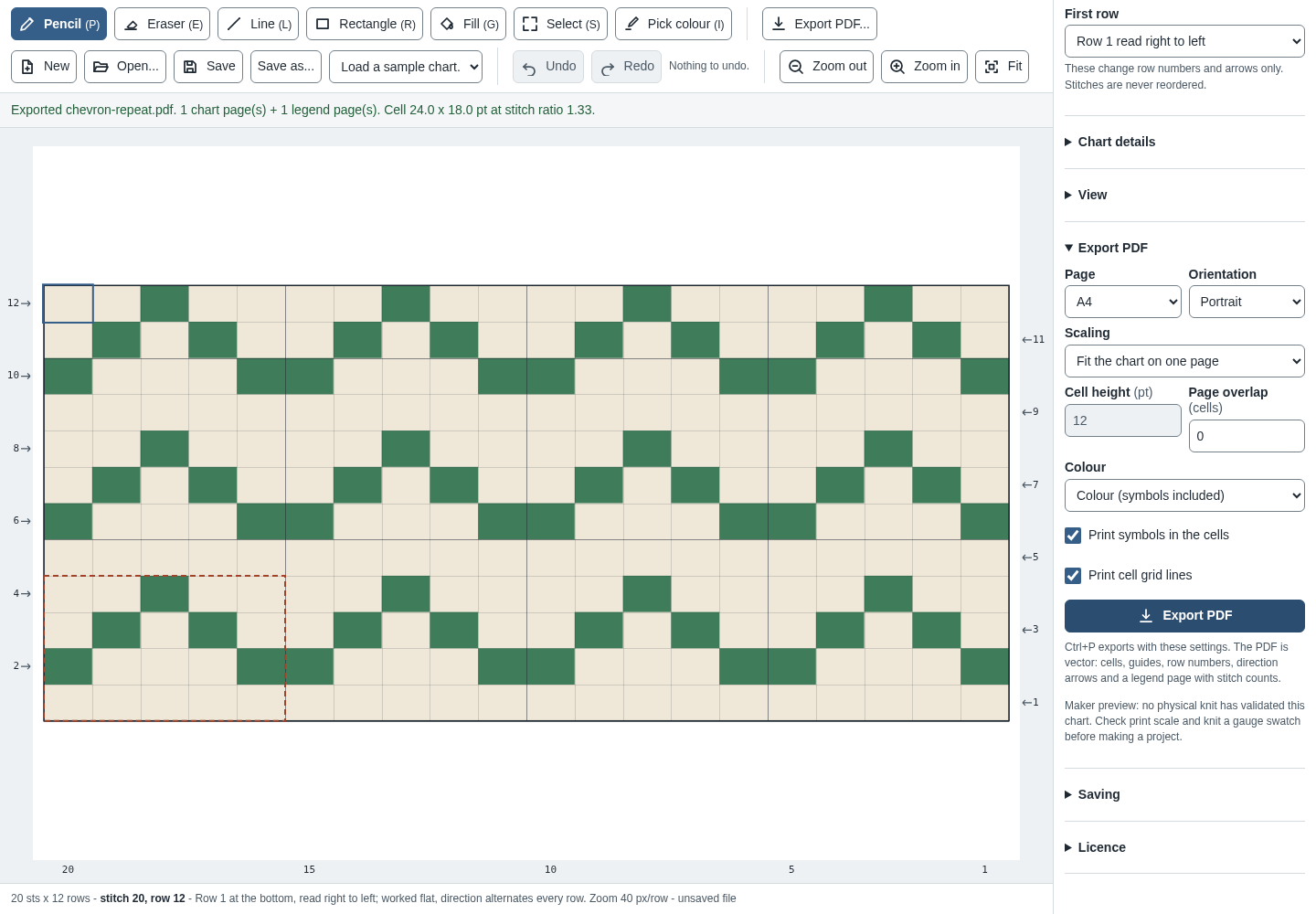
Print the Chevron repeat sample
Input: No file needed: the built-in sample Chevron repeat (raport practice). A saved copy to try with Open... is in examples/frigella/chevron-repeat.frigella.json.
- Open your local Frigella page.
- In Load a sample chart..., choose Chevron repeat (raport practice).
- Click Export PDF..., then click Export PDF (our test used the default settings).
- Click Save as... and save the chart file.
Expected result: The status reads “Loaded the "Chevron repeat" sample.” and the chart is 20 sts x 12 rows. Your browser downloads chevron-repeat.pdf. Page 1 is the chart with row and stitch numbers and page 2 is the legend (20 stitches x 12 rows, 2 colours). The saved chevron-repeat.frigella.json opens again with Open....
Troubleshooting
The status says “Save cancelled”.
The save dialog was closed without saving. Click Save as... again and choose a folder.
Rotate 90 deg is greyed out.
A quarter turn needs a square area. Select a square region with Select (S) first.
The printed chart looks squashed or stretched.
Knitted stitches are usually wider than tall. Set Stitch ratio (width : height) under Stitch proportions; it changes only the drawing, never the stitch count. Print one page and check it before you knit.
My chart was gone after closing the browser.
Browser storage keeps only a crash-recovery draft and is not a backup. Save a .frigella.json file whenever the chart matters.
The Licence panel shows a key field.
No activation key is needed for the included local features. The purchase supplies the downloadable edition, guide and examples; it does not unlock a separate Pro feature set.
Compatibility & limits
- Chart preview only: printed scale and a finished knitted sample have not been validated. Knit a gauge swatch first.
- Charts are 1 to 200 stitches wide and 1 to 200 rows high.
- Browser storage keeps only a crash-recovery draft; keep your .frigella.json files.
- The paid download packages the same core workflow as the browser preview, with a local copy, guide and examples. It does not unlock a separate Pro feature set.
Need a hand?
Tell us the product, host application and version, what you tried, and the exact error. Contact support with a fictional example; keep private customer files and passwords out of your message.