Step-by-step guide
NjordMatch
Reconcile bank and Shopify CSV exports locally. Import two CSV exports, map their columns, inspect proposed transaction matches and differences, and export your reconciliation for review.
Customers pay by bank transfer quoting their order number, and you want to see which pending Shopify orders have a matching payment before you update them yourself.
Before you start
- Desktop Google Chrome or another Chromium-based browser. The tool was checked in desktop Chrome; other browsers are not verified.
- A bank statement as CSV or CAMT.053 XML and a Shopify order export CSV: UTF-8 text, up to 2 MB and 10,000 CSV rows per file.
- Statement columns for transaction ID, reference, amount, currency and date (direction and booking status if available); order columns for order name, total, currency and financial status.
- Install Node.js 20.12 or newer. In this extracted folder run: node start.mjs
Open http://127.0.0.1:8787/ in desktop Google Chrome. Keep the terminal open; Ctrl+C stops it.
Your first result
Open the downloaded local edition
Buy and extract the NjordMatch ZIP, then open its NjordMatch folder. Install Node.js 20.12 or newer. In this extracted folder run: node start.mjs
Open http://127.0.0.1:8787/ in desktop Google Chrome. Keep the terminal open; Ctrl+C stops it. The same workflow can be explored in the online browser preview.Open NjordMatch
In your open local copy, follow the controls described below. The three steps are Import files, Map columns and conventions, and Review and confirm.
Import both files
Choose your file under Bank statement (CSV or CAMT.053 XML) and under Shopify order export CSV. To practise first, click Load synthetic demo, which loads two small made-up files.
Check columns and formats
Choose the Decimal separator (Dot or Comma) and Date convention (YYYY-MM-DD, DD/MM/YYYY or MM/DD/YYYY). Check each column list: Transaction ID, Reference, Amount, Currency, Date, Direction and Booking status for payments; Order ID, Reference, Outstanding amount, Currency, Financial status and Cancelled at for orders. Standard headings are filled in automatically and the first two rows of each file are shown. Click Preview reconciliation.
Review the results
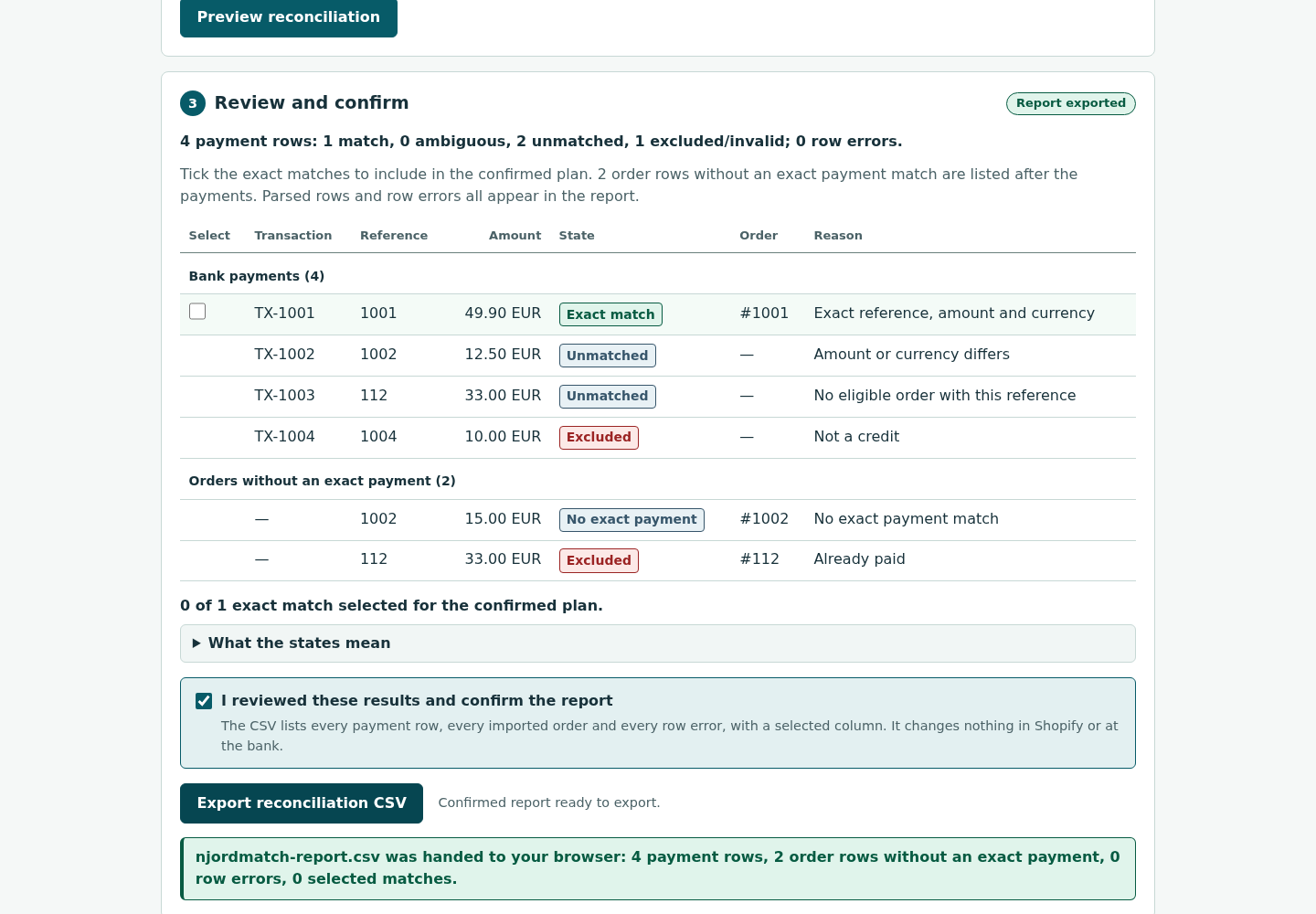
Each bank payment gets a state (Exact match, Ambiguous, Unmatched or Excluded) with a reason; orders without an exact payment are listed after the payments. What the states mean explains each one. Tick the matches you accept, or click Select all exact matches.
Confirm and export
Tick I reviewed these results and confirm the report, then click Export reconciliation CSV. The download njordmatch-report.csv lists every payment row, every order without an exact payment and any row errors, with a selected column. Update orders in Shopify yourself; NjordMatch changes nothing there.
A worked example
Reconcile five fictional bank lines with four orders
Input: examples/njordmatch/fictional-bank-statement.csv (5 fictional bank lines) and examples/njordmatch/fictional-shopify-orders.csv (4 fictional pending orders).
- Open your local NjordMatch page. Choose fictional-bank-statement.csv under Bank statement and fictional-shopify-orders.csv under Shopify order export CSV.
- Keep Dot and YYYY-MM-DD; the column lists fill in automatically. Click Preview reconciliation.
- Click Select all exact matches, then tick I reviewed these results and confirm the report.
- Click Export reconciliation CSV.
Expected result: The summary reads “5 payment rows: 2 match, 0 ambiguous, 2 unmatched, 1 excluded/invalid; 0 row errors.” BK-2001 and BK-2002 are Exact match for orders #2041 and #2042. BK-2003 is Unmatched with “Amount or currency differs” (19.00 was paid, order #2043 is 21.00); BK-2004 is Unmatched with “No eligible order with this reference”; the card-fee debit BK-2005 is Excluded as “Not a credit”. Orders #2043 and #2045 appear under “Orders without an exact payment (2)”. njordmatch-report.csv has 7 rows, with selected = yes for the two accepted matches.
Troubleshooting
A payment I expected to match is Excluded.
Only booked credits (direction CRDT, status BOOK) can match, and rows without a direction or status are excluded. Map the Direction and Booking status columns if your bank provides them.
An order never matches.
Only pending or unpaid orders are eligible, and the reference, amount and currency must match exactly. The reference comparison ignores one leading # and letter case; payer names and partial references are never used. A partial payment shows as Unmatched.
A payment shows as Ambiguous.
A transaction, payment reference or order reference appears more than once, so NjordMatch never proposes a match. Check the duplicates in your exports.
Amounts or dates look wrong in the preview.
Set Decimal separator to Comma for amounts such as 49,90, and pick the Date convention your bank uses.
Export reconciliation CSV is greyed out.
Click Preview reconciliation first, then tick I reviewed these results and confirm the report.
My files are gone after reloading the page.
Imported files stay only in the current browser tab and are never uploaded or stored. Choose them again.
Compatibility & limits
- Local CSV comparison only: no bank or Shopify connection, and orders are never marked as paid.
- Exact matches only (reference, amount and currency); review every proposed match.
- Not an accounting or audit certification.
- The paid download packages the same core workflow as the browser preview, with a local copy, guide and examples. It does not unlock a separate Pro feature set.
Need a hand?
Tell us the product, host application and version, what you tried, and the exact error. Contact support with a fictional example; keep private customer files and passwords out of your message.