Offline edition
NjordMatch
Reconcile bank and Shopify CSV exports locally.
Customers pay by bank transfer quoting their order number, and you want to see which pending Shopify orders have a matching payment before you update them yourself.
$19 USD · one-time purchase
Continue to checkoutStep-by-step guide
No subscription. Final total and tax appear at checkout.
What it helps you do
Import two CSV exports, map their columns, inspect proposed transaction matches and differences, and export your reconciliation for review.
What is in your download
- The described tool, packaged for local use.
- Installation and first-result instructions.
- A worked example and the included license notices.
A practical example
Reconcile five fictional bank lines with four orders
Start with
examples/njordmatch/fictional-bank-statement.csv (5 fictional bank lines) and examples/njordmatch/fictional-shopify-orders.csv (4 fictional pending orders).
Get this result
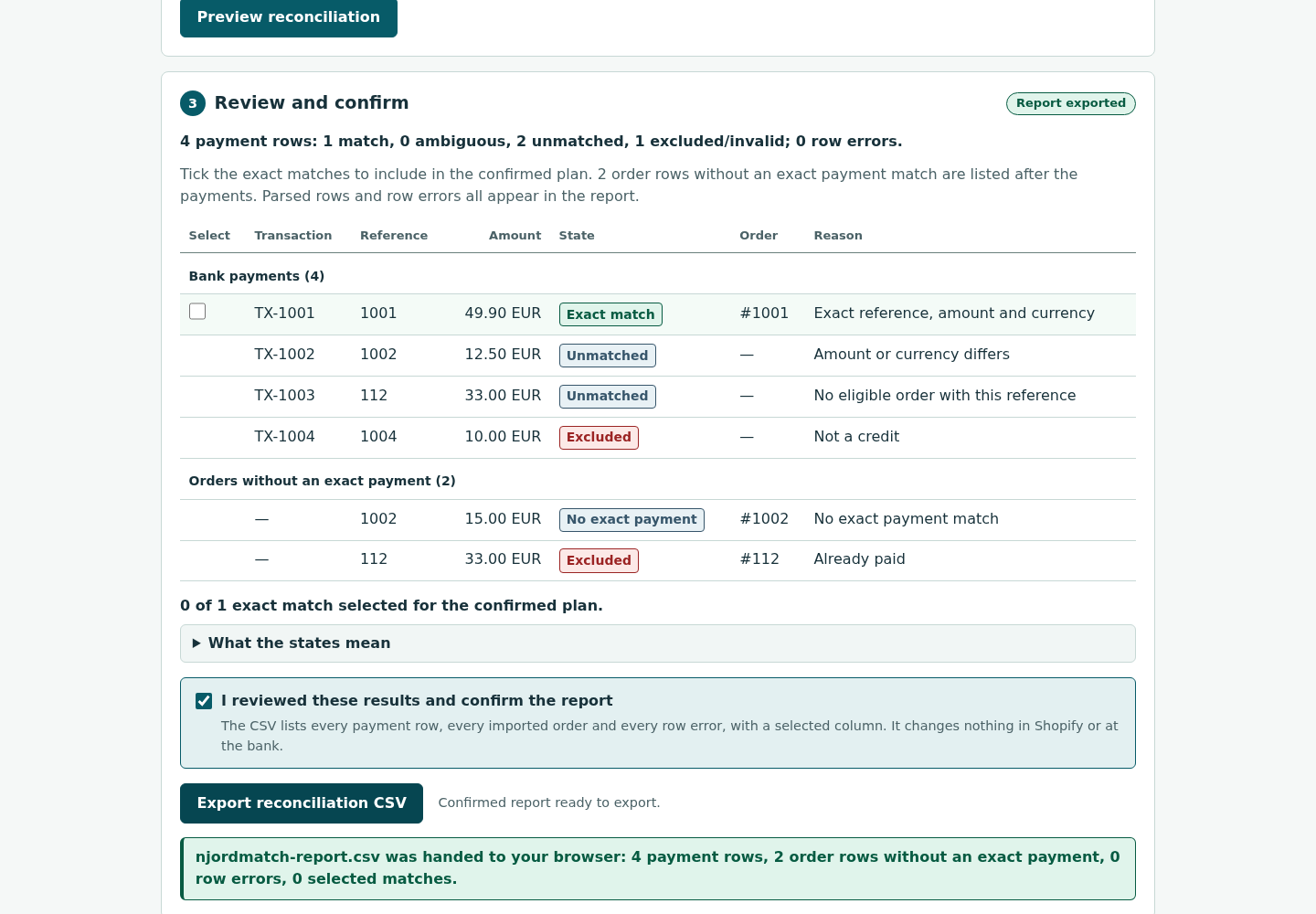
The summary reads “5 payment rows: 2 match, 0 ambiguous, 2 unmatched, 1 excluded/invalid; 0 row errors.” BK-2001 and BK-2002 are Exact match for orders #2041 and #2042. BK-2003 is Unmatched with “Amount or currency differs” (19.00 was paid, order #2043 is 21.00); BK-2004 is Unmatched with “No eligible order with this reference”; the card-fee debit BK-2005 is Excluded as “Not a credit”. Orders #2043 and #2045 appear under “Orders without an exact payment (2)”. njordmatch-report.csv has 7 rows, with selected = yes for the two accepted matches.
Download guide & practice files (ZIP)
Examples use fictional or synthetic data. Follow this example step by step.
How it works
Open the downloaded local edition
Buy and extract the NjordMatch ZIP, then open its NjordMatch folder. Install Node.js 20.12 or newer. In this extracted folder run: node start.mjs
Open http://127.0.0.1:8787/ in desktop Google Chrome. Keep the terminal open; Ctrl+C stops it. The same workflow can be explored in the online browser preview.Open NjordMatch
In your open local copy, follow the controls described below. The three steps are Import files, Map columns and conventions, and Review and confirm.
Import both files
Choose your file under Bank statement (CSV or CAMT.053 XML) and under Shopify order export CSV. To practise first, click Load synthetic demo, which loads two small made-up files.
Before you buy
- Desktop Google Chrome or another Chromium-based browser. The tool was checked in desktop Chrome; other browsers are not verified.
- A bank statement as CSV or CAMT.053 XML and a Shopify order export CSV: UTF-8 text, up to 2 MB and 10,000 CSV rows per file.
- Statement columns for transaction ID, reference, amount, currency and date (direction and booking status if available); order columns for order name, total, currency and financial status.
- Install Node.js 20.12 or newer. In this extracted folder run: node start.mjs
Open http://127.0.0.1:8787/ in desktop Google Chrome. Keep the terminal open; Ctrl+C stops it.
Compatibility & limits
CSV matching requires correct column mapping and human review. Does not connect to your bank, move money, or post accounting entries.
Try it first
Try the same core workflow in the browser. The purchase gives you a downloadable local copy with installation instructions and examples; no paid-only features are claimed.
Open the previewGet NjordMatch
Perpetual use of the purchased version on your devices for personal or internal commercial work. Keep reasonable backups and modify your own copy; do not redistribute or resell original proprietary code. Third-party licenses and any existing preview permissions retain their rights.
Before payment, save the private recovery code shown by checkout. After Paddle confirms payment, use it to download your ZIP or return for it later. No subscription, future update or email delivery is promised. See the illustrated steps.
$19 USD · once
Buy download