Task walkthrough · VarSeal
Add usage notices to JPEG copies and keep a delivery record
A delivery folder can contain old usage text, missing notices and conflicting copyright fields. Review those differences before creating new copies, then keep a record of which files were written and which were refused.
A Perunlight workflow for VarSeal, our paid offline JPEG notice tool. Written with AI assistance and checked against the free fictional Harbor Studio pack, an independent output inspection and the accepted app review in Chrome 152 on Linux. The photos and client details are invented. Published .
Choose what you want the metadata to say
The IPTC Photo Metadata User Guide describes Data Mining as a field for communicating a chosen permission or restriction using the PLUS vocabulary. VarSeal writes that value and your accompanying usage text into XMP metadata.
These are embedded statements. They do not technically stop copying or AI training, and a destination can strip them. VarSeal does not create a licence agreement. Use your own agreed wording; the fictional text in this exercise is a demonstration, not wording recommended for your work.
Review the fictional Harbor Studio delivery
- Extract the free ZIP and open README.txt, then manual/index.html.
- Look in practice-input/: H_0001.jpg through H_0009.jpg plus notes.txt. The images are synthetic examples.
- Open expected-output/VarSeal-delivery-notes.html and expected-output/VarSeal-receipt.json. These are saved outputs you can inspect without the app.
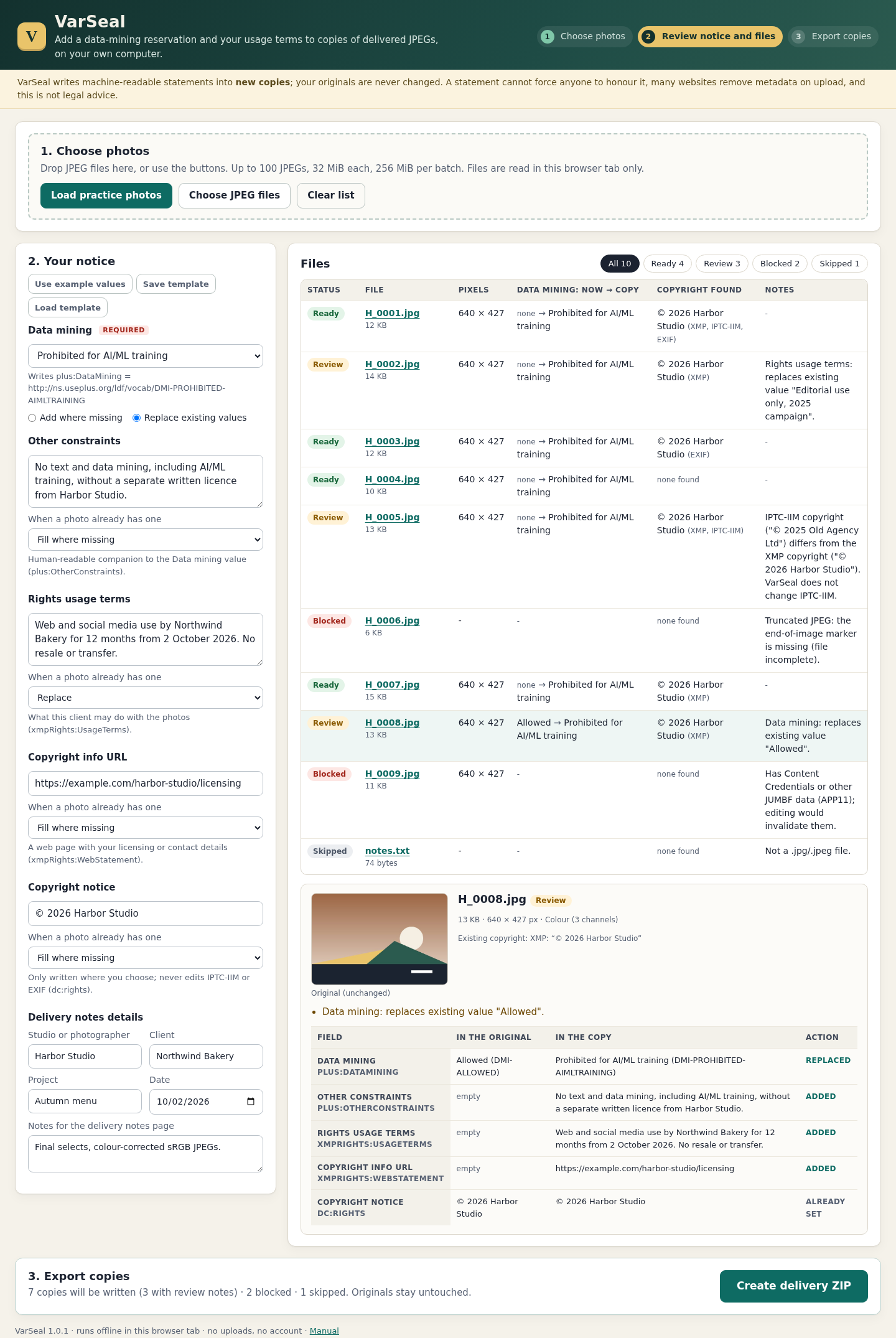
- Find H_0008.jpg in the receipt. Its previous Data Mining value is Allowed; the example explicitly replaces it with the AI/ML training prohibition value.
Practice review:  Ready 4 · Review 3 · Blocked 2 · Skipped 1
Export result:    Written 7 · Blocked 2 · Skipped 1

H_0002.jpg   Existing usage terms are replaced; review note retained
H_0005.jpg   Conflicting IPTC-IIM copyright remains; review note retained
H_0008.jpg   Existing Data Mining value is explicitly replaced
With the paid app, extract the complete archive and open VarSeal.html in Chrome on Linux, keeping app/ beside it. Choose Load practice photos, then Use example values. Click H_0008.jpg to inspect the planned fields. The example chooses Replace existing values; the default Add where missing would keep an existing value and flag it for review.
Distinguish keep, fill and replace
- Keep existing leaves that XMP field as it is.
- Fill where missing adds your text only when the field is empty.
- Replace uses your nonblank text in that XMP field, including when a prior value exists.
- A blank text field never erases an existing value.
In H_0001.jpg, the existing copyright URL ends in terms-2025. The example selects Fill where missing, so that URL remains even though the template contains a different licensing URL. This is a useful check that your chosen mode matches your intention.
VarSeal changes XMP only. H_0005.jpg keeps its conflicting IPTC-IIM copyright, and the receipt records the conflict. EXIF values also remain unchanged. Review means a file can still be written; it does not mean the conflict has been resolved.
Match the seven copies to the receipt
- In expected-output/photos/, find H_0001 through H_0005, H_0007 and H_0008: seven files.
- Match each filename to its written row in VarSeal-receipt.json. Check input_bytes, output_bytes and the before-and-after changes.
- Find H_0006 and H_0009: both are blocked and have no output copy. H_0006 is truncated; H_0009 carries an APP11 fixture representing Content Credentials or other JUMBF data.
- Find notes.txt: it is skipped, input_read is false, input_bytes is 74 and input_sha256 is null. The app did not open that unsupported file.
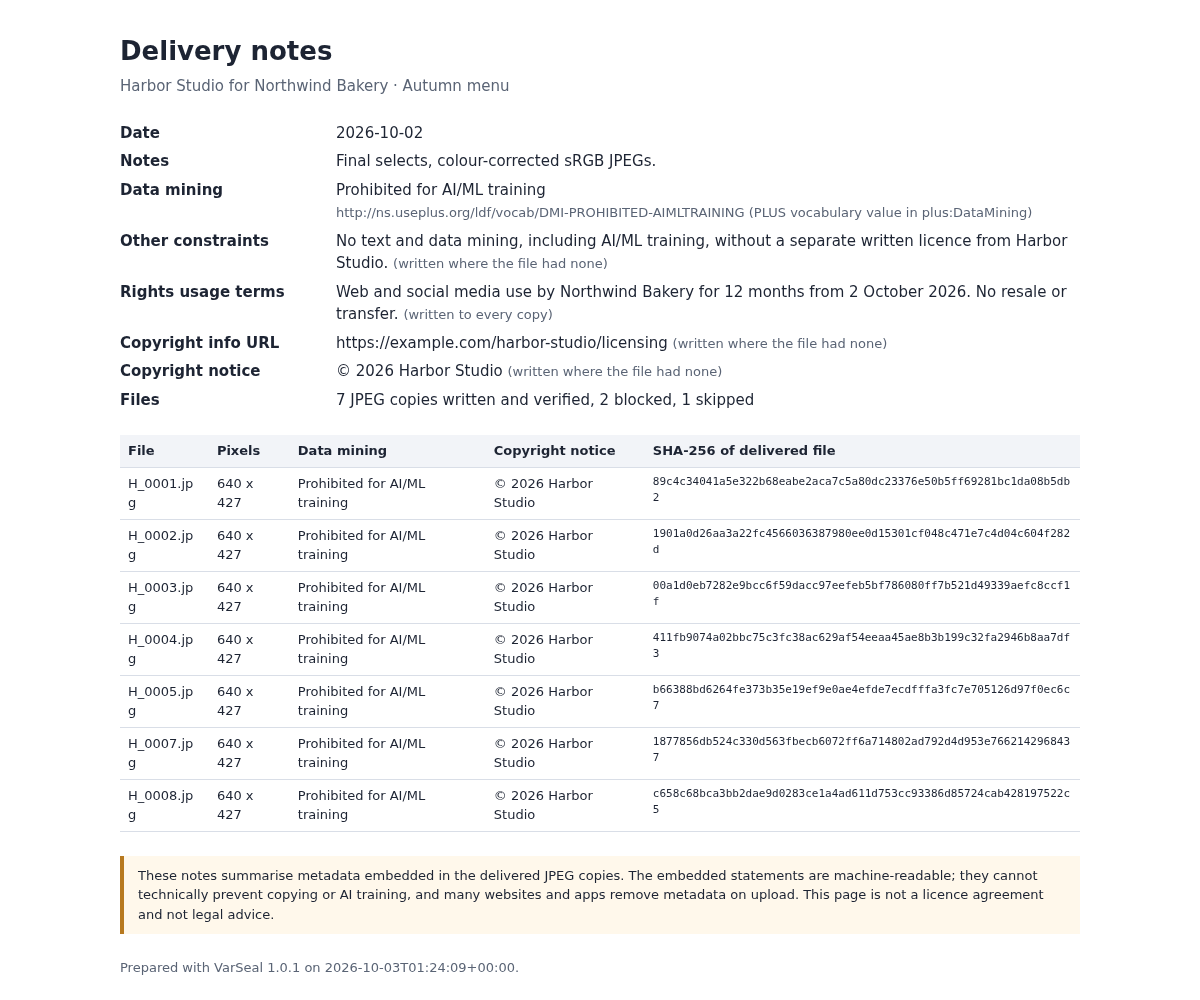
- Open VarSeal-delivery-notes.html to see the client-facing summary, then keep it beside the photos and receipts.
Expected: seven new JPEG copies, two blocked JPEGs and one skipped text file. Each copy contains the selected Data Mining value; originals remain separate.
For this walkthrough, an independent JPEG parser and XML check matched all seven outputs to the receipt. Every non-XMP segment and image-data byte matched its input, and decoded RGB pixels matched too. The JSON and CSV both account for all ten inputs. This verifies the supplied fictional output; it does not establish what another service will retain after upload.
Prepare a small delivery of your own
- Choose Clear list, then Choose JPEG files or drop your exported JPEGs onto the page.
- Enter your own notices and studio, client and project details. Select the action for each field.
- Read every Review and Blocked note. No change means a new copy is unnecessary.
- Choose Create delivery ZIP, download it and inspect the extracted photos and receipt before handing them over.
- Save a template for recurring text. Keep the downloaded results; closing the tab discards the current file list.
VarSeal 1.0.1 was verified in Chrome 152 on Linux with synthetic JPEGs. Lightroom, Capture One, Photo Mechanic and darktable export interoperability was not tested. It supports JPEG inputs only, with limits of 100 files, 32 MiB per file and 256 MiB per batch; the exact maximum successful batch was not independently exercised.
Damaged JPEGs, APP11 Content Credentials/JUMBF, Extended or duplicate XMP and unsupported XML structures are refused. There is no RAW, TIFF, PNG, HEIC or sidecar editing. Read the complete setup guide for all tested limits and refusal cases.
Perunlight product
Create reviewed JPEG delivery copies with VarSeal
$19 USD, one-time purchase. Review existing notices, write your selected XMP values to new copies, and export delivery notes with JSON/CSV receipts. Includes the offline application, source, illustrated manual and fictional practice inputs.
Get VarSeal · $19Read the setup guide
Embedded notices communicate your statements. They cannot prevent copying, AI training or downstream metadata removal.