VarSeal · Offline JPEG notice tool 1.0.1 · Chrome on Linux
Deliver JPEG copies with your usage notices and a file receipt.
Write your chosen IPTC/PLUS Data Mining value and usage text into new JPEG copies. Review existing metadata first, then export the copies with delivery notes and a per-file receipt.
Use this for a reviewed delivery of supported JPEG exports when you want embedded notices, a client summary and per-file receipts. You supply the statements. The app does not enforce them or prevent downstream metadata removal.
$19 USD · one-time purchase
Continue to checkoutStep-by-step guide
No subscription. Final total and tax appear at checkout.
Inspect the example delivery before buying
Includes the fictional inputs, seven resulting JPEG copies, delivery notes, receipt and template. The application for your own deliveries is in the paid download.
- Review before export: Compare existing values with the planned notices and read conflicts.
- New copies: Originals remain untouched; non-XMP segments and image data are preserved.
- Delivery record: Export copies, a client summary, a JSON/CSV receipt and a reusable notice template.
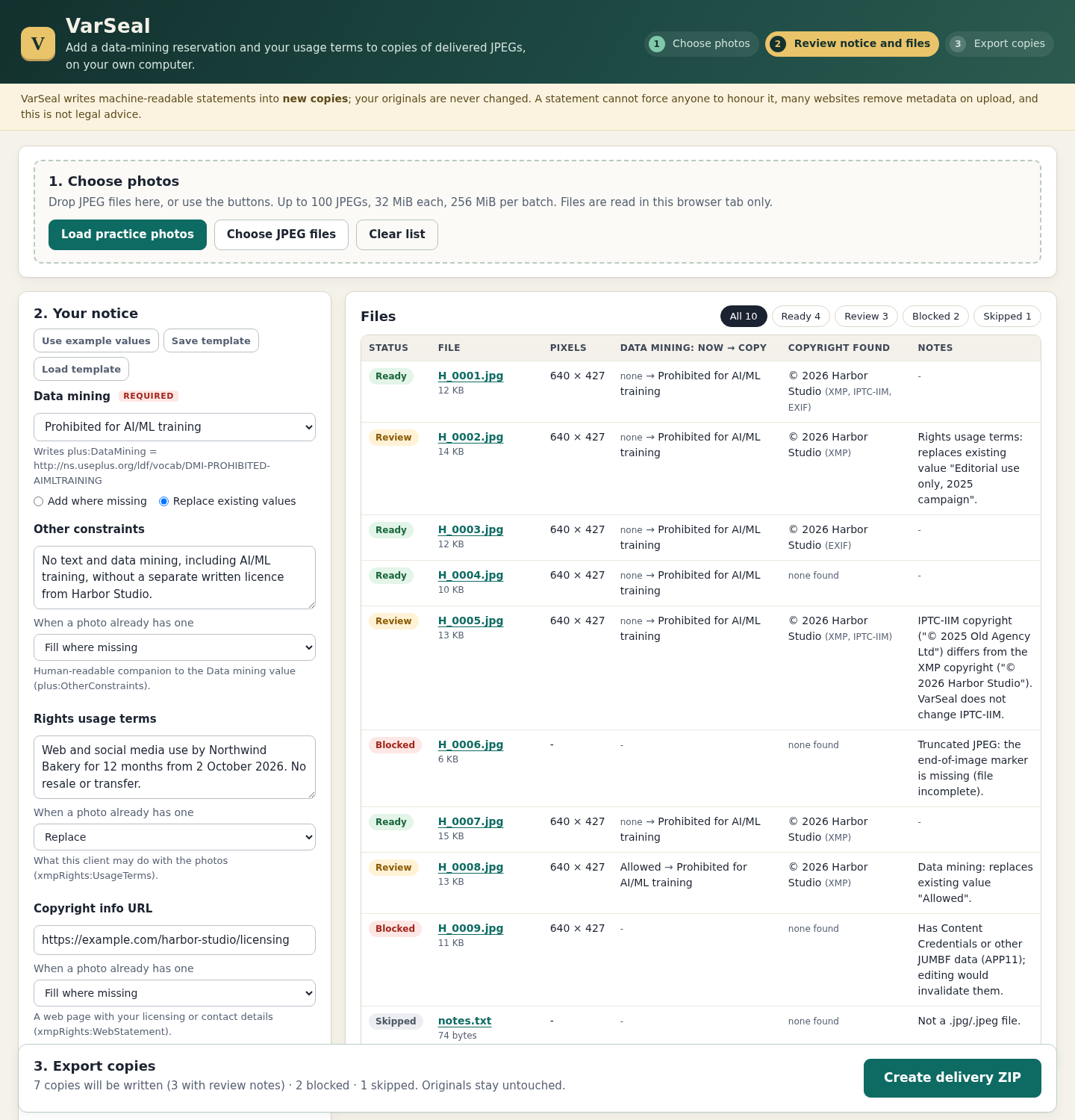
What it helps you do
For photographers preparing exported JPEG deliveries. Choose which XMP fields to keep, fill or replace and inspect conflicting existing values. The notices communicate your statements; they do not technically prevent copying or AI training.
What is in your download
- VarSeal 1.0.1 offline application and source files
- Illustrated English manual and eight actual screenshots
- Nine fictional practice JPEGs and one text file
- README, licence and changelog
A practical example
Harbor Studio: seven copies from ten fictional inputs
Start with
Nine synthetic JPEGs, including a truncated file, conflicting metadata and an APP11 fixture, plus notes.txt.
Get this result
Seven JPEG copies are written; H_0006 and H_0009 are blocked, and notes.txt is skipped. Every written copy has the selected Data Mining URI. Non-XMP segments and decoded pixels were independently verified unchanged for the practice outputs. notes.txt is listed as 74 bytes with input_read false and no input SHA-256.
Free fictional JPEGs, expected output, receipts and illustrated guide (application not included)
Examples use fictional or synthetic data. Follow this example step by step.
Review a notice and inspect the delivery
Actual VarSeal 1.0.1 screens in Chrome on Linux using fictional Harbor Studio data.
Inspect the before-and-after fields
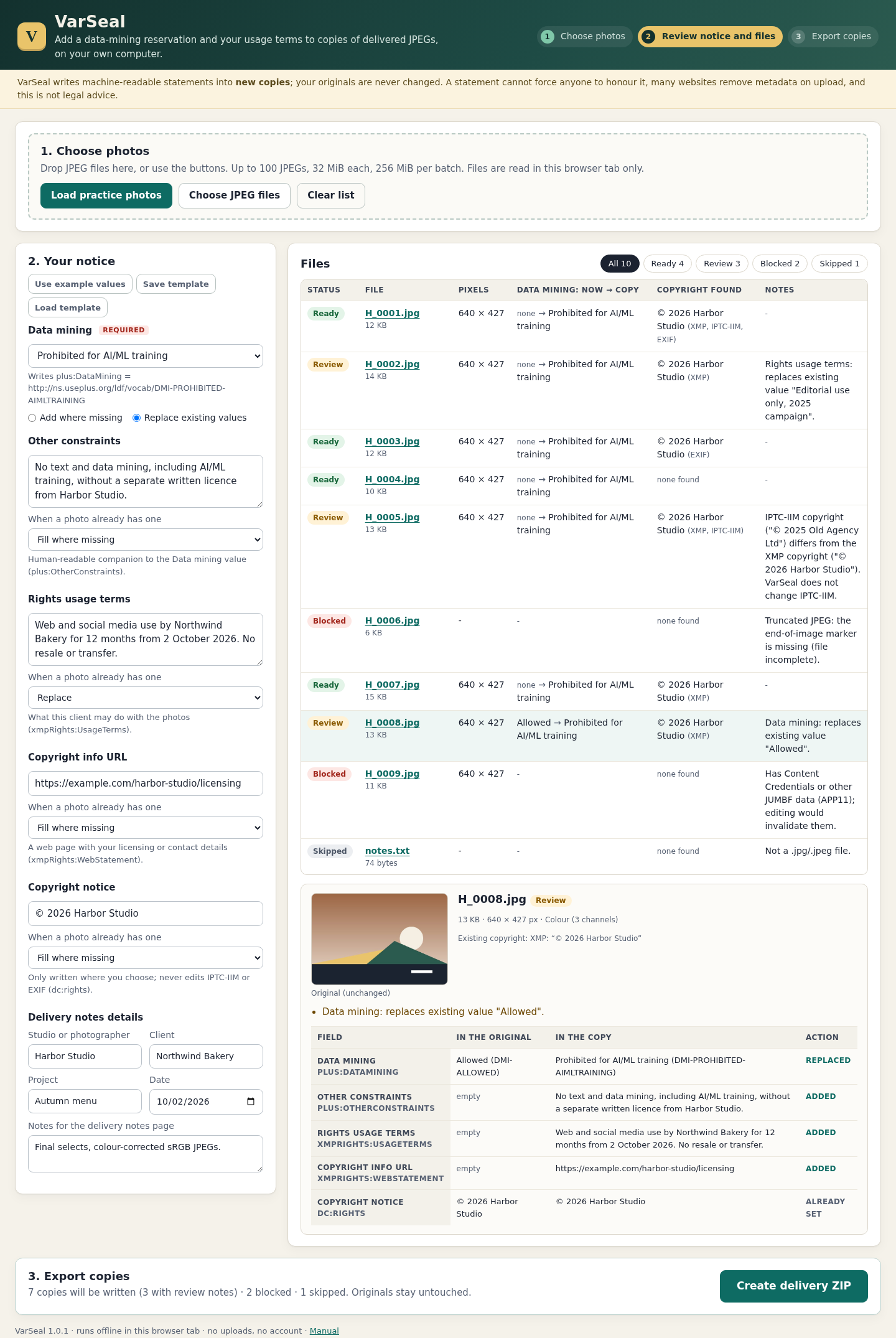
Replace is an explicit choice. Review files are exported too, so read their notes before proceeding. View full size Check the exported result
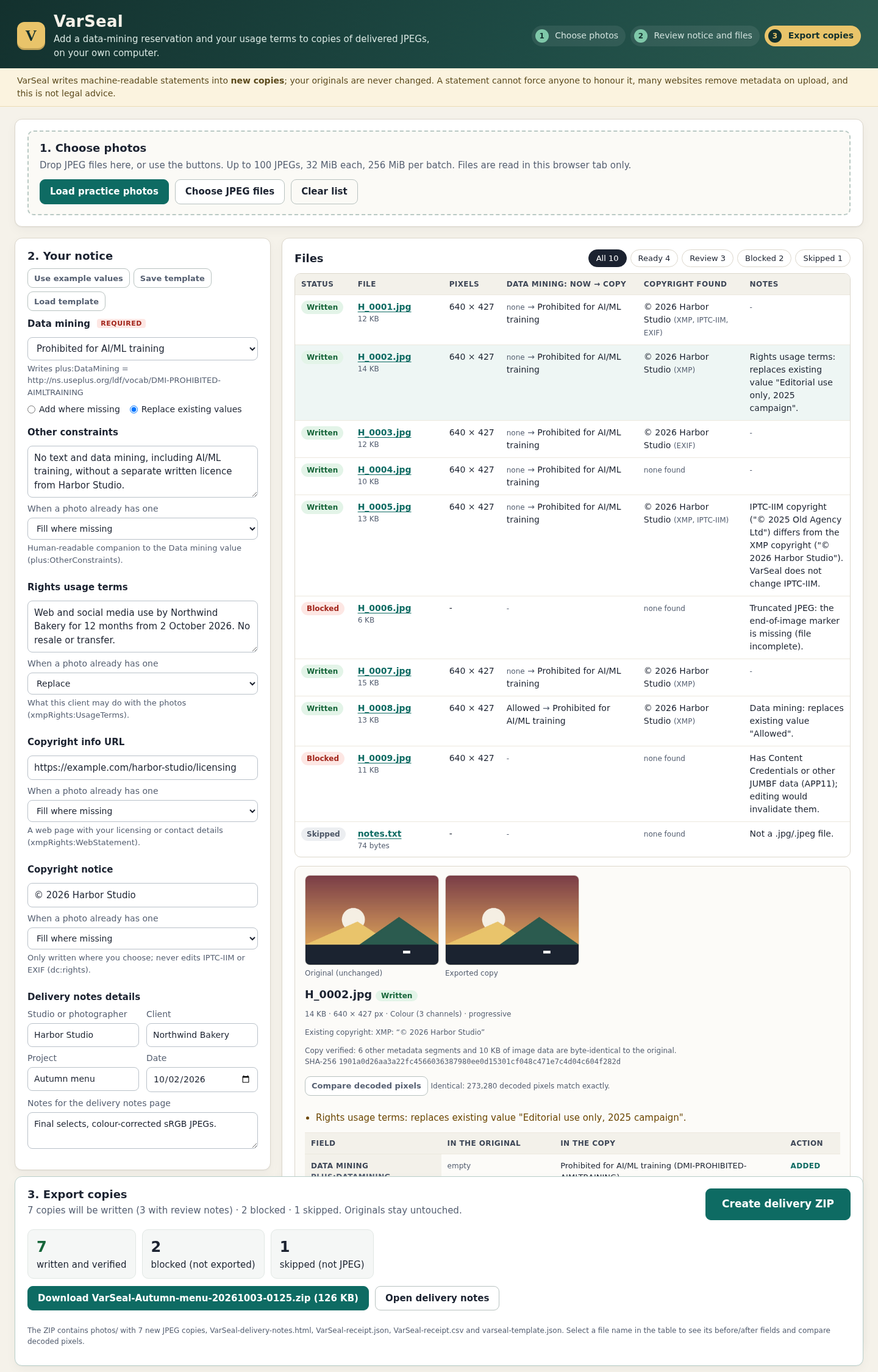
The practice export contains seven copies, a receipt and delivery notes. The screenshot shows the optional decoded-pixel comparison for H_0002. View full size Read the client summary
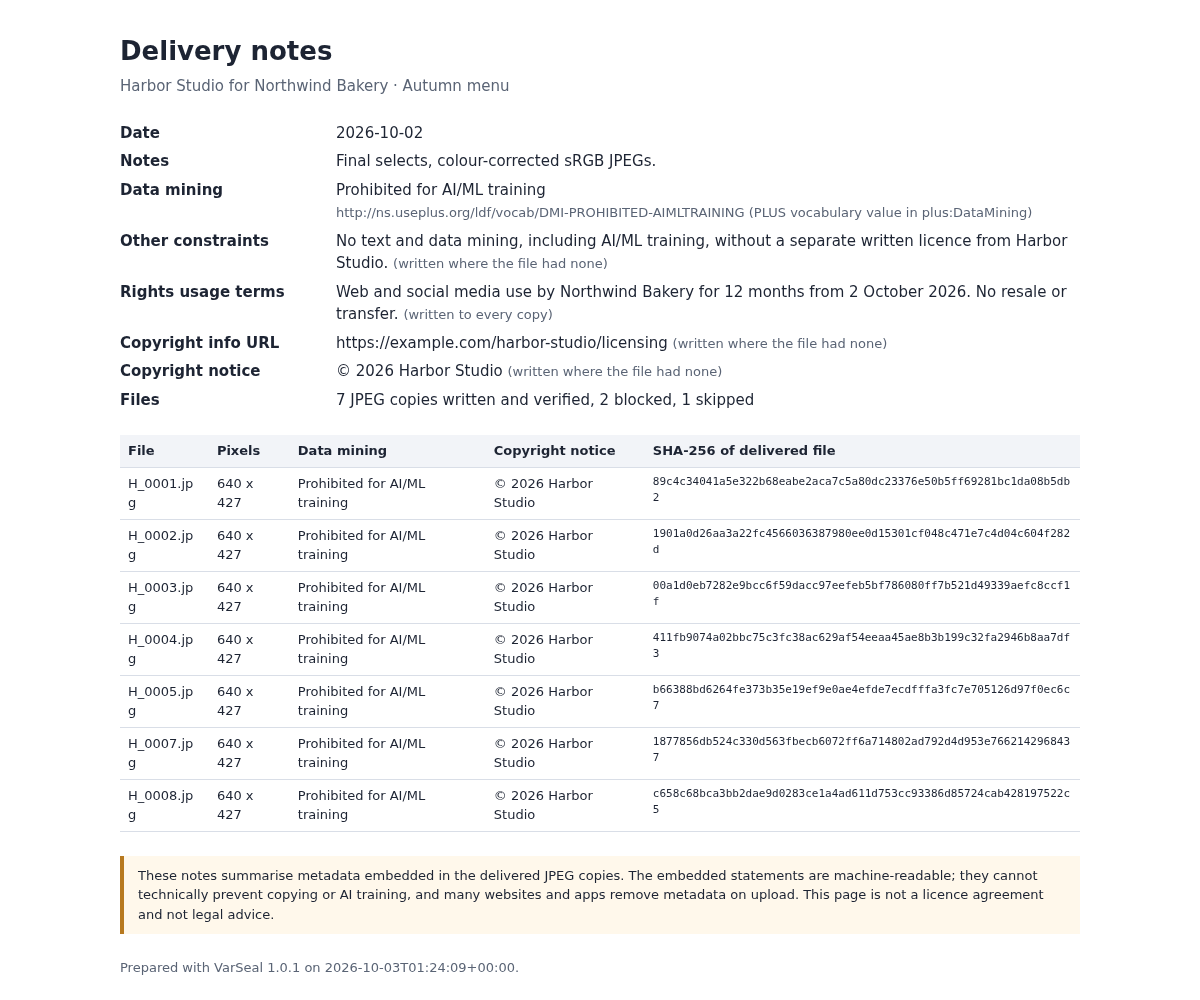
The HTML summary accompanies the new JPEG copies and your machine-readable receipts. View full size
How it works
Choose JPEGs
Load your exported files or the fictional practice set.
Review the notice
Choose each field action and inspect existing values and warnings.
Export copies
Download verified copies with notes, receipts and a reusable template.
Before you buy
- Desktop Chrome on Linux; Chrome 152 was tested. Other browsers, operating systems and mobile devices are unverified.
- Extract the whole ZIP and keep VarSeal.html beside app/. No account, connection, ExifTool or command line is required for normal use.
- Supported JPEG copies intended for delivery and your own usage, rights and contact text. Start with the included fictional exercise.
Extract the complete ZIP and open VarSeal.html in desktop Google Chrome on Linux, keeping the app folder beside it. Try the practice files first. No account, terminal, installation or network connection is needed.
Compatibility & limits
Only Chrome 152 on Linux was verified, using first-party synthetic JPEGs. Exports from Lightroom, Capture One, Photo Mechanic and darktable were not tested. JPEG only: up to 100 files, 32 MiB per file and 256 MiB per batch; the exact maximum successful batch was not independently exercised. Writes XMP only; existing IPTC-IIM and EXIF remain unchanged. Blocks damaged JPEGs, APP11 Content Credentials/JUMBF, Extended or duplicate XMP and unsupported XML structures. No RAW, TIFF, PNG, HEIC or sidecar editing. Files not opened have their size and reason recorded without a hash. No autosave or persistent session. Metadata may be stripped downstream. Notices are not a licence agreement, legal advice or an enforcement mechanism.
Get VarSeal
Perpetual use of the purchased version on your devices for personal or internal commercial work. Keep reasonable backups and modify your own copy; do not redistribute or resell original proprietary code. Third-party licenses and any existing preview permissions retain their rights.
Before payment, save the private recovery code shown by checkout. After Paddle confirms payment, use it to download your ZIP or return for it later. No subscription, future update or email delivery is promised. See the illustrated steps.
$19 USD · once
Buy download