Step-by-step guide
Bifrosta
Turn text-PDF page references into reviewed internal links. Find literal page references in a text PDF, review the destinations, and export a separate PDF with clickable internal links.
You have a manual, handbook or report saved as a text PDF, its cross-references (“see page 12”) are plain text, and you want readers to be able to click them.
Before you start
- Desktop Google Chrome or another Chromium-based browser. The tool was checked in desktop Chrome; other browsers are not verified.
- A text-based PDF (you can select its words in a PDF reader). Scanned pages without text, encrypted, damaged and digitally signed PDFs are refused.
- References written in one consistent form with ordinary digits, for example “see page 35”.
- Open app/index.html in desktop Google Chrome.
Your first result
Open the downloaded local edition
Buy and extract the Bifrosta ZIP, then open its Bifrosta folder. Open app/index.html in desktop Google Chrome. The same workflow can be explored in the online browser preview.
Open Bifrosta
In your open local copy, follow the controls described below. The five steps across the top are Document, Pattern, Calibration, Review and Export.
Choose your PDF
Under “1. Open a text PDF”, click Choose a PDF… or drop the file on the page. Bifrosta shows the page count and “text layer found”. The file is read in your browser and is never modified.
Describe the reference
Under “2. Describe the reference”, type the words before the number in Text before the number (the default is “see page ”) and anything after it in Text after the number (optional). Ready-made examples such as see page 35, see p. 35 and (p. 35) fill the fields for you. Click Find candidates.
Match printed numbers to PDF pages
Under “3. Calibrate printed numbers”, Bifrosta suggests an offset between the printed page numbers and the pages of the file. If the suggestion is right, click Apply. Otherwise, under SET IT FROM ONE KNOWN PAGE, enter a printed number and the PDF page (sheet) it is on, then click the Use offset button. Books with a cover or front matter usually need an offset; confirm it on the page preview. Then click Review N candidates.
Review every reference
Under “4. Review every candidate”, each reference shows where it was found and the page it will open. Click Approve or Reject for each one, or Approve N unambiguous to approve all references with a valid target. References that point outside the document are blocked. Click Continue to export (N links ready).
Save the linked copy
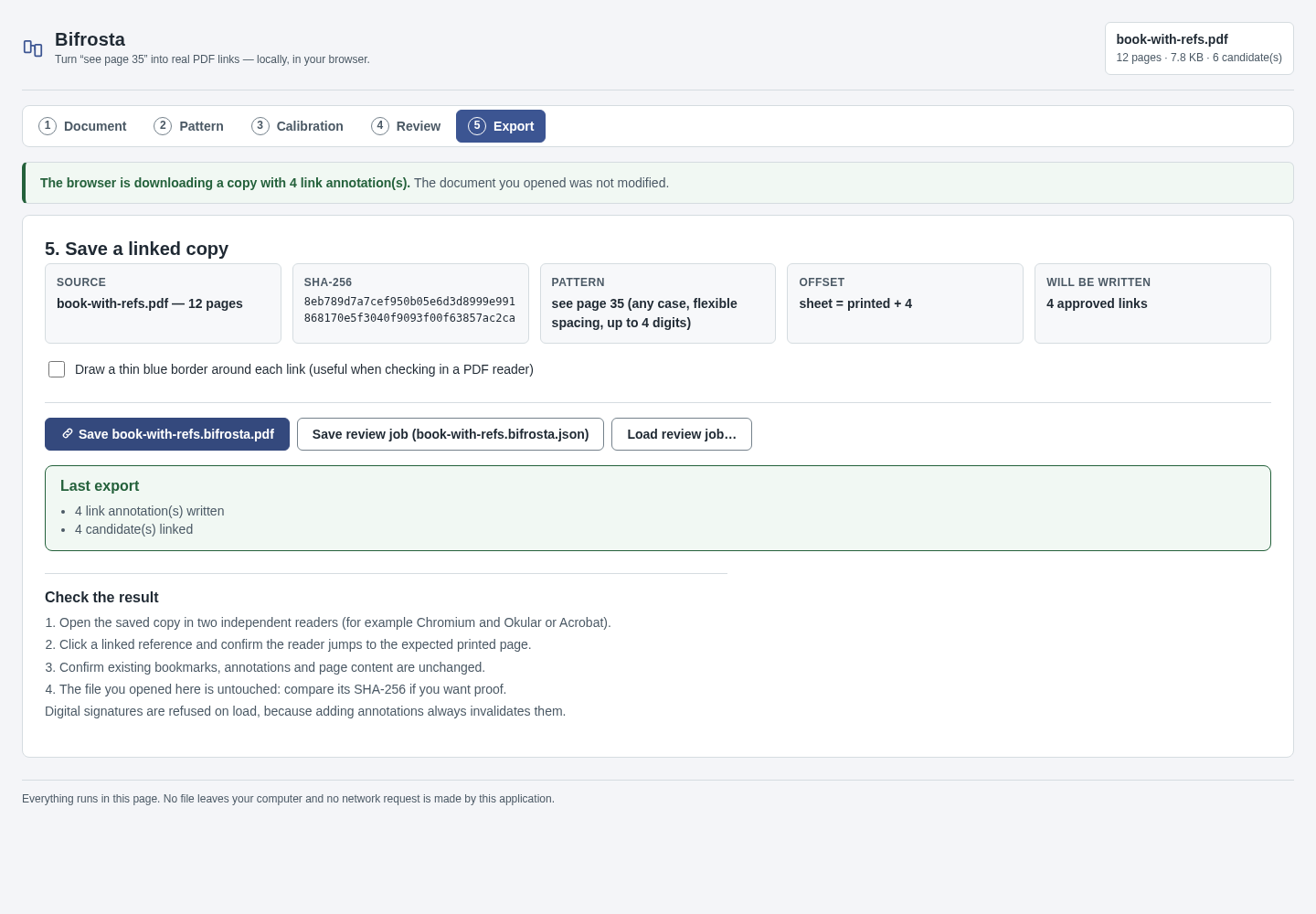
Under “5. Save a linked copy”, optionally tick Draw a thin blue border around each link, then click Save <name>.bifrosta.pdf. Your browser downloads a new PDF. Click Save review job (<name>.bifrosta.json) if you want to resume or re-check the review later.
Check the result
Open the saved copy in your PDF reader and click a few links to confirm each one opens the expected page.
A worked example
Link the cross-references in a six-page herb booklet
Input: examples/bifrosta/balcony-herb-handbook.pdf: a fictional 6-page text PDF, numbered 1–6 in the footer, with seven “see page N” references. One of them points to page 9, which does not exist.
- Open your local Bifrosta page, click Choose a PDF… and select balcony-herb-handbook.pdf.
- Keep the default reference text “see page ” and click Find candidates.
- The calibration step suggests offset 0 (6 of 6 page numbers agree). Click Apply, then Review 7 candidates.
- Click Approve 6 unambiguous, then Continue to export (6 links ready).
- Click Save balcony-herb-handbook.bifrosta.pdf, and optionally Save review job (balcony-herb-handbook.bifrosta.json).
Expected result: Bifrosta reports “7 candidate reference(s) found”, with 1 blocked: “see page 9” is out of range. Your browser downloads balcony-herb-handbook.bifrosta.pdf, which has the same 6 pages and 6 clickable links. For example, “see page 4” on page 1 opens page 4. The status line shows “6 link annotation(s) written”.
Troubleshooting
The PDF is refused.
Bifrosta only accepts text PDFs. Scanned pages without a text layer and encrypted, damaged or digitally signed files are refused, and the reason is shown. Export the document again as a text PDF from the program that created it.
No candidates are found.
Copy the exact wording from the document preview in the Pattern step into Text before the number. Keep Ignore letter case and Tolerate different spacing and line breaks ticked.
Links open the wrong page.
The offset is wrong. Go back to Calibration, enter a printed number and the PDF page it appears on under SET IT FROM ONE KNOWN PAGE, then review again.
I closed the tab and lost my decisions.
Bifrosta stores nothing in the browser. Save a review job before closing, then use Load review job… in the Pattern step with the same PDF to resume.
The page mentions sample documents in a fixtures/ folder.
That folder belongs to the offline package and is not on the website. Use the example PDF from this guide instead.
Compatibility & limits
- Text PDFs only; there is no OCR.
- Ordinary (Arabic) page numbers only; Roman numerals and complex page labels are not supported.
- One reference form per run, such as “see page”; run again for another form.
- Digitally signed PDFs are refused, because adding links would invalidate the signature.
- Nothing is kept in the browser: closing the tab discards the review unless you saved a review job.
- The paid download packages the same core workflow as the browser preview, with a local copy, guide and examples. It does not unlock a separate Pro feature set.
Need a hand?
Tell us the product, host application and version, what you tried, and the exact error. Contact support with a fictional example; keep private customer files and passwords out of your message.