Offline edition
Bifrosta
Turn text-PDF page references into reviewed internal links.
You have a manual, handbook or report saved as a text PDF, its cross-references (“see page 12”) are plain text, and you want readers to be able to click them.
$19 USD · one-time purchase
Continue to checkoutStep-by-step guide
No subscription. Final total and tax appear at checkout.
What it helps you do
Find literal page references in a text PDF, review the destinations, and export a separate PDF with clickable internal links.
What is in your download
- The described tool, packaged for local use.
- Installation and first-result instructions.
- A worked example and the included license notices.
A practical example
Link the cross-references in a six-page herb booklet
Start with
examples/bifrosta/balcony-herb-handbook.pdf: a fictional 6-page text PDF, numbered 1–6 in the footer, with seven “see page N” references. One of them points to page 9, which does not exist.
Get this result
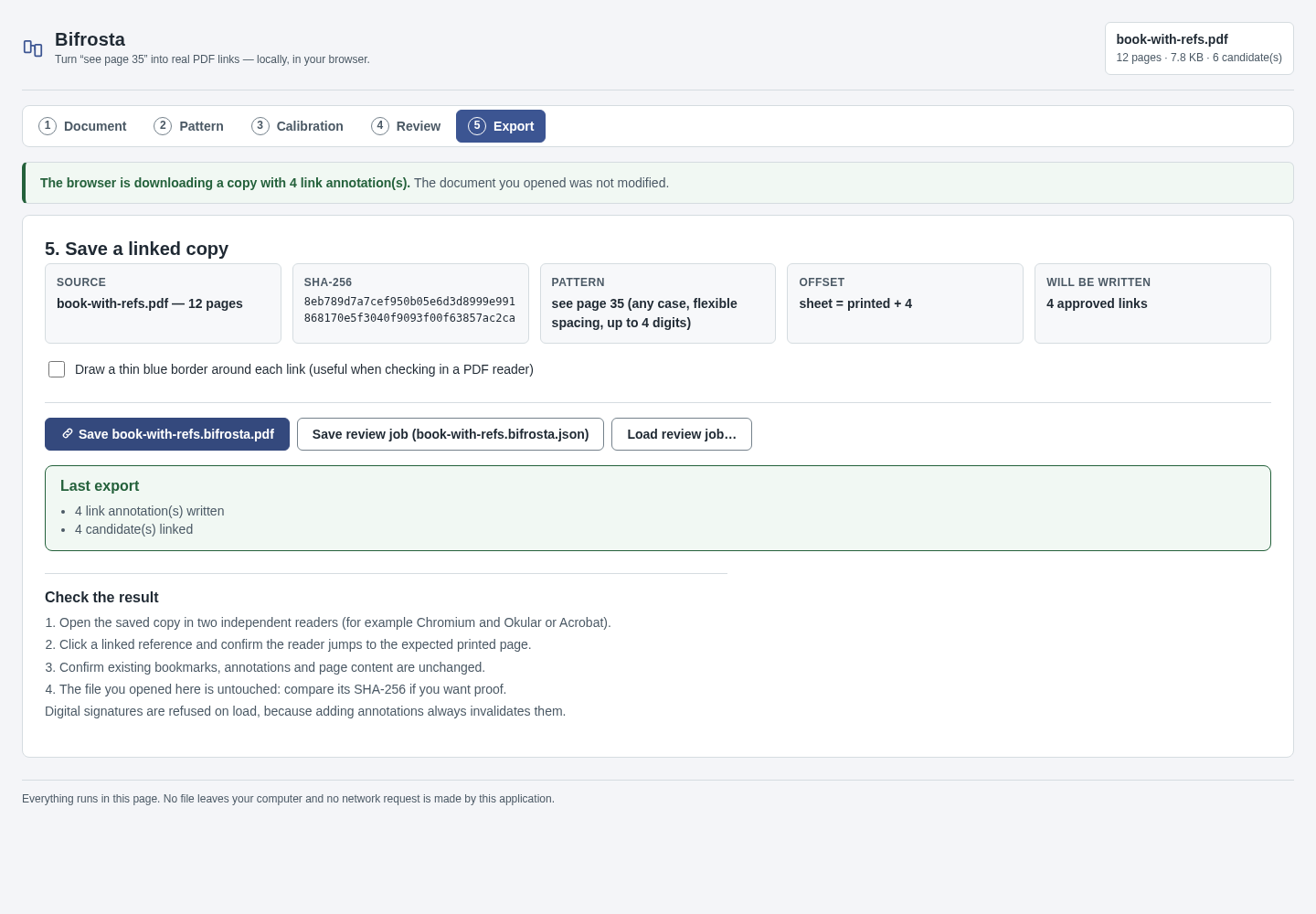
Bifrosta reports “7 candidate reference(s) found”, with 1 blocked: “see page 9” is out of range. Your browser downloads balcony-herb-handbook.bifrosta.pdf, which has the same 6 pages and 6 clickable links. For example, “see page 4” on page 1 opens page 4. The status line shows “6 link annotation(s) written”.
Download guide & practice files (ZIP)
Examples use fictional or synthetic data. Follow this example step by step.
How it works
Open the downloaded local edition
Buy and extract the Bifrosta ZIP, then open its Bifrosta folder. Open app/index.html in desktop Google Chrome. The same workflow can be explored in the online browser preview.
Open Bifrosta
In your open local copy, follow the controls described below. The five steps across the top are Document, Pattern, Calibration, Review and Export.
Choose your PDF
Under “1. Open a text PDF”, click Choose a PDF… or drop the file on the page. Bifrosta shows the page count and “text layer found”. The file is read in your browser and is never modified.
Before you buy
- Desktop Google Chrome or another Chromium-based browser. The tool was checked in desktop Chrome; other browsers are not verified.
- A text-based PDF (you can select its words in a PDF reader). Scanned pages without text, encrypted, damaged and digitally signed PDFs are refused.
- References written in one consistent form with ordinary digits, for example “see page 35”.
- Open app/index.html in desktop Google Chrome.
Compatibility & limits
Text PDFs only; no OCR, encrypted or signed PDFs. One literal reference form per run. Review destinations before export.
Try it first
Try the same core workflow in the browser. The purchase gives you a downloadable local copy with installation instructions and examples; no paid-only features are claimed.
Open the previewGet Bifrosta
Perpetual use of the purchased version on your devices for personal or internal commercial work. Keep reasonable backups and modify your own copy; do not redistribute or resell original proprietary code. Third-party licenses and any existing preview permissions retain their rights.
Before payment, save the private recovery code shown by checkout. After Paddle confirms payment, use it to download your ZIP or return for it later. No subscription, future update or email delivery is promised. See the illustrated steps.
$19 USD · once
Buy download