Step-by-step guide
HeimScope
Inventory up to 50 pages of one authorised site. Give the extension a short list of pages on one authorised site, review the inventory, and export it as CSV, HTML or JSON.
You are planning a website redesign or clean-up with a client and need an agreed, numbered list of the site's pages, with a screenshot and a decision for each page.
Before you start
- Desktop Google Chrome 116 or newer, with Developer mode switched on in chrome://extensions for a manual install.
- A website you are authorised to inspect, and the list of its page addresses (up to 50). HeimScope does not crawl or discover pages.
- Willingness to grant two permissions during a pass: access to that one site, and Chrome's screenshot permission (<all_urls>), which you can revoke afterwards.
- The purchased heimscope-0.1.1-guide-bundle.zip download. It contains program/heimscope-preview-20260929.zip; the program itself is unchanged from the earlier release.
Your first result
Download and extract your bundle
Buy the HeimScope bundle at /store/heimscope/ and extract heimscope-0.1.1-guide-bundle.zip. Then extract program/heimscope-preview-20260929.zip into a separate folder. The app/, extension/, samples/ and docs/ paths below refer to that extracted program folder. GUIDE.html and examples/ in the outer bundle contain this manual and its practice material. In chrome://extensions enable Developer mode, choose Load unpacked, select the program’s extension folder, and pin its toolbar icon.
1. Проект (Project): list the pages
In Разрешенный сайт (origin) (Authorised site) type the site's scheme and domain, for example https://example.com. In Адреса страниц, по одному в строке (Page addresses, one per line) paste up to 50 addresses; paths such as /contact count as pages of that site, lines starting with # are ignored. Click Проверить список (Check list): you see how many addresses were accepted and a table of excluded lines, such as duplicates (дубликат адреса) or other sites (адрес вне разрешенного сайта).
Create the inventory
Click Создать ведомость (Create inventory). HeimScope gives it a number like HS-20260930-1A6C82F4, version 1, state черновик (draft).
2. Проход (Pass): grant access and run
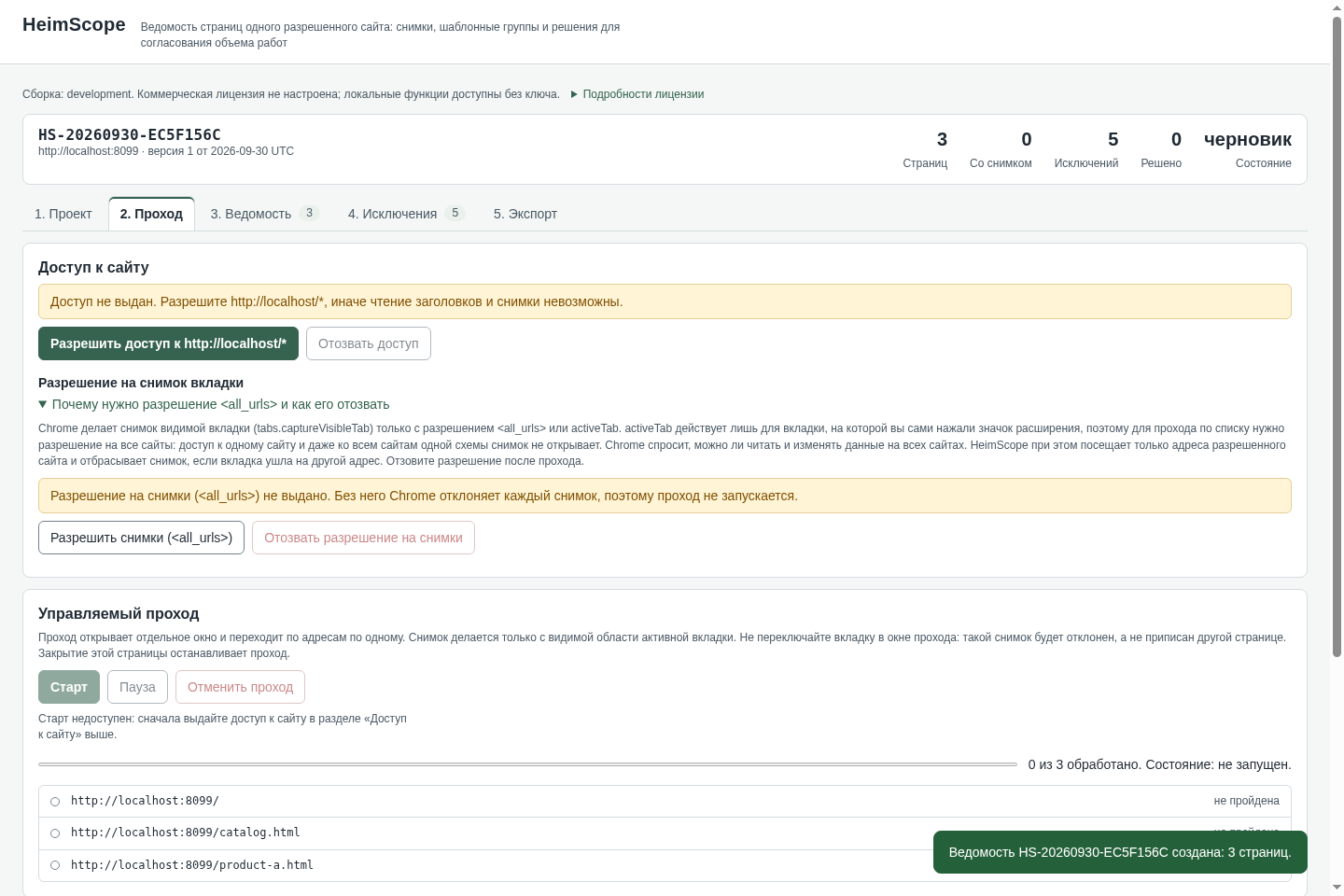
Under Доступ к сайту (Site access) click Разрешить доступ к … (Allow access to the site). Chrome asks: “HeimScope” has requested additional permissions, Read and change your data on <site>; click Allow (Deny is highlighted by default). Then click Разрешить снимки (<all_urls>) (Allow screenshots); Chrome asks again, Read and change all your data on all websites; click Allow. HeimScope still visits only your listed addresses. Click Старт (Start): a separate window visits the addresses one by one and captures the visible area, and the tab shows progress such as 3 из 4 обработано (3 of 4 processed) until Состояние: завершен (finished). Keep the pass window in front and do not switch its tab. Пауза (Pause) and Отменить проход (Cancel pass) are next to Старт. Afterwards revoke the permissions with Отозвать доступ and Отозвать разрешение на снимки.
3. Ведомость (Inventory sheet): decide
Give each page a template group and a decision: сохранить (keep), переделать (rework) or убрать (remove), one by one or for a selection, and add a note. HeimScope never groups pages by itself; a person decides.
4. Исключения (Exceptions): check gaps
Every line that produced no screenshot is listed with its reason. Use В очередь (Back to queue) to capture a page again.
5. Экспорт (Export): save files
Click CSV для сметы (CSV for estimating), HTML для клиента (HTML for the client) or Файл проекта (JSON) (Project file). Files are saved to your Downloads folder as HeimScope-<inventory number>-v<version>.csv, .html or .json. Exporting CSV or HTML seals that version; the next edit creates version 2. The HTML is one standalone file with the screenshots embedded and a sign-off block; opening it is not an approval.
Where your data is
Projects and screenshots are stored only in this Chrome profile and reopen after a browser restart. Nothing is uploaded. To move a project to another computer, export Файл проекта (JSON) and load it there with Импорт проекта (Import project). Removing the extension deletes its stored projects, so export first.
A worked example
Inventory a four-page practice site
Input: examples/heimscope/site/ (four fictional pages of the Lindgren Tool Library) and examples/heimscope/urls.txt (six address lines, including one duplicate and one address on another site).
- Serve the practice site: python3 -m http.server 8099 --bind 127.0.0.1 --directory examples/heimscope/site (on Windows use py instead of python3).
- In HeimScope's 1. Проект tab type http://127.0.0.1:8099 as the site, paste the contents of urls.txt, click Проверить список, then Создать ведомость.
- In 2. Проход click Разрешить доступ к http://127.0.0.1/* and Разрешить снимки (<all_urls>), clicking Allow in both Chrome prompts, then click Старт and wait for Состояние: завершен.
- In 5. Экспорт click HTML для клиента and CSV для сметы.
Expected result: Проверить список reports Готово к проходу: 4 адресов, исключений 2 (ready: 4 addresses, 2 exceptions): line 6 /borrow.html is a duplicate of line 3 and line 7 https://example.com/elsewhere is outside the site. Создать ведомость creates inventory HS-<date>-<code>, version 1. The pass ends with 4 из 4 обработано and the counters show 4 Страниц (pages), 4 Со снимком (with screenshot) and 2 Исключений (exceptions). HTML для клиента saves HeimScope-HS-<date>-<code>-v1.html, one standalone file with the 4 screenshots embedded. CSV для сметы saves HeimScope-HS-<date>-<code>-v1.csv with one row per source line: 4 captured pages with their titles and headings (for example How to borrow) and 2 excluded lines (duplicate and off_origin). The inventory is still there after closing and reopening Chrome.
Troubleshooting
Старт (Start) is not available.
The message Старт недоступен means a permission is missing. Grant site access under Доступ к сайту and the screenshot permission Разрешить снимки (<all_urls>) first.
An address was excluded as outside the site.
www.example.com, example.com and a different port are different sites. Use exactly one origin, and list only its pages.
A page has no screenshot.
The capture is discarded if the tab was switched or the page left the site, so it is never filed under the wrong page. Check the reason in 4. Исключения, click В очередь and run the pass again with the pass window in front.
Compatibility & limits
- Up to 50 pages of one site you list yourself; visible-area screenshots only; no crawling, no automatic grouping, not a security scanner.
- Russian interface only in this version.
- Manual unpacked install in desktop Chrome, not a Chrome Web Store release, no automatic updates. Checked on Linux with synthetic pages; very large runs and cancellation are not fully checked yet.
- The original program keeps its included preview permissions: you may use it, including for real work, but not sell or redistribute it (see PREVIEW-PERMISSION.md). The line “Коммерческая лицензия не настроена” means no commercial licence is configured; the included local features work without an activation key. The purchase is for this download and guide bundle.
- Manual URL list only; no automatic crawl or full-page stitching. Four-page capture, HTML with four embedded images, CSV export and restart persistence passed in Chromium 151 on Linux. Chrome 152 UI and CSV export were also checked. Full 50-page, Windows, macOS and agency cases remain unverified.
Need a hand?
Tell us the product, host application and version, what you tried, and the exact error. Contact support with a fictional example; keep private customer files and passwords out of your message.