Step-by-step guide
HlinLink
Inventory and remap supported external Office links into new copies. Scan supported Excel and PowerPoint files, preview an explicit old-to-new link mapping, and apply it to new output copies with an audit trail.
Workbooks or presentations still link to old paths such as S:\Projects\… or \\server\share\…, and you need copies whose links point to the new drive, share or web address, with an audit of every change.
Before you start
- Python 3.10 or newer on Windows, macOS or Linux, and a terminal.
- Copies of the files to fix, in .xlsx, .xlsm or .pptx format. Word .docx files must not be used with apply in this preview; older .xls, .doc, .ppt and .xlsb files are skipped.
- A mapping CSV with the columns old_prefix,new_prefix,case_sensitive.
- The purchased hlinlink-0.1.1-guide-bundle.zip download. It contains program/hlinlink-preview-20260929.zip; the program itself is unchanged from the earlier release.
Your first result
Download and extract your bundle
Buy the HlinLink bundle at /store/hlinlink/ and extract hlinlink-0.1.1-guide-bundle.zip. Then extract program/hlinlink-preview-20260929.zip into a separate folder. The app/, extension/, samples/ and docs/ paths below refer to that extracted program folder. GUIDE.html and examples/ in the outer bundle contain this manual and its practice material.
Install in a virtual environment
In a terminal in the unzipped folder run python3 -m venv .venv and activate it (macOS/Linux: source .venv/bin/activate; Windows: py -m venv .venv then .venv\Scripts\activate). Then run python -m pip install app/hlinlink-0.1.0-py3-none-any.whl and check with hlinlink --help.
1. Scan
Put copies of your files in a folder, for example input, and run hlinlink scan input --report scan-report. It prints how many Office files and links it found and the path of scan-report/audit.html. Open audit.html (or audit.csv) to see every external link.
Write the mapping
Create mapping.csv with the header old_prefix,new_prefix,case_sensitive and one line per old location. Old prefixes are absolute drive, UNC or file: paths; new prefixes may also be https addresses. Put a UNC path in double quotes, for example "\\fs01\Finance",https://example.invalid/sites/Finance,false.
2. Preview
Run hlinlink preview input --mapping mapping.csv --plan plan.json --report preview-report. Nothing is changed yet. Open preview-report/audit.html and check every proposed new target.
3. Apply into new copies
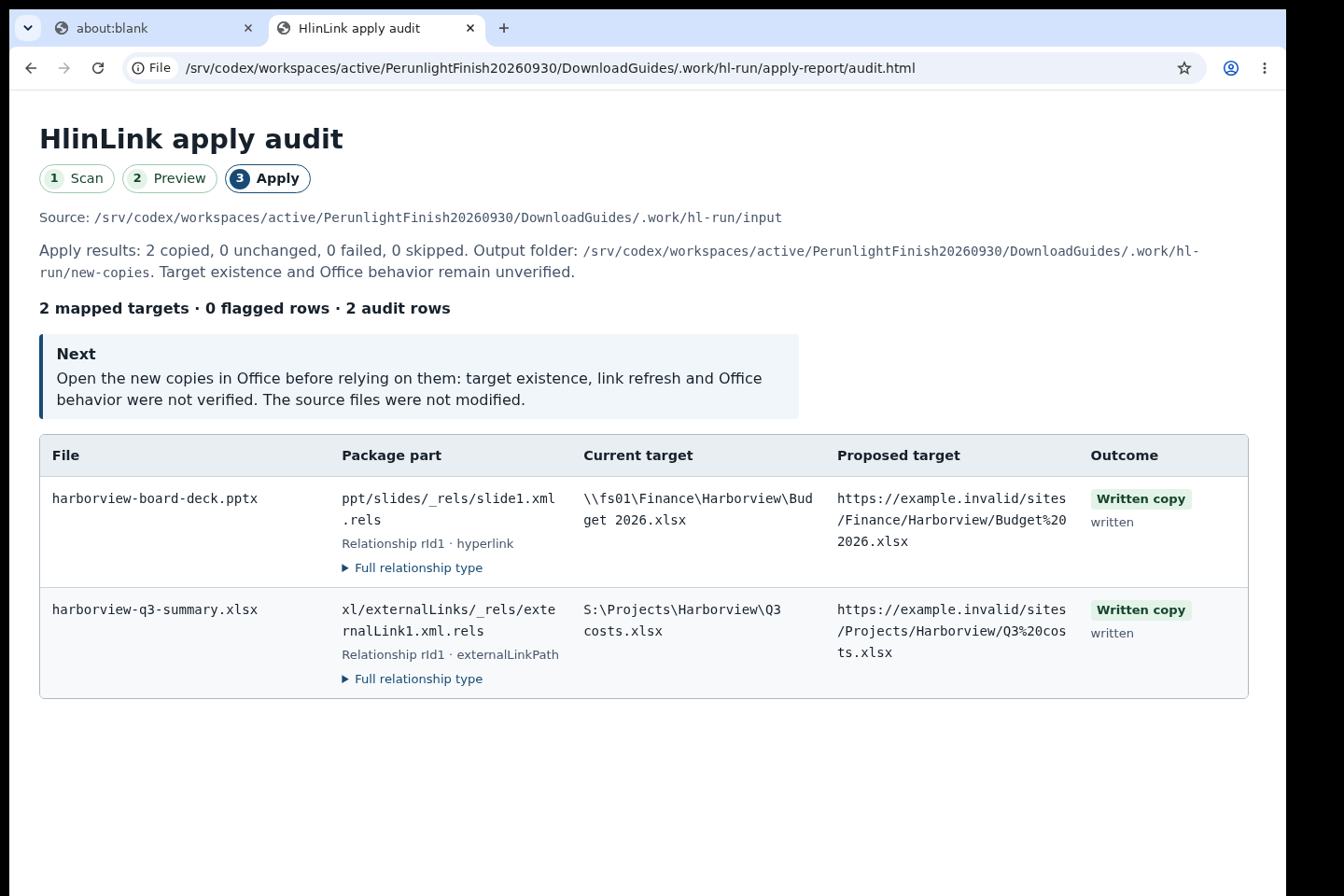
Run hlinlink apply --plan plan.json --output new-copies --report apply-report. The fixed copies appear in new-copies; the originals in input stay byte-for-byte the same. apply-report/audit.html lists each link with old and new target and the file result.
Check in Office
Open the new copies in Excel or PowerPoint and confirm the links work before replacing anything. HlinLink never opens links and does not check that a target exists or that you have access.
Files it writes
Each step writes audit.html, audit.csv and audit.json into its report folder, and preview writes plan.json. HlinLink refuses to overwrite an existing plan, report or output file, so use new names for every run. It works offline. To remove it, delete the .venv folder (or run python -m pip uninstall hlinlink).
A worked example
Move a bakery's links to SharePoint-style addresses
Input: examples/hlinlink/input/ with two small synthetic files for the fictional Harborview bakery: harborview-q3-summary.xlsx (an external workbook link to S:\Projects\Harborview\Q3 costs.xlsx) and harborview-board-deck.pptx (a hyperlink to \\fs01\Finance\Harborview\Budget 2026.xlsx), plus examples/hlinlink/mapping.csv. The two files are minimal packages for trying the commands; they are not meant to be opened in Office.
- Copy the example's input folder and mapping.csv into an empty working folder and open a terminal there with HlinLink installed.
- hlinlink scan input --report scan-report
- hlinlink preview input --mapping mapping.csv --plan plan.json --report preview-report
- hlinlink apply --plan plan.json --output new-copies --report apply-report
Expected result: Scan prints: Scan: 2 Office files inventoried, 2 links, 0 unsupported inputs skipped. Preview prints: 2 links, 2 mapped. Apply prints: Apply: 2 copied, 0 failed/skipped, 0 unsupported inputs, and Source files were not modified. In new-copies the workbook link now points to https://example.invalid/sites/Projects/Harborview/Q3%20costs.xlsx and the slide link to https://example.invalid/sites/Finance/Harborview/Budget%202026.xlsx; apply-report/audit.csv shows both rows as mapped, supported, written. Every command exits with code 0.
Troubleshooting
hlinlink: command not found.
Activate the virtual environment in this terminal (source .venv/bin/activate, or .venv\Scripts\activate on Windows) and run the command again.
An error says a plan, report or output already exists.
HlinLink never overwrites. Choose a new --plan file name and new --report and --output folder names.
A link is not mapped in the preview.
The old prefix must match the start of the link at a folder boundary, for example S:\Projects matches S:\Projects\Harborview\… but not S:\ProjectsOld. Check spelling and backslashes, and quote UNC paths in the CSV.
Apply exits with code 2.
Some input was skipped or failed, for example an old .xls file, a signed or encrypted file, or a Word file. The rows are marked amber in apply-report/audit.html with the reason.
Compatibility & limits
- Rewrites only external workbook links in .xlsx and .xlsm files and hyperlinks in .pptx files. Formulas, Power Query, data connections, OLE/DDE and macros are left unchanged; Word files are not supported for apply in this preview.
- It does not open links, sign in to SharePoint or check that targets exist. Always open the new copies in Office before relying on them.
- Checked with synthetic files on Linux, with earlier Excel and PowerPoint save-and-reopen checks on Windows; real migrations are not verified.
- The original program keeps its included preview permissions: you may use it, including for real work, but not sell or redistribute it (see PREVIEW-PERMISSION.md).
- Supported link relationships in .xlsx, .xlsm, .pptx. .docx rewrite unsupported; targets are not checked or opened. Real migrations and every Office encoding unverified.
Need a hand?
Tell us the product, host application and version, what you tried, and the exact error. Contact support with a fictional example; keep private customer files and passwords out of your message.