Step-by-step guide
IdunSeed
Keep a seed inventory and sowing dates relative to your chosen frost date. Record your seed stock, set the frost date for your location, and review the sowing calendar calculated from your own inputs.
You keep seed packets and want one place that turns “start 8 weeks before last frost” style intervals into real dates, shows which packets are running low, and prints this week's sowing tasks.
Before you start
- A Google account and Google Sheets in a web browser. The .xlsx file is only the way the template travels; Excel and LibreOffice are not supported targets.
- Your own last frost date and the intervals from your seed packets. IdunSeed contains no weather data and gives no gardening advice.
- The purchased idunseed-0.1.1-guide-bundle.zip download. It contains program/idunseed-preview-20260929.zip; the program itself is unchanged from the earlier release.
Your first result
Download and extract your bundle
Buy the IdunSeed bundle at /store/idunseed/ and extract idunseed-0.1.1-guide-bundle.zip. Then extract program/idunseed-preview-20260929.zip into a separate folder. The app/, extension/, samples/ and docs/ paths below refer to that extracted program folder. GUIDE.html and examples/ in the outer bundle contain this manual and its practice material.
Put it into Google Sheets
Open drive.google.com and upload app/IdunSeed.xlsx. Right-click it, choose Open with › Google Sheets, then File › Save as Google Sheets so you work in a native Google Sheets file. Keep the original .xlsx as a clean copy. Sheet labels are in English with Russian underneath.
Set your last frost date
On the Settings sheet type the year, month and day as three whole numbers in B3, B4 and B5. B6 shows the computed date; B8 shows a message if the date is impossible. The template ships with the sample date 2028-04-15, which is valid, so nothing warns you until you change it.
Fill the Seeds sheet
Pale green cells are yours; pale grey cells are calculated. For each seed type the name, then for Indoor sowing, Transplant and Outdoor sowing either days relative to frost (negative = before, positive = after) or an OVERRIDE date written as YYYY-MM-DD, which always wins. Add Packets on hand and Packets used. Rows 3 to 7 are DEMO samples; new rows start at row 8 and are already set to MY DATA.
Read the Calendar sheet
Each stage shows from and to dates and a check code: OK (both ends known), PART (only one end), or an E- code such as E-DATE, E-OFFS, E-FROST, E-REV or E-PKT that points to a typing problem. Packet status shows OK, LOW (balance at or below the threshold in Settings B18, default 1) or OUT (none left).
Print one week
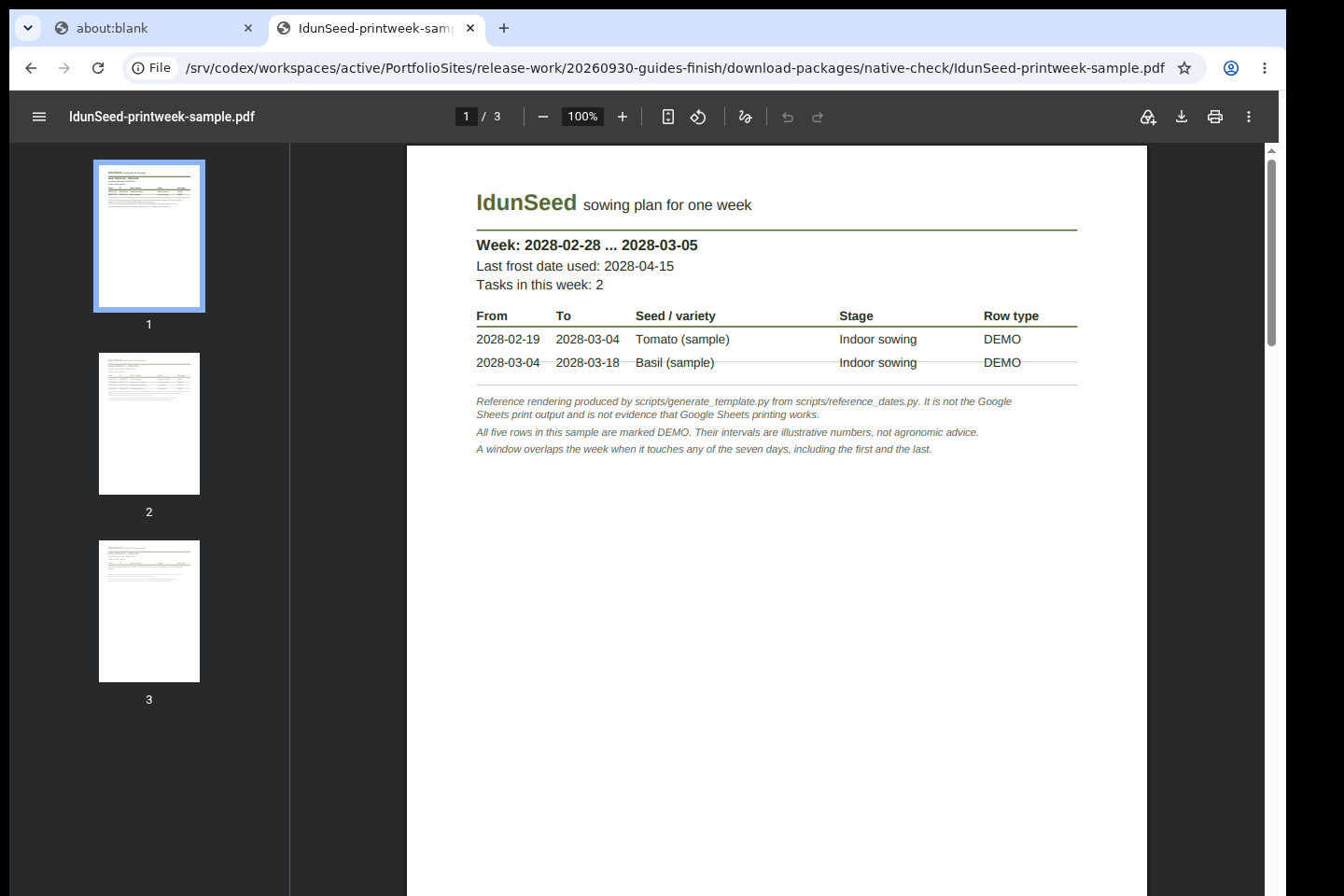
Type the print week start on Settings (B10 year, B11 month, B12 day). The PrintWeek sheet lists every task that touches those seven days, with a Done box. Use File › Print, choose the current sheet and Scale: Fit to width, and check the preview.
Saving and your data
Google Sheets saves your copy automatically in your Google Drive; nothing is sent to the publisher. Sort only the data range A3:R102 of Seeds, and clear cells instead of inserting or deleting rows, because the sheets line up by row. Share a read-only copy and ask others to use File › Make a copy.
A worked example
Plan three fictional seeds
Input: examples/idunseed/settings.csv (a fictional last frost date 2027-04-25 and print week starting 2027-02-14), examples/idunseed/seed-rows.csv (three fictional seeds for Seeds rows 8 to 10) and examples/idunseed/expected-calendar.csv (the dates you should see).
- On Settings type 2027, 4 and 25 into B3, B4 and B5, and 2027, 2 and 14 into B10, B11 and B12.
- On Seeds type the three rows from seed-rows.csv into rows 8, 9 and 10, leaving empty cells empty.
- Open the Calendar sheet and compare rows 8 to 10 with expected-calendar.csv.
- Open the PrintWeek sheet.
Expected result: Settings B6 shows 2027-04-25. Calendar row 8, Pepper Test Sun: Indoor 2027-02-14 to 2027-02-28 and Transplant 2027-05-09 to 2027-05-16, both OK, packet status OK. Row 9, Pea Early Example: Outdoor 2027-03-28 to 2027-04-11, OK. Row 10, Zinnia Demo Mix: Indoor 2027-03-14 to 2027-03-28 and Outdoor 2027-04-25 to 2027-05-09, packet balance 1, status LOW. PrintWeek for 2027-02-14 to 2027-02-20 lists one task: Pepper Test Sun, stage Indoor sowing / Посев дома, from 2027-02-14 to 2027-02-28. The five DEMO sample rows stay in the sheet but have no task in that week.
Troubleshooting
Calendar shows E-FROST.
An interval was given but the last frost date is not valid. Check Settings B3 to B5; B8 names the problem, for example a day that does not exist in that month.
Calendar shows E-DATE or E-OFFS.
An OVERRIDE date is not a real YYYY-MM-DD date, or an interval is not a whole number between -3650 and 3650. Correct the cell on Seeds.
Dates look wrong after sorting or deleting.
Sort only A3:R102 on Seeds and never insert or delete whole rows. If formulas were overwritten, make a fresh copy of the template and copy across your Seeds data A3:R102 and the Settings inputs B3:B5, B10:B12 and B18.
Sample rows still appear on PrintWeek.
Rows marked DEMO are samples. Type your own values over them, clear the rest of the row, and set Row type to MY DATA, or clear the sample values if you do not need them.
Compatibility & limits
- Dates are counted from the frost date you enter; there is no weather, frost detection, crop database or advice.
- Built for Google Sheets; checked by importing into Google Sheets. Excel, LibreOffice, mobile screens and physical printing are not checked.
- Up to 100 seed rows. No reminders, mailings or bed layouts.
- The original program keeps its included preview permissions: you may use it, including for your own garden plans, but not sell or redistribute it (see PREVIEW-PERMISSION.md).
- Planning template only; not weather or agronomic advice. Google Sheets API formula calculations checked; desktop/mobile editing and physical printing unverified.
Need a hand?
Tell us the product, host application and version, what you tried, and the exact error. Contact support with a fictional example; keep private customer files and passwords out of your message.