Step-by-step guide
LofnLogo
Create a portable guide that connects your finished logo files to the uses you have explicitly approved.
Use this when handing finished logo originals to a client who needs clear choices for tasks, backgrounds and variants. You make the design and suitability decisions; the guide presents them and downloads the supplied files.
Before you start
- Desktop Google Chrome on Linux; Chrome 152 was verified. Other platforms and mobile browsers are unverified.
- Extract the ZIP and open LofnLogo.html outside an archive preview. Normal use needs no account, terminal, server or connection.
- Finished originals that you intend the recipient to access, explicit recommendations and a transfer method that permits local HTML files.
Your first result
Try the Cedar example
Open
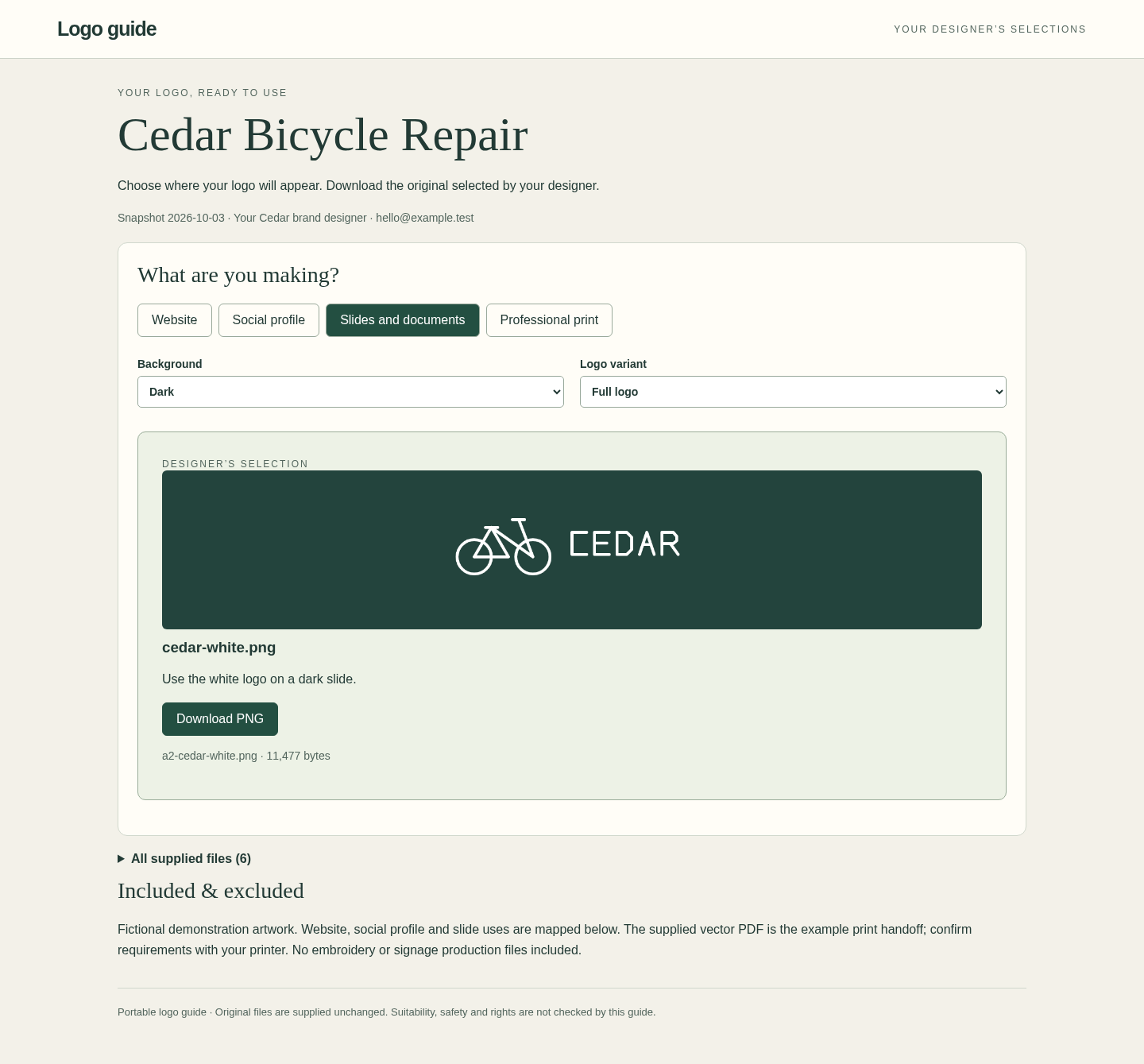
LofnLogo.htmland choose Try the Cedar example. In the rehearsal, choose Slides and documents → Dark → Full logo. Download PNG should producea2-cedar-white.png, with the same bytes as the suppliedcedar-white.png. The free pack'sexamples/Client-Logo-Guide.htmllets you try this recipient experience without buying.Create your own handoff
Choose Create a handoff. Enter the client title, date, designer contact and scope under 1 · Originals. Add PNG, JPG/JPEG, SVG, PDF, AI or EPS files. Check the final download names: originals gain a safe ID prefix, while their bytes stay unchanged.
Group and preview the files
Select file cards, choose Group selected files as and Apply group. Add a variant when needed. For an opaque SVG/PDF/AI/EPS original, optionally pair an imported PNG/JPEG under Preview only (original unchanged). This previews your chosen raster; it does not convert or inspect the original.
Assign the intended uses
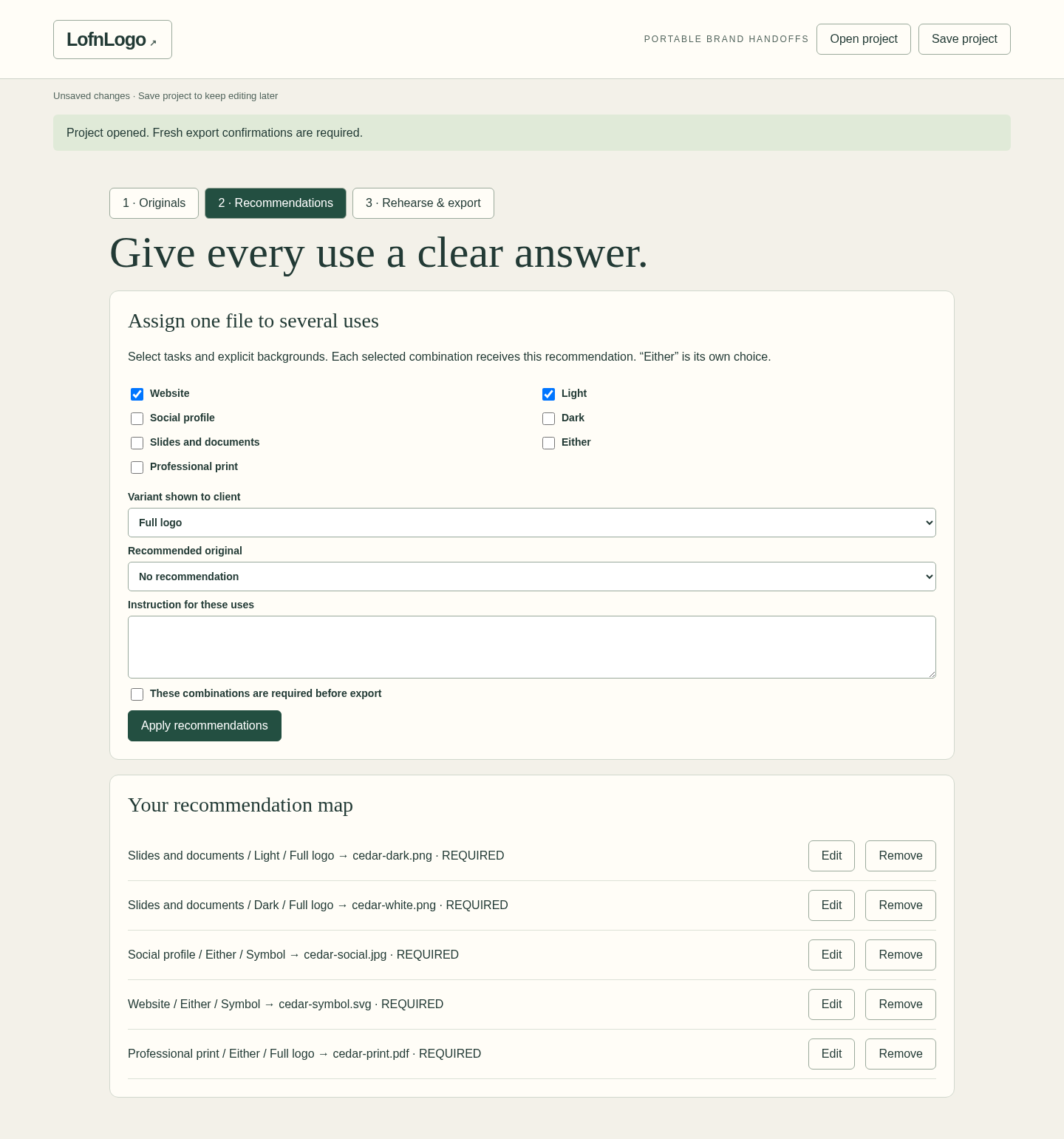
Open 2 · Recommendations. Select tasks, backgrounds, a variant and a recommended original, then Apply recommendations. Either is its own choice; assign Light and Dark separately where needed. Mark essential combinations required. Missing required recommendations block export.
Rehearse and export
Under 3 · Rehearse & export, check intended and unsupported choices. Complete the three confirmations for recommendations, original names and scope/contact. Changes reset them. Choose Export client guide and Export text handoff. The HTML contains the originals;
HANDOFF.txtlists instructions and filenames but contains no original files.Save and deliver
Use Save project and keep the downloaded
.lofnlogo.json; there is no autosave. Ask your client to download the HTML fully and open it locally in Chrome. A cloud or email preview may not run it. Reopen the saved project for revisions, review again and send a new export. Earlier guides do not update or revoke automatically. Delete the extracted folder to uninstall, keeping any projects and originals you need.
A worked example
Cedar Bicycle Repair: one explicit recommendation
Input: Six fictional originals, two variants and five assigned uses in the included Cedar project.
- Choose Slides and documents, Dark and Full logo.
- Download the recommended PNG and compare it with cedar-white.png.
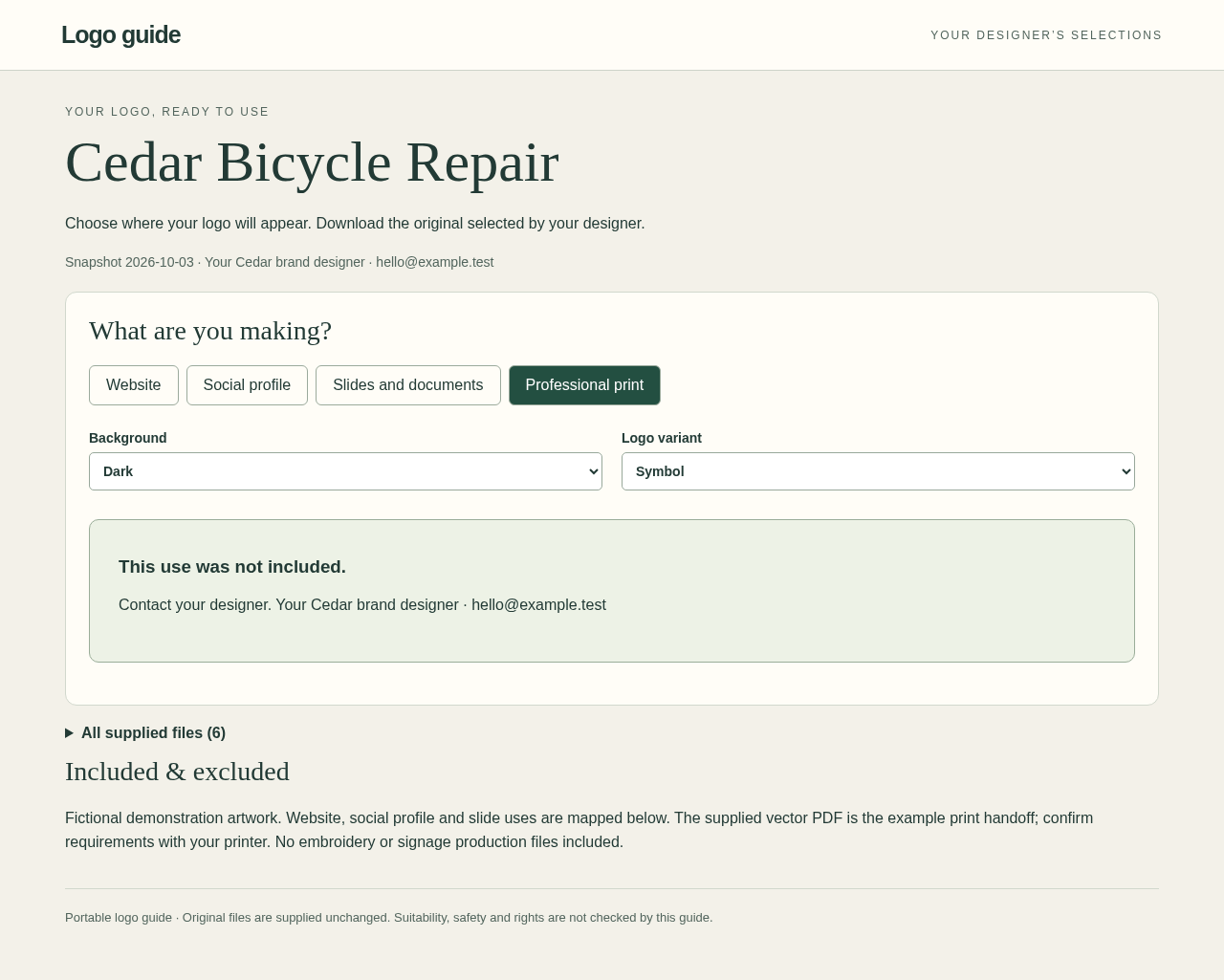
- Try Professional print / Either / Full logo, then Professional print / Dark / Symbol.
Expected result: The dark-slides choice downloads the unchanged white original. Print / Either / Full logo selects cedar-print.pdf. Print / Dark / Symbol shows no recommendation and the designer contact. All supplied files remain separately accessible.
From finished artwork to a client guide
Actual LofnLogo 1.0.0 screens in Chrome on Linux. Cedar Bicycle Repair is a fictional example.
1. Assign recommendations in batches
2. Try the exported client view
3. Explain an unsupported use
Troubleshooting
A required use has no recommendation
Choose Correct recommendations and explicitly assign the intended original before exporting.
The opaque original shows a format badge
Pair an imported raster under Preview only if you want a visual cue. Check the original in its usual application.
An import is refused
Read the displayed error and check format, count, byte and raster-pixel limits. Invalid batches and projects preserve the current project.
The guide does not run in a transfer preview
Download and open it locally. If HTML transfer is prohibited, agree a permitted alternative with the recipient.
Changes disappeared after closing
Reopen the last downloaded project JSON. Save before closing; the unsaved-work reminder is not a backup.
Compatibility & limits
- Verified in desktop Chrome 152 on Linux. Narrow layout checks do not establish mobile compatibility. Other environments, mail gateways and cloud previewers are unverified.
- 60 originals maximum; 5,000,000 bytes per file, 25,000,000 combined, and 45,000,000 for each project or recipient HTML. Raster originals up to 16 million pixels. Previews are at most 320 × 200 and do not replace originals.
- PNG/JPEG are decoded for previews. SVG/PDF/AI/EPS remain opaque original downloads; extension labels do not establish validity, native-app support, safety or print suitability.
- Four fixed tasks, three distinct backgrounds and up to 12 variants. Either is separate from Light and Dark. Variant renaming/deletion is unavailable in version 1.
- No autosave, cloud hosting, live updates, remote revocation or password protection. Guides and saved projects contain every supplied original; recipients can access them all.
- No logo generation, original resizing, color conversion, rights inspection or print certification. Review your recommendations and supplied artwork yourself. Human-client time savings and demand have not been measured.
Need a hand?
Tell us the product, host application and version, what you tried, and the exact error. Contact support with a fictional example; keep private customer files and passwords out of your message.