Step-by-step guide
LokiVeil
LokiVeil 0.1.1 covers selected fields on fictional browser pages for demo rehearsal. Pick a field, save its page profile and verify the result. Free manual preview; it is not protection for real private information.
You want to rehearse a product demo on a fictional test page and see how selected fields can be covered, and the whole page curtained, while you share your screen.
See it in use
Mask a fictional customer field
A screenshot walkthrough with fictional practice data. Select a step to explore.
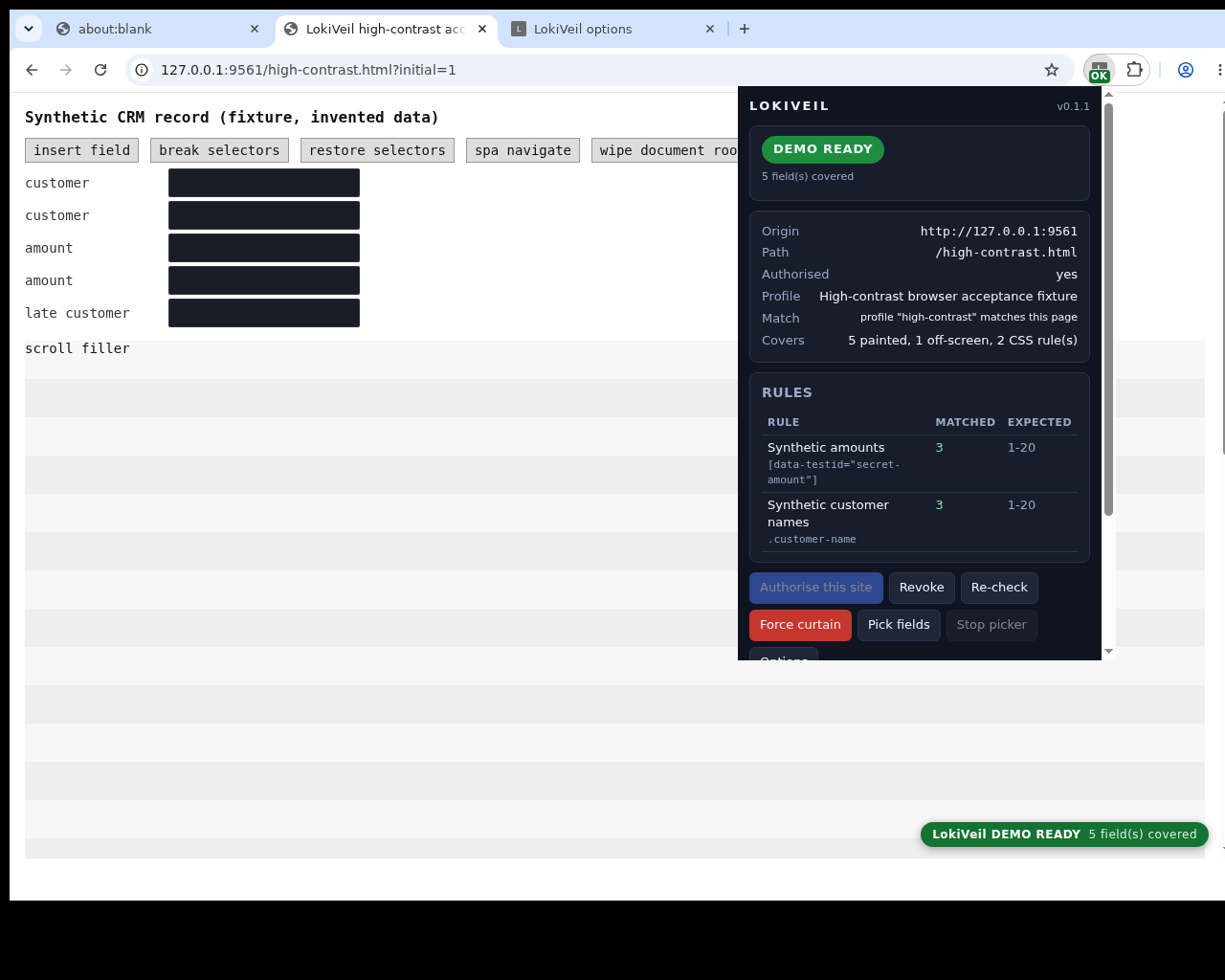
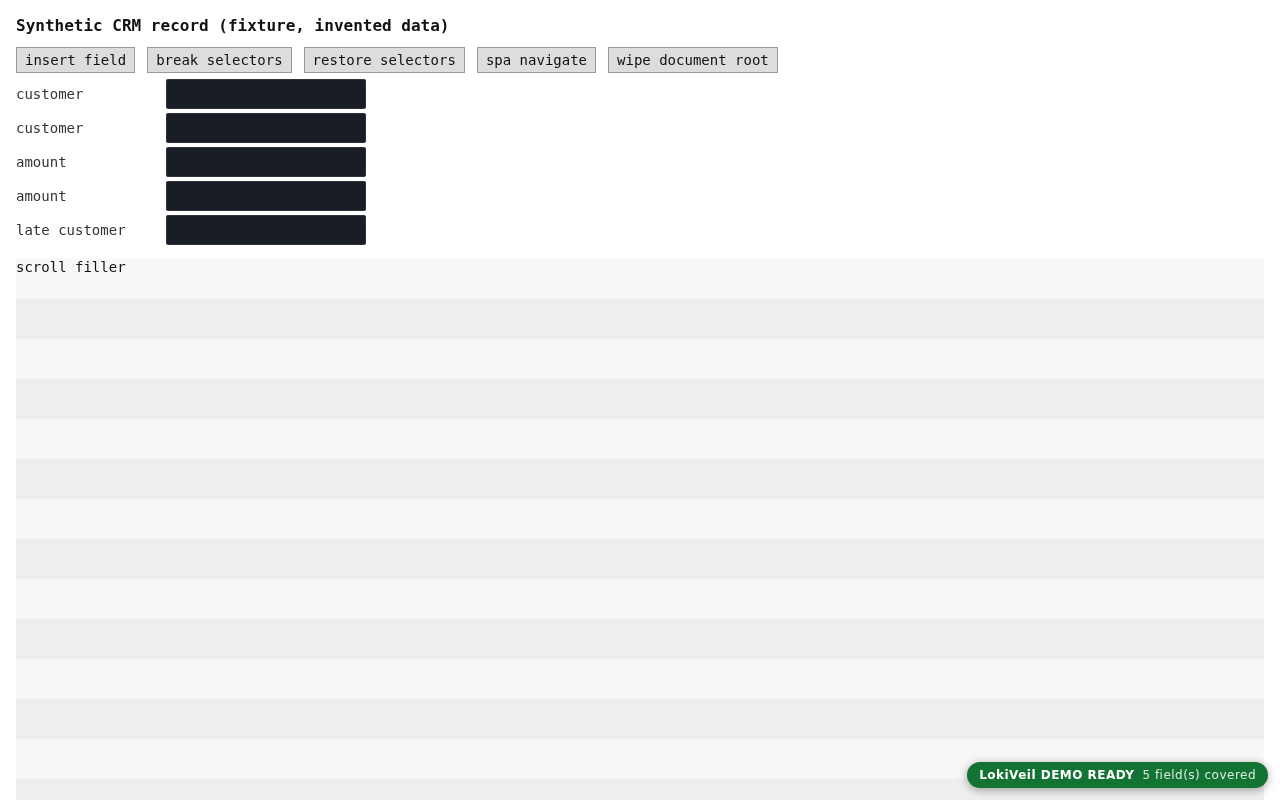
This five-field fixture differs from the guide’s single picked field and uses fictional data.
1. Start with
Mask a fictional customer field
The local practice page shows the invented customer Fictional Meridian.
Sample files and contents
The extracted preview includes examples/new-pick.html with the invented customer Fictional Meridian. It contains one matching customer-name field.
Practice files and guides are free. The complete app is included only where the product page says so.
2. In the app
Try it in three steps
- Serve the practice page and grant the extension access.
- Pick the name field, save one exact-page rule and reload.
- Check DEMO READY, then revoke access after the exercise.
Show every click and setting
- Open a terminal in examples and run python3 -m http.server 8000 --bind 127.0.0.1. Open http://localhost:8000/new-pick.html in desktop Chrome.
- Authorise this site from the popup and accept the Chrome prompt. Stop screen sharing, choose Pick fields and click Fictional Meridian. Reopen the popup and choose Stop picker.
- In Options, choose Use pick for /new-pick.html. Check the exact origin and path, one selector rule and match range1–1. Choose Save profile.
- Reload the fictional page and open the popup. Wait for DEMO READY. Try Force curtain, then Re-check.
- When finished, Revoke site access and reload. Stop the practice server with Ctrl+C.
3. The result
A separate demonstration
The guide’s one-field profile should cover the fictional name. The pictured five-field result is a separate synthetic test, not real-site sanitisation.
This five-field fixture differs from the guide’s single picked field and uses fictional data.
What to check in the practice result
One rule is saved for the exact page. After reload the fictional customer name is covered and the popup reports DEMO READY. Force curtain covers the whole page; Re-check returns to the verified state. Revoke and reload stop the extension on this origin.
Before you start
- Desktop Chrome with Developer mode for manual unpacked installation. Tested with Chrome for Testing 152 on Linux; other browser versions and operating systems are unverified.
- The free 0.1.1 preview ZIP (646,187 bytes), including the extension, illustrated GUIDE.html and fictional practice files. No account, payment or key is needed.
- Python 3 for the local practice server. In the extracted examples folder run
python3 -m http.server 8000 --bind 127.0.0.1. Use the exact localhost address given below.
Your first result
Install once
Extract this ZIP. In Chrome open chrome://extensions, enable Developer mode, choose Load unpacked, and select the extension folder inside this package. No site is authorised yet. This is a manual preview; there is no store listing or automatic update.
Open the practice page
Open a terminal in the examples folder and run python3 -m http.server 8000 --bind 127.0.0.1. Open http://localhost:8000/new-pick.html in desktop Chrome. Keep the terminal open. Local Python is only needed to serve this practice page.
Allow one site
Open the LokiVeil toolbar popup, click Authorise this site and accept Chrome’s request for this origin. The tab reloads. A curtain is expected until you have a matching profile.
Pick a fictional field
Stop screen sharing. In the popup choose Pick fields. The underlying page becomes visible. Click Fictional Meridian, then reopen the popup and choose Stop picker. A pick records the selector, origin, path and match count, not the field value.
Make the profile
Open Options. Under Picked selectors choose Use pick for /new-pick.html. The profile id, exact origin, path and one rule are filled in. Check that the match range is 1–1, add a label if useful, and choose Save profile. Nothing is saved merely by clicking Use pick.
Verify before presenting
Reload the practice page. Open the popup and wait for DEMO READY. The customer name is covered. Re-check runs verification again and the open popup follows its result. Force curtain covers the whole page immediately.
Edit safely
If a profile already covers the page, Use pick directs you to Edit that profile. Picks from another origin or a nonmatching path are refused. Adding the same selector twice is refused. These messages prevent accidental changes to the wrong profile.
Finish and remove access
Use Revoke in the popup or Options and reload the page. To remove stored settings, profiles and picks, use Options → Delete all LokiVeil data and confirm. Deleting data does not revoke site permissions; perform both actions when finished. Stop the local server with Ctrl+C.
A worked example
Cover your first fictional field
Input: The extracted preview includes examples/new-pick.html with the invented customer Fictional Meridian. It contains one matching customer-name field.
- Open a terminal in examples and run python3 -m http.server 8000 --bind 127.0.0.1. Open http://localhost:8000/new-pick.html in desktop Chrome.
- Authorise this site from the popup and accept the Chrome prompt. Stop screen sharing, choose Pick fields and click Fictional Meridian. Reopen the popup and choose Stop picker.
- In Options, choose Use pick for /new-pick.html. Check the exact origin and path, one selector rule and match range1–1. Choose Save profile.
- Reload the fictional page and open the popup. Wait for DEMO READY. Try Force curtain, then Re-check.
- When finished, Revoke site access and reload. Stop the practice server with Ctrl+C.
Expected result: One rule is saved for the exact page. After reload the fictional customer name is covered and the popup reports DEMO READY. Force curtain covers the whole page; Re-check returns to the verified state. Revoke and reload stop the extension on this origin.
More application screens
From picked field to a checked profile
Real Chrome 152/Linux screenshots on fictional local pages. Test fixtures use a different local port from the practice guide.
1. Check the real popup
2. Review before saving
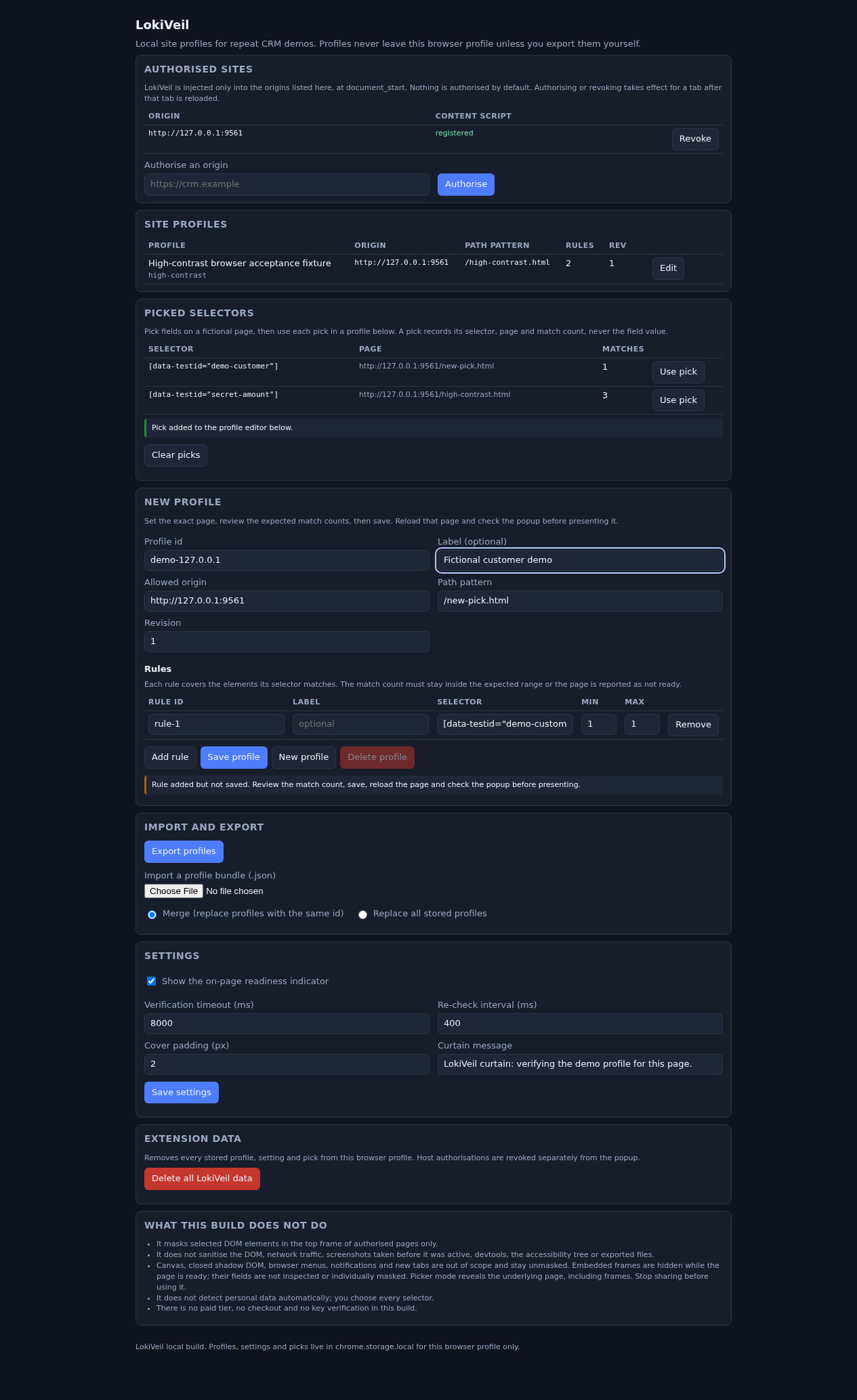
3. Verify the saved profile
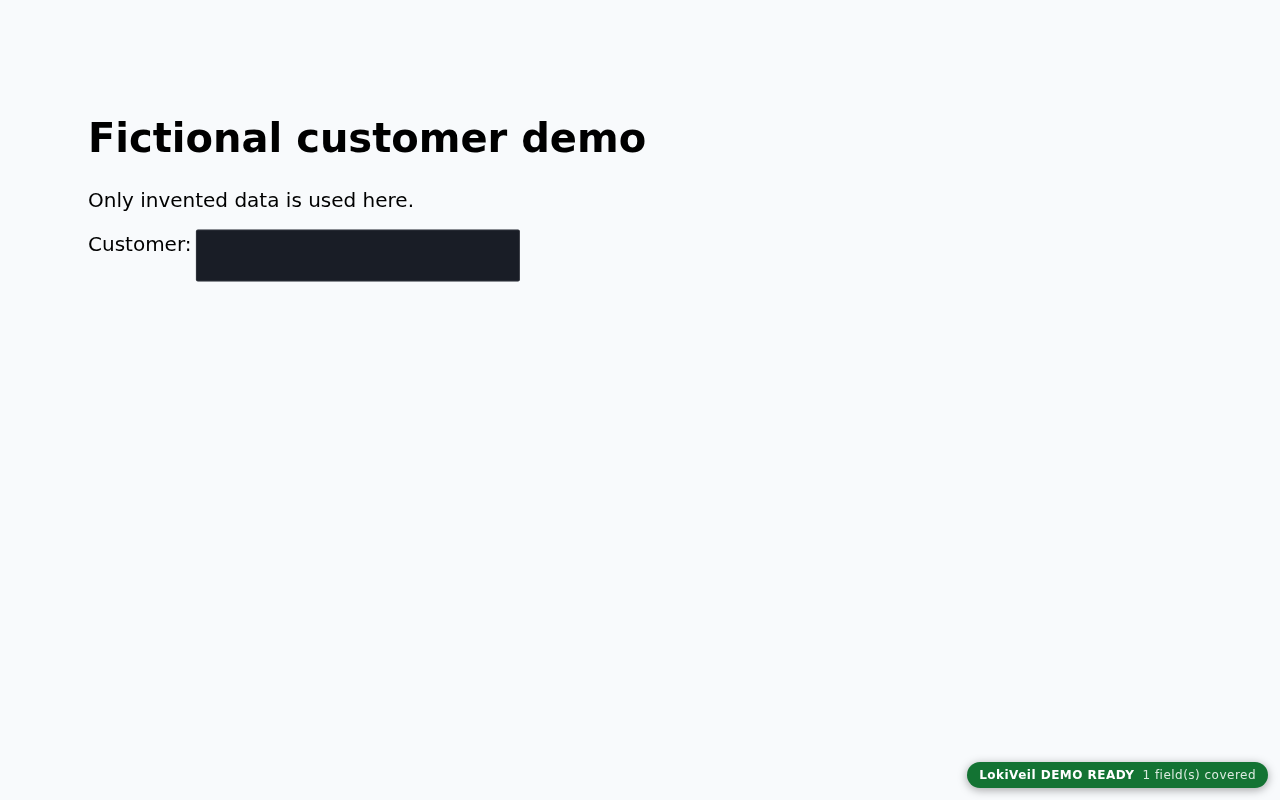
4. Keep controls reachable

Troubleshooting
The page stays curtained or the badge says NOT READY.
The profile does not match the page. Check that Allowed origin and Path pattern match the address exactly (for example http://localhost:8000, not 127.0.0.1) and that each selector finds the expected number of elements (see the Rules table in the popup). Click Re-check after changes.
The popup says “LokiVeil only works on http(s) pages.”
Serve the page from a local web server, such as python3 -m http.server 8000, instead of opening the file directly.
The popup says NOT RUNNING, or nothing changes after revoking.
Reload the tab: authorising and revoking only take effect after a reload. NOT RUNNING means the site is authorised but LokiVeil has not started in that tab yet.
Load unpacked shows an error.
Select the extracted extension folder that contains manifest.json, not the ZIP or the folder above it.
Use pick asks you to edit an existing profile.
Choose Edit on the matching site profile, then add the pick. A pick from a different origin or nonmatching path is refused; choose the right page first. The same selector cannot be added twice.
You want a ready-made profile instead of picking.
Serve the same examples folder, open http://localhost:8000/fictional-crm-demo.html, and import fictional-crm-profile.json using Merge in Options. It has four rules with expected counts 1, 1, 1 and 2. Use localhost exactly, then reload.
Compatibility & limits
- Use fictional data only. A visual mask is not redaction or protection of real customer or personal information.
- Only selected top-frame DOM fields are covered. Embedded frames are hidden while ready, not inspected or individually masked. Source, network, storage, exports, canvas, closed shadow DOM, developer tools and browser UI remain outside the mask.
- Picker mode reveals the page, including frames. Stop screen sharing before picking.
- Manual installation only. There is no Chrome Web Store listing or automatic update.
- Profiles, settings and captured selectors stay in this browser profile until deleted. Deleting extension data and revoking site permissions are separate actions.
- The tested scope is fictional local pages in Chrome 152/Linux. Real CRM sites, other hosts and every intermediate browser frame remain unverified.
Need a hand?
Tell us the product, host application and version, what you tried, and the exact error. Contact support with a fictional example; keep private customer files and passwords out of your message.