Step-by-step guide
ManiPrint
Turn local iCalendar files into printable month, week and agenda calendars. Import one or more ICS files or a ZIP of them, choose a view and paper layout, then print or save a calendar PDF.
You want a clean paper or PDF calendar (a club, school, team or family schedule) from calendar files you can export, without signing in to an online calendar.
Before you start
- Desktop Google Chrome.
- Calendar data as .ics files, or a ZIP of .ics files (for example the ZIP that Google Calendar's export produces).
- A printer, or Chrome's “Save as PDF” destination for a PDF file.
Your first result
Buy, download and open
Buy from /store/mani-print/ and download mani-print-0.1.0.zip from the checkout page. Extract it and open mani-print/index.html in Chrome. No account, server or activation is needed. “Load sample calendars” shows fictional data if you want to look around first.
Get your calendar as a file
ManiPrint cannot sign in to Google or Microsoft or subscribe to calendar links. Export a file instead: in Google Calendar use Settings → Import & export → Export and import the downloaded ZIP; for Outlook or other apps, save or publish the calendar as an .ics file and download it.
Import
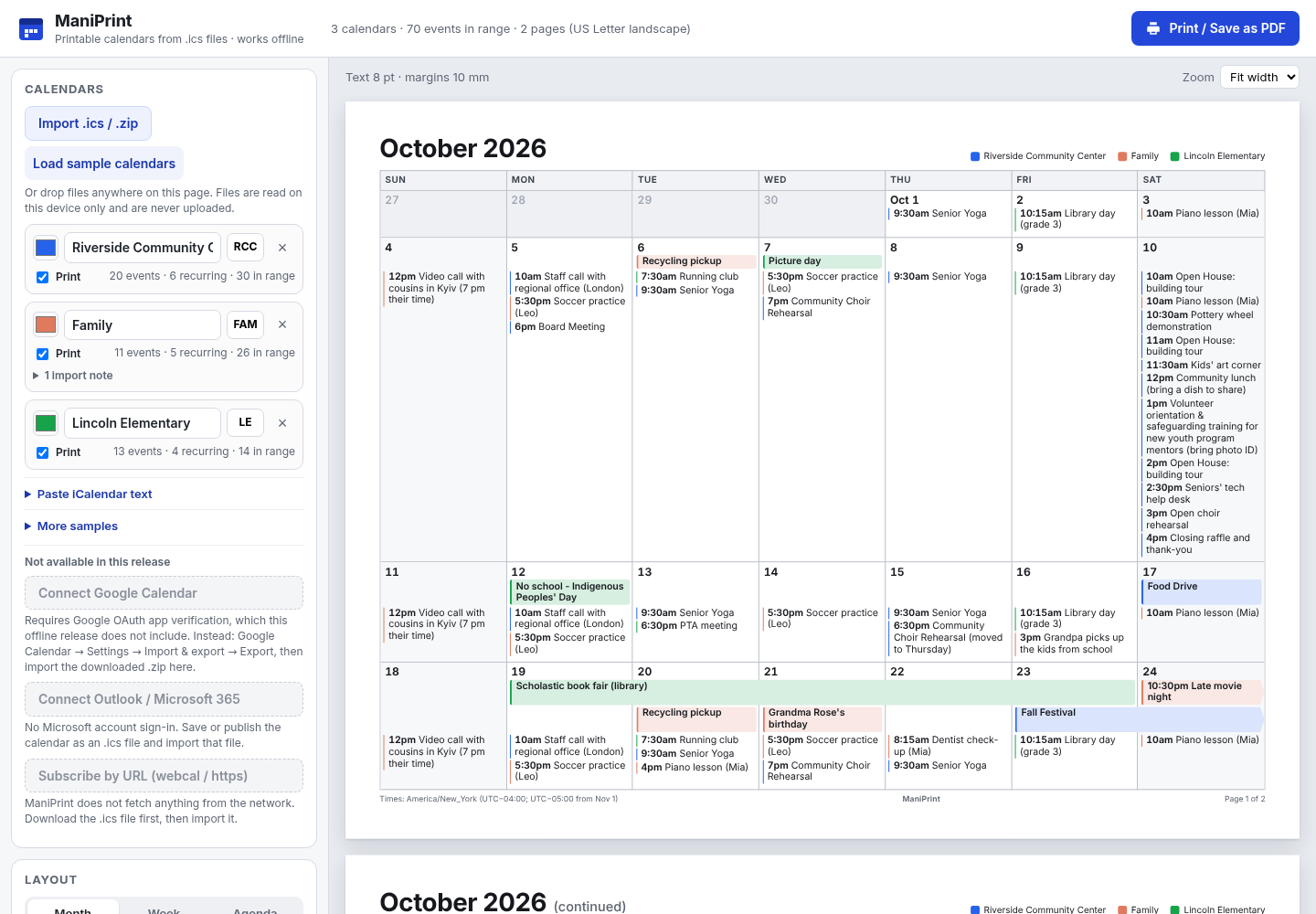
Click “Import .ics / .zip” under CALENDARS and choose one or more files, or drop them anywhere on the page. You can also open “Paste iCalendar text”. Each calendar appears with a colour, its name, initials, a “Print” tick box and a count such as “4 events · 1 recurring · 6 in range”.
Choose the layout
Under LAYOUT pick Month, Week or Agenda. Month: choose Month, Year and how many Months. Week: set “Week containing” and Weeks. Agenda: set From and To. “Week starts on” sets the first day of the week. The preview on the right updates as you change settings.
Paper, time and content
Defaults follow your browser’s language (for example US Letter, 12-hour clock and Sunday in US English; A4, 24-hour clock and Monday in German); change them as you like. Under PAPER choose A4 or US Letter (or Auto), Portrait or Landscape, Margins and Text size. Under TIME ZONE & FORMAT choose “Print times in”, Clock (24-hour or 12-hour) and “Date language”. Under CONTENT choose what to show, for example locations, descriptions, “Cancelled events, struck through”, shaded weekends or calendar initials for black-and-white printers. PAGE HEADER lets you set a Heading, Subheading, logo, legend and footer.
Print or save a PDF
Click “Print / Save as PDF” (top right). In Chrome's print dialog pick your printer, or choose “Save as PDF” as the destination to save a file. The header shows how many pages will print.
What is kept
Your layout and print settings are remembered in this browser; “Reset all settings” clears them. Imported calendars are not kept: after closing or reloading the page, import the .ics files again.
A worked example
October 2026 month calendar for a fictional choir
Input: examples/mani-print/lakeside-choir-october-2026.ics: a fictional calendar with a weekly Wednesday 7pm rehearsal repeating 4 times, a Friday-Saturday retreat (all-day), a Saturday 6pm concert and one cancelled committee meeting.
- Open mani-print/index.html in Chrome.
- Click “Import .ics / .zip” and choose lakeside-choir-october-2026.ics.
- Under LAYOUT keep Month and set Month to October and Year to 2026.
- Click “Print / Save as PDF” and choose “Save as PDF” in Chrome's print dialog.
Expected result: The calendar list shows “Lakeside Community Choir (fictional)” with 4 events · 1 recurring, and the header shows 6 events in range on 1 page. The October 2026 grid shows “Choir rehearsal” at 7pm (19:00 with a 24-hour clock) on 7, 14, 21 and 28 October, “Singing weekend retreat” across 16–17 October and “Autumn concert” at 6pm (18:00) on 24 October. These times have no time zone in the file, so they print at the same clock time wherever you are. The cancelled committee meeting is left out unless you tick “Cancelled events, struck through”. The saved PDF is one page.
Troubleshooting
The count says “0 in range”.
Your events are outside the chosen period. Change Month and Year (Month view), “Week containing” (Week view) or From and To (Agenda view).
Event times are shifted by some hours.
Set “Print times in” under TIME ZONE & FORMAT to the time zone you want printed.
Text is too small or a month runs onto a second page.
Try a larger paper, Landscape, narrower Margins, or untick “Shrink text to keep each month or week on one page” to let it continue on the next page.
A recurring event is missing or appears on the wrong days.
BYWEEKNO recurrence rules are only partly supported and are reported when found. Check the printed calendar against your calendar app.
My calendars disappeared after reopening the page.
That is expected: only settings are remembered. Import the .ics files again.
Compatibility & limits
- Tested with Chrome 152 on Linux and synthetic ICS files. Real Google, Outlook and Apple exports, other browsers and physical printing were not verified.
- No Google or Microsoft sign-in and no subscription to calendar links (webcal/https).
- BYWEEKNO recurrence is partly supported; review printed calendars.
- Browser print settings may need adjusting for your printer.
Need a hand?
Tell us the product, host application and version, what you tried, and the exact error. Contact support with a fictional example; keep private customer files and passwords out of your message.