Step-by-step guide
Mokosha
Plan a hexagon quilt and export its layout. Arrange colours in a hexagon quilt layout, save the design and export a planning booklet. Check measurements and seam allowances before cutting.
You are designing a hexagon quilt top and want to try colour layouts, count the pieces per colour and print templates.
Before you start
- Desktop Google Chrome or another Chromium-based browser. The tool was checked in desktop Chrome; other browsers are not verified.
- No files are needed to start: three control designs are built in.
- Install Node.js 20.12 or newer. In this extracted folder run: node start.mjs
Open http://127.0.0.1:8787/ in desktop Google Chrome. Keep the terminal open; Ctrl+C stops it.
Your first result
Open the downloaded local edition
Buy and extract the Mokosha ZIP, then open its Mokosha folder. Install Node.js 20.12 or newer. In this extracted folder run: node start.mjs
Open http://127.0.0.1:8787/ in desktop Google Chrome. Keep the terminal open; Ctrl+C stops it. The same workflow can be explored in the online browser preview.Open Mokosha
In your open local copy, follow the controls described below. The header holds Import project…, Export project, Page size and Export PDF.
Start a layout
Under Project, choose a design (Control A — jagged, pointy; Control B — straight edge, pointy; Control C — straight edge, flat) and click Load, or click New project. Type your quilt's name in Name.
Set the grid
Under Grid and measurements choose Orientation (Pointy top or Flat top), Edge (Jagged with all full hexagons, or Fixed straight edge with half hexagons), Rows × columns (up to 2500 cells), and the Side length, Seam allowance and Fabric width in millimetres.
Colour the pieces
Under Colours, click Use on a colour to make it the active one; you can rename it, change its colour or click Add colour. Choose Paint, Fill or Pick and click pieces on the chart. With Select you can drag over pieces and use Selection and repeat: Fill selection, Repeat →, Repeat ↓, Repeat grid or Paint whole grid.
Review counts and fabric
Piece counts lists full and half pieces per colour and the finished size. Cutting plan estimates fabric per colour for one stated cutting method.
Export and keep your work
Choose Page size (A4 or Letter) and click Export PDF. Click Export project to download a .mokosha.json file, the lasting copy of your design; Import project… opens it again.
A worked example
Print the Control A stripe layout
Input: No file needed: the built-in design Control A — jagged, pointy. A saved copy to try with Import project… is in examples/mokosha/control-a-jagged-pointy-stripes.mokosha.json.
- Open your local Mokosha page.
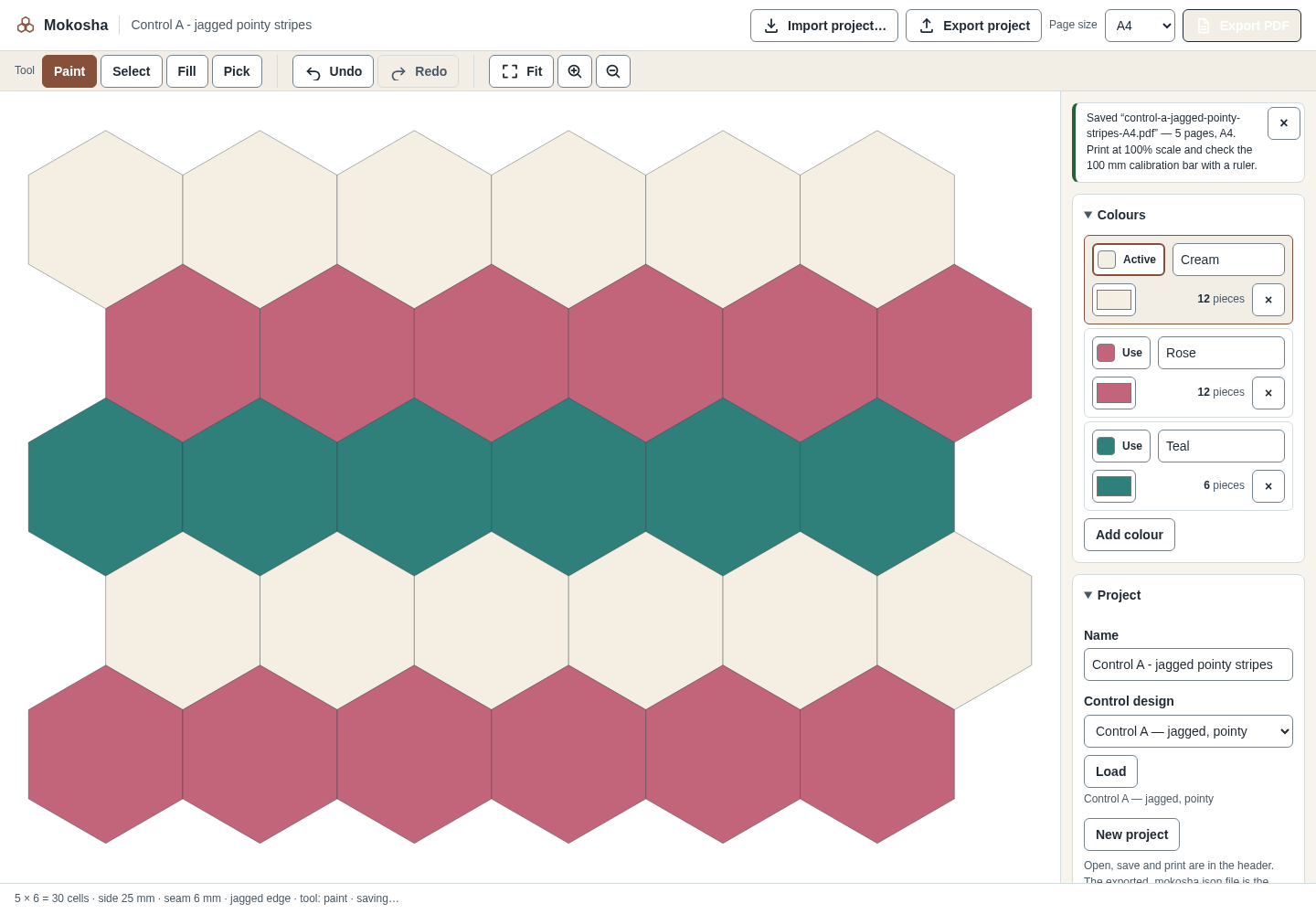
- Under Project, keep Control A — jagged, pointy selected and click Load.
- Keep Page size A4 and click Export PDF.
- Click Export project.
Expected result: The status reads “Loaded "Control A - jagged pointy stripes".” Piece counts show 30 full hexagons (Cream 12, Rose 12, Teal 6) and a finished top of 281.5 × 200.0 mm. Export PDF downloads control-a-jagged-pointy-stripes-A4.pdf with 5 pages: plan summary, pieces by colour, cutting plan, 1:1 templates and a layout diagram. Export project downloads control-a-jagged-pointy-stripes.mokosha.json; importing it later, even after clearing the browser's storage, shows “Imported “Control A - jagged pointy stripes” — 30 pieces.”
Troubleshooting
Fill selection and the Repeat buttons are greyed out.
They need a selection. Choose the Select tool and drag across the chart first.
The printed templates are the wrong size.
The templates page has a 100 mm bar. If it does not measure 100 mm, print again at 100% scale without “fit to page”.
Colour names in other alphabets print as “?”.
PDF text uses built-in Western European fonts, so letters such as Cyrillic print as “?” and the export warns you. Use Latin names for colours.
My design disappeared.
Mokosha autosaves in this browser only, and browser storage can be cleared at any time. Keep the exported .mokosha.json file.
Compatibility & limits
- Geometry is exact arithmetic, but seam allowances, fabric figures and assembly have not been checked against real fabric. Measure a printed test before cutting.
- One straight-edge method and one cutting method; the fabric estimate is an upper bound, not an optimum.
- Up to 2500 cells per layout.
- The paid download packages the same core workflow as the browser preview, with a local copy, guide and examples. It does not unlock a separate Pro feature set.
Need a hand?
Tell us the product, host application and version, what you tried, and the exact error. Contact support with a fictional example; keep private customer files and passwords out of your message.