Step-by-step guide
NornaForms
Fill existing PDF form text fields from CSV rows. Match CSV columns to existing AcroForm text fields and download a ZIP containing one filled PDF for each row.
You need many copies of the same fillable PDF, such as certificates, labels or letters, each with different values from a spreadsheet you can save as CSV.
Before you start
- Desktop Google Chrome or another Chromium-based browser, version 110 or newer. Checked in desktop Chrome.
- A PDF that already has fillable text fields (an AcroForm). XFA forms, scans, encrypted, signed and JavaScript-carrying PDFs are rejected.
- A UTF-8 CSV file with column names in the first row and at most 100 rows.
- Open app/index.html in desktop Google Chrome.
Your first result
Open the downloaded local edition
Buy and extract the NornaForms ZIP, then open its NornaForms folder. Open app/index.html in desktop Google Chrome. The same workflow can be explored in the online browser preview.
Open NornaForms
In your open local copy, follow the controls described below. The page has five numbered panels.
Choose the form
In 1 Form template, click Choose a PDF and select your form. NornaForms lists its text fields; the file itself is never modified.
Choose the data
In 2 CSV data, click Choose a CSV. The Delimiter is detected automatically; you can also pick comma, semicolon, tab or pipe.
Connect columns to fields
In 3 Mapping, click Auto-map by name to connect columns and fields with the same name, or pick a CSV column for each PDF field. Export mapping (.json) saves the mapping for next time; Import mapping loads it.
Name the files and check the rows
In 4 Preview & checks, set the Output filename template, for example certificate-{{participant_name}}. Placeholders are {{Column name}}, {{#row}}, {{#rownum}}, {{#index}} and {{#total}}; .pdf is added for you. Click Check all rows and fix anything marked as blocking, such as text that will not fit, duplicate file names, missing values or missing characters.
Generate the ZIP
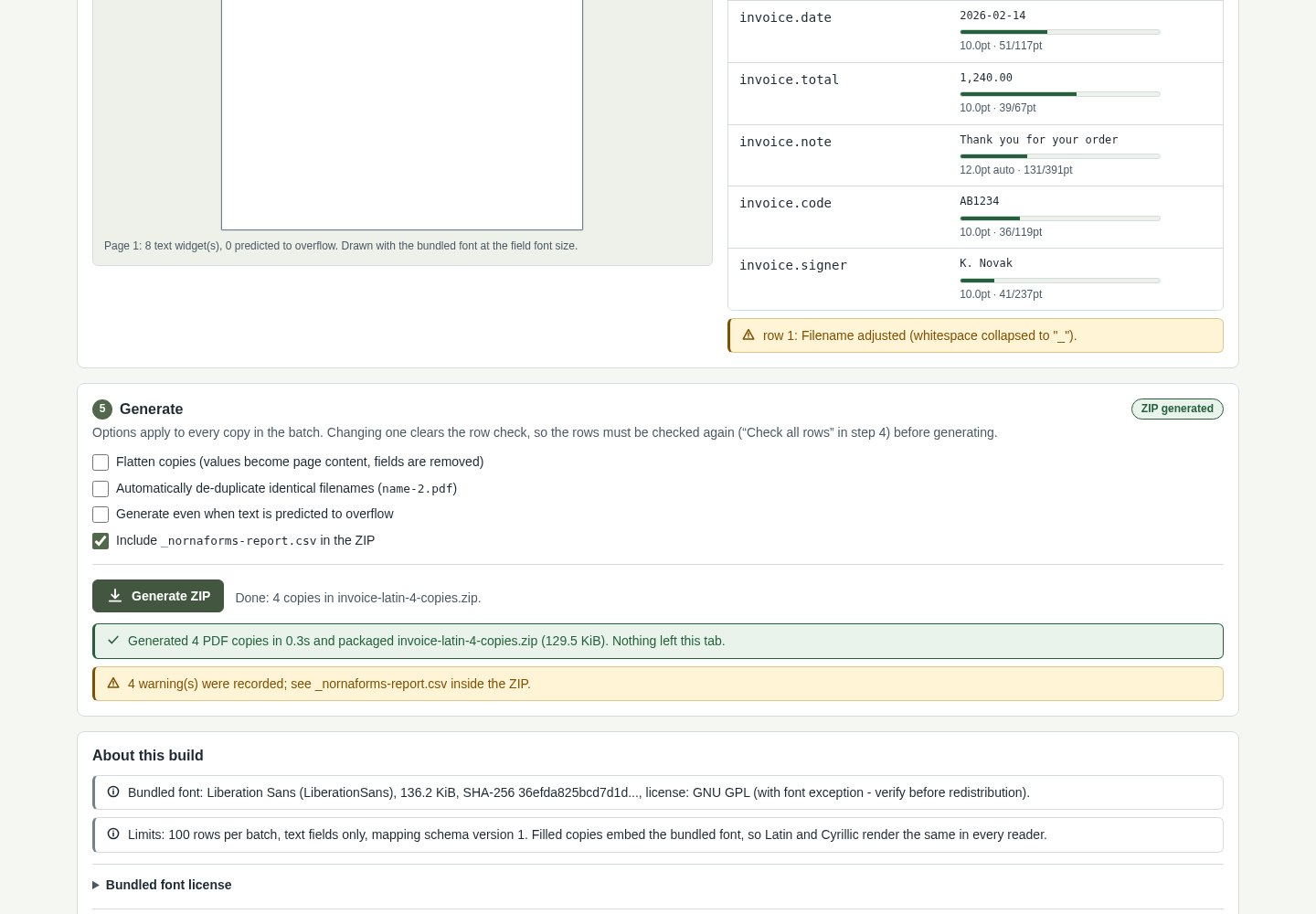
In 5 Generate, choose the options: Flatten copies, Automatically de-duplicate identical filenames, Generate even when text is predicted to overflow, and Include _nornaforms-report.csv in the ZIP (ticked by default). Changing an option means running Check all rows again. Click Generate ZIP.
Review the copies
Open the ZIP and check a few PDFs in the reader you will use.
A worked example
Fill three workshop certificates
Input: examples/nornaforms/workshop-certificate-form.pdf, a fictional form with four text fields (participant_name, workshop, date, hours), and examples/nornaforms/participants.csv, three fictional participants under the same column names.
- Open your local NornaForms page. In 1 Form template click Choose a PDF and select workshop-certificate-form.pdf.
- In 2 CSV data click Choose a CSV and select participants.csv.
- In 3 Mapping click Auto-map by name.
- In 4 Preview & checks, replace the Output filename template with certificate-{{participant_name}} and click Check all rows.
- In 5 Generate click Generate ZIP.
Expected result: NornaForms accepts the form (“4 text fields on 1 pages”) and the CSV (“3 rows, 4 columns”), maps 4 of 4 fields and reports “Checks finished: all 3 row(s) pass, 3 warning(s)”. The warnings only say that spaces in file names became “_”. The browser downloads workshop-certificate-form-3-copies.zip containing certificate-Ada_Example.pdf, certificate-Bruno_Sample.pdf, certificate-Chen_Placeholder.pdf and _nornaforms-report.csv. Each PDF's fields hold that participant's values.
Troubleshooting
The PDF is rejected or has no fields.
NornaForms needs a PDF that already has fillable text fields; it does not create fields or read scans. XFA, encrypted, signed and JavaScript-carrying PDFs are rejected with the reason shown.
Generate ZIP stays disabled.
Click Check all rows after every change to the mapping, file name template or options, and fix all blocking problems.
Text is predicted to overflow a field.
Shorten the value, or tick Generate even when text is predicted to overflow and inspect those copies. The prediction is a measurement, not a rendering in your reader.
Check boxes or dropdowns stay empty.
Only text fields are filled. Check boxes, dropdowns and buttons are left untouched.
I have to redo the mapping every time.
Nothing is kept after you close or reload the page. Use Export mapping (.json) and load it next time with Import mapping.
Compatibility & limits
- Existing AcroForm text fields only; no OCR, no scanned-form recognition and no new form creation.
- At most 100 CSV rows (100 copies) per batch.
- Copies embed the bundled Liberation Sans font; check the results in the reader you will use.
- The paid download packages the same core workflow as the browser preview, with a local copy, guide and examples. It does not unlock a separate Pro feature set.
Need a hand?
Tell us the product, host application and version, what you tried, and the exact error. Contact support with a fictional example; keep private customer files and passwords out of your message.