Task walkthrough · SnotraSheets
Reconcile a stock count with a Shopify inventory CSV before you import it
A stock count is only right for the moment it was taken. Here is how to compare counted units with a Shopify inventory export, decide what each variance means, and stop before an import writes an old count over sales or deliveries that happened in between.
A Perunlight product workflow for SnotraSheets, our paid offline browser app. Written with AI assistance and checked against the accepted SnotraSheets 1.0.2 test run (desktop Chrome 152 on Linux, fictional files). Published .
How Shopify’s inventory CSV sets stock
Shopify’s help page Exporting or importing inventory with a CSV file describes two export formats. All states has a row per location with a column for each inventory state; Available has one column of available quantities per location. For a count, use All states. These columns matter:
- On hand (current): the units at the location when you exported. Shopify uses it to check for changes during the import.
- On hand (new): the quantity you want to set. Leave it empty and that row is not changed.
- Available and Committed: what you can sell, and what is set aside, for example for unfulfilled orders. Shopify’s inventory states page defines on hand as the sum of committed, unavailable and available units, so committed units are still on hand.
Before changing anything, Shopify compares On hand (current) with the live quantity. If stock changed after your export, those rows don’t import and Shopify emails you the details. Its help page also says you can skip this validation in emergencies by clearing On hand (current). After a stock count, don’t: that is how an old count gets written over a sale.
The same page asks for whole numbers (not stocked for items never stocked at a location), location names that match Shopify exactly, including capital letters, and a file of no more than 15 MB.
Why a count goes stale
The export, the count and the import happen at three different moments. A sale, return, delivery or transfer between them changes the numbers for reasons that have nothing to do with loss.
Take one row: the baseline says 12, the physical count says 12, and a later export says 11. If a unit physically left and on-hand stock fell after the count, 11 may now be correct. If the movement happened before the count, the difference may indicate an extra unit or a counting-scope issue. The snapshots do not establish the right answer. Check transaction timing, stock already picked for orders and what was counted, then recount from a new baseline. A sale can move units into committed stock without immediately reducing on hand.
Plan the count so it stays valid
- Count when nothing is sold, returned, received or transferred at the location, for example before opening, and hold deliveries and transfers until the import is done.
- Export All states for the location just before counting. That file is your baseline.
- Count every place stock sits: shelves, stockroom, displays and the area where orders are picked and packed.
- Decide what happens to rows nobody counts. In a partial or cycle count, leave them unchanged; set them to 0 only in a full count where anything not counted is really gone.
- Export again after counting and before importing. A counted row whose on-hand number moved needs a new baseline and a recount.
Read each variance before you accept it
A variance is the counted number minus the on-hand number in the baseline export. Rule out the usual causes before you write it into Shopify:
- A place nobody counted: a stockroom shelf, a display or the packing table.
- Units already picked for orders. Committed units count as on hand, even when they sit in a parcel outside the counted area.
- A code matched to the wrong item, or to none. Check unknown, ambiguous and ignored codes.
- A unit slip, such as one scan for a pack of ten.
- Real loss or a receiving error. What remains after these checks is a real variance; note the reason with it.
Worked example: the fictional Harbor Thread shop
SnotraSheets 1.0.2 includes an invented yarn shop, Harbor Thread, with two locations. Its baseline All states export has 24 rows: 12 variants at Harbor Street Shop and the same 12 at Warehouse. A products export adds barcodes to all 24 rows, and two count files cover the shop: a scanner file and a stockroom CSV.
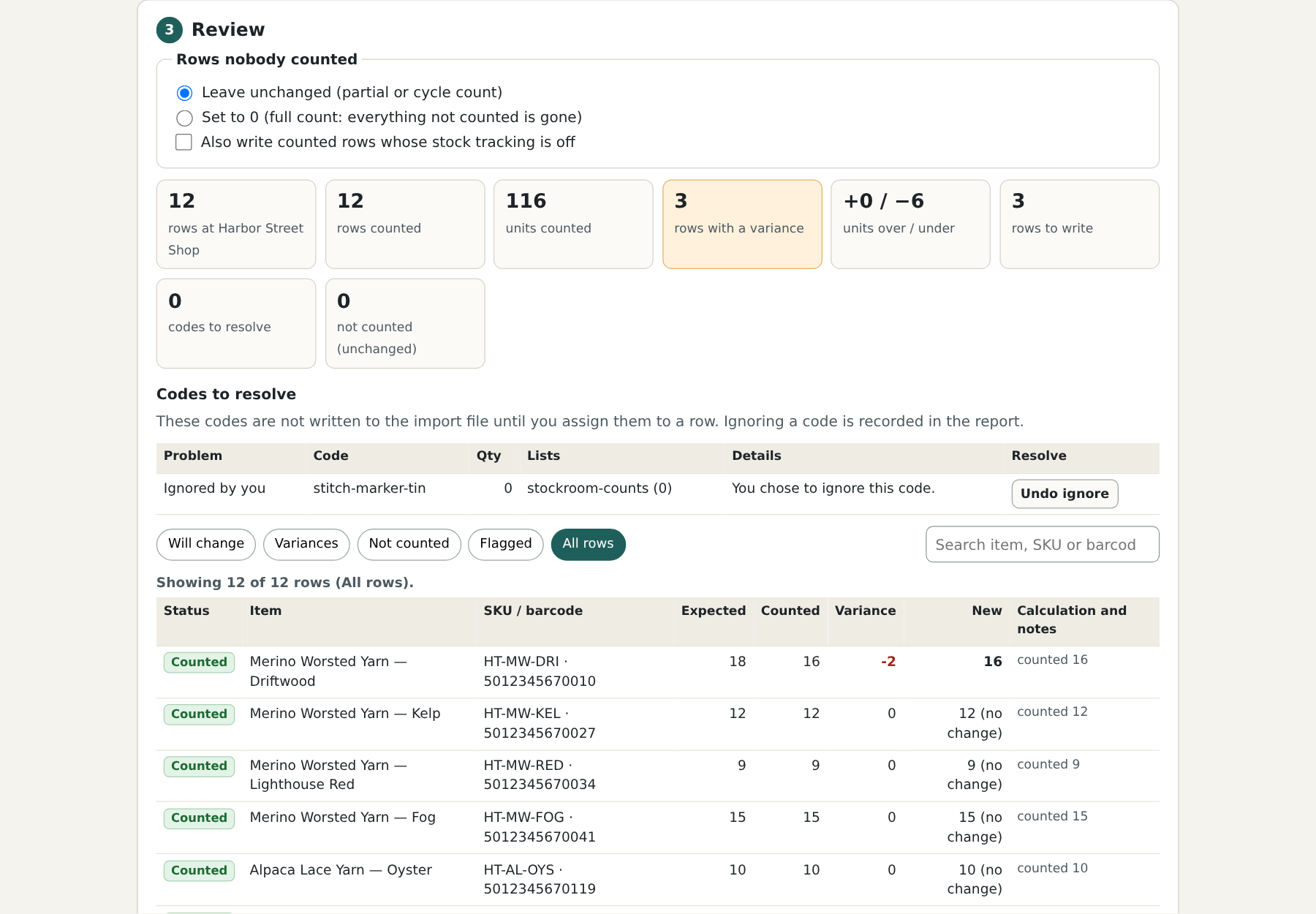
stitch-marker-tin with quantity 0 was ignored. View full sizeThe three variances
- Merino Worsted Yarn — Driftwood: 18 on hand, 16 counted, −2. The baseline row also shows 2 committed and 16 available. A count that equals the available number is a hint to look for two units already picked for an order.
- Alpaca Lace Yarn — Ink: 8 on hand, 6 counted, −2. Nothing in the files explains it, so check the shelf again before accepting it.
- Stitch Marker Tin: 22 on hand, 20 counted, −2. This item has no SKU, so it was matched by the barcode from the products export. A stockroom line typed as
stitch-marker-tinwith quantity 0 matched nothing; it was ignored, and the report records that decision.
The other nine counted rows matched exactly. With Leave unchanged chosen for rows nobody counted, the initial review provisionally proposed updates for the 3 variance rows. That is not an import-ready result: the fresh-export check below blocked output, and no ready-to-import file was produced in the accepted run.
The fresh export blocks the import
The export taken after the count, 4-inventory_export_after_count.csv, shows that two counted rows moved: Merino Worsted Yarn — Kelp went from 12 to 11 and Bamboo DPN Set 3.5 mm from 5 to 4. Both had been counted without a variance, so Kelp is exactly the 12, 12, 11 case above.
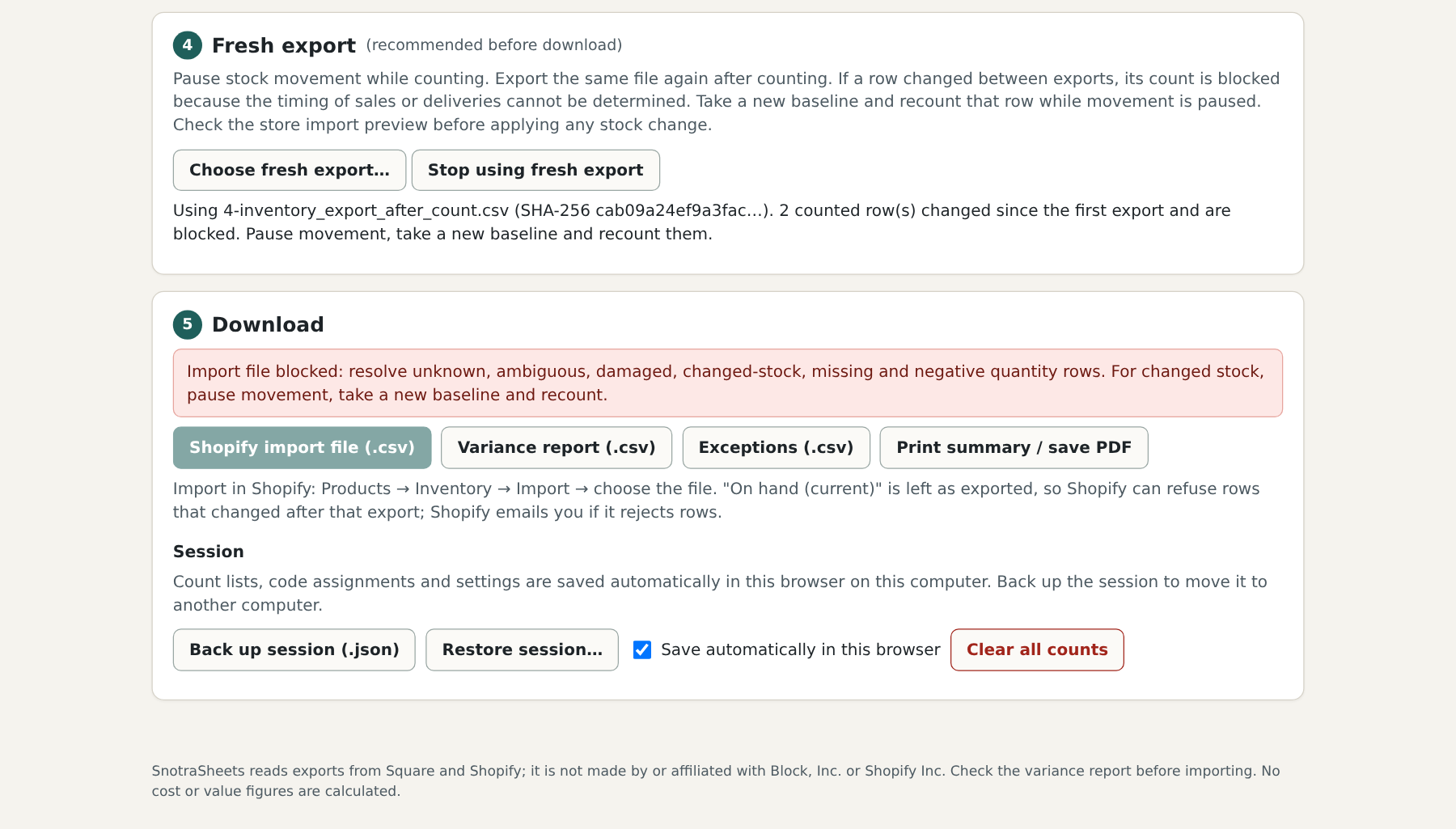
SnotraSheets cannot tell whether that stock moved before or after it was counted, so it stops instead of guessing. In this lesson the block is the intended ending, not a fault; the example does not produce a ready-to-import file.
Result in the accepted 1.0.2 test run: 12 rows counted, 116 units, 3 variance rows totaling 6 units under (net −6); after the later export, 2 counted rows had changed and the Shopify import stayed blocked. No import into a real Shopify store was made or verified.
The fictional exports and count files are in the free guide ZIP linked below, so you can open them in a spreadsheet and follow the numbers.
What to do after a block
- Keep the later export and save the variance report and exceptions as evidence of the blocked run.
- Pause stock movement and export a new All states baseline from the same store and location.
- Start a new reconciliation with that new baseline and recounted input files. Recount the rows that changed, or the whole location if movement was not paused during the first count.
- Take and load another compatible fresh export immediately before import. Check the same store, location and counted identities. Output remains blocked if a counted on-hand quantity changed, the selected location is missing, or another issue is unresolved.
- When the checks pass, upload the file in Shopify, read the summary before Start import, and read any validation email. Keep On hand (current) as exported so Shopify can independently catch later movement.
SnotraSheets 1.0.2 also blocks the import when the fresh export lacks the location you counted. Export again from the same store, including that location, in the same All states format, and load it with Choose fresh export….
A free method with a spreadsheet
For a small count you can reconcile in a spreadsheet, compare a fresh export before importing, and retain Shopify’s own check as a second safeguard. Nothing here needs SnotraSheets:
- Pause movement and export All states for the correct store and location (Products > Inventory > Export).
- Count, total each item and put the desired absolute total in On hand (new) in a copy of that baseline. Include every counted row, even matching rows, and leave uncounted rows blank. Keep On hand (current) exactly as exported; a variance such as −2 is not the new total.
- Compare the new and current totals in a separate sheet and investigate every variance, unknown code and ambiguous identity. Keep only the exported columns in the eventual import file.
- Immediately before import, take a fresh compatible All states export from the same store and location. Compare each counted variant/location identity and on-hand quantity against the baseline. Stop if anything moved, a counted identity or the selected location is missing, or the format does not match. Start from a new baseline and recount affected items; recount the whole location if movement was not paused.
- Only after that comparison passes, upload the file (Products > Inventory > Import), review the summary and choose Start import. Retain On hand (current) so Shopify can catch movement after your last comparison. Read any validation email: affected rows may fail while other rows have already updated.
In the fictional Harbor Thread files the proposed totals are 16 for Driftwood, 6 for Alpaca Ink and 20 for the Stitch Marker Tin, with matching totals for the other nine shop rows and blank Warehouse rows. But the fresh export changes Kelp and the 3.5 mm needles. The manual workflow therefore stops before import, just as the app lesson does. It does not produce a verified live-store result.
The spreadsheet method leaves scanner totals, barcode/variant matching and the fresh-export comparison to you. Shopify’s separate documented validation can reject rows whose expected current stock no longer matches live stock; it is not an all-or-nothing rollback. That store-side behavior was not tested against a real store here.
Common mistakes
- Counting against the Available export. It has no on-hand or committed numbers. Export All states.
- Clearing On hand (current) so every row imports. That turns off Shopify’s check and can write an old count over a sale.
- Removing the fresh export to get past a block. The movement is still there. Take a new baseline and recount.
- Typing 0 for items nobody counted. An empty On hand (new) leaves stock unchanged; 0 says the shelf is empty.
- Counting while the shop is trading or while a delivery is being put away.
- A location name that doesn’t match Shopify exactly, including capital letters.
- Skipping the import summary and the email about failed rows.
Limits and next steps
- SnotraSheets works offline on files you export. It does not connect to Shopify, sync stock or import anything; you import its file in Shopify yourself.
- It was tested in desktop Chrome 152 on Linux with fictional files. No import into a real Shopify or Square store was tested, and no real merchant data was used.
- Two exports can’t show whether a sale happened before or after a count, so counted rows that changed are blocked, not corrected. The bundled examples end in a blocked import on purpose.
- For Shopify it reads the All states inventory CSV, with an optional products export for barcodes; it also reads Square item library exports. Perunlight is not affiliated with Shopify, and Shopify can change its import rules: check its help page before you rely on the details above.
Next: if you have SnotraSheets, work through the Harbor Thread lesson to its block first, then plan your own count around a paused location. The SnotraSheets setup guide covers opening the app, loading files and troubleshooting. Without it, use the spreadsheet method above and keep On hand (current) as exported.
Perunlight product
Reconcile your count with SnotraSheets
SnotraSheets is a paid offline browser app: $29 USD, one-time purchase, version 1.0.2, no account or subscription. It totals scanner and count files, matches SKUs and barcodes, shows every variance, checks a fresh export and blocks the Shopify import file when counted stock moved. Tested in desktop Chrome 152 on Linux only.
Get SnotraSheets · $29Read the setup guide
The free ZIP contains the manual and fictional exports and count files, but not the app. The paid app automates reconciliation and its pre-export checks; the spreadsheet workflow above can be done without it.