Step-by-step guide
SagaSteps
Capture a repeatable guide on an authorised site and export it. Capture a sequence on an authorised website, review and redact screenshots, edit the descriptions, and export a guide as HTML or ZIP.
You explain the same web task to several people or clients (for example how to reserve, submit or change something) and want a clean step-by-step guide with screenshots, with private areas masked, that you can re-export when the site changes.
Before you start
- Desktop Google Chrome 116 or newer, with Developer mode switched on in chrome://extensions for a manual install.
- A website you are authorised to record, opened over http:// or https:// (not a local file).
- The purchased sagasteps-0.1.1-guide-bundle.zip download. It contains program/sagasteps-preview-20260929.zip; the program itself is unchanged from the earlier release.
Your first result
Download and extract your bundle
Buy the SagaSteps bundle at /store/sagasteps/ and extract sagasteps-0.1.1-guide-bundle.zip. Then extract program/sagasteps-preview-20260929.zip into a separate folder. The app/, extension/, samples/ and docs/ paths below refer to that extracted program folder. GUIDE.html and examples/ in the outer bundle contain this manual and its practice material.
Load it in Chrome
Open chrome://extensions, switch on Developer mode (top right), click Load unpacked and select the extension folder from the package (the one containing manifest.json). SagaSteps opens its editor in a new tab. Pin SagaSteps from Chrome's puzzle-piece Extensions menu (pin icon) so its toolbar icon stays visible.
Create a guide
Click the SagaSteps icon. Under Guide use Create a new guide: type a New guide title and a Client, then click Create. You can also create guides in the editor (Open editor).
Allow the site
Open the site in a tab, click the SagaSteps toolbar icon and click Allow recording on this site. Chrome shows its own prompt, “SagaSteps” has requested additional permissions: Read and change your data on <site>. Click Allow (Deny is highlighted by default, so do not just press Enter). The popup then says Access granted; if the prompt closed it, click the icon again. Access covers that one site only, and Remove access withdraws it at any time.
Record
Check that Record into shows your guide and click Start recording; the popup says Recording on <site> for <client>. Each click, form submit or field change adds a step with a screenshot of the visible part of the tab, and the popup counts them (for example 2 step(s) captured, 0 skipped). Capture now or Alt+Shift+S adds one without a page action. Typed field values are never stored, only that a field was filled. Click Stop when done.
Edit and mask
Click Open editor. Steps get a plain default heading such as Fill in the field: rewrite the heading and text, reorder or delete steps, and drag on a screenshot (or type coordinates and click Add mask) to cover anything private. Masks are burned into exported images; Burn masks into the stored image also overwrites the stored screenshot and cannot be undone. Replace screenshot re-captures one stale step and keeps your text.
Export
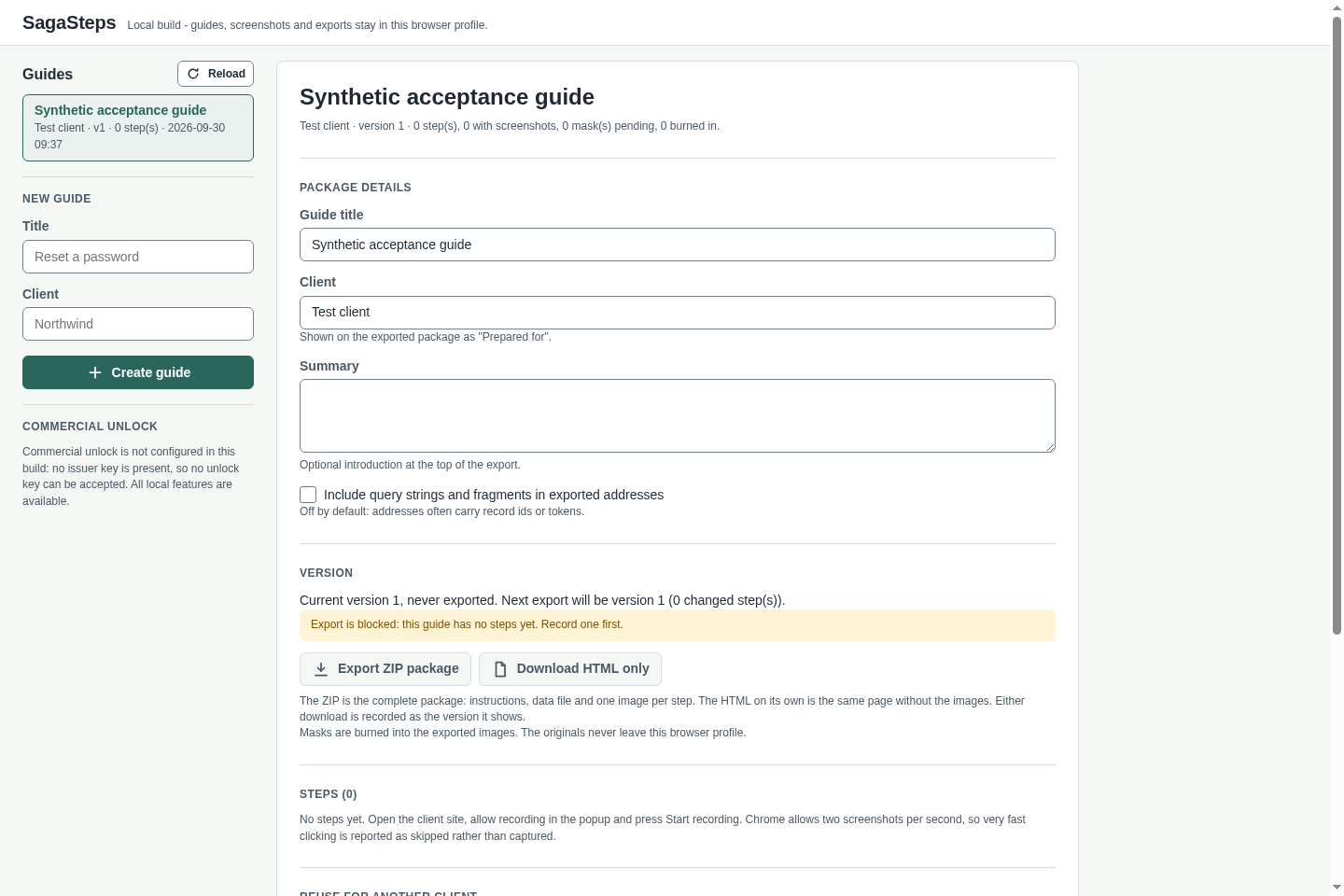
Fill in Package details (Guide title, Client, optional Summary) and click Export ZIP package or Download HTML only. The ZIP, named like sagasteps-<title>-<client>-v1.zip, contains index.html, guide.json, README.txt and one image per step; open index.html in any browser, or print it to PDF. Export is blocked until the guide has at least one step. Each export after a change becomes the next version.
Where your data is
Guides, screenshots and masks are stored only in this Chrome profile and survive restarts; exports go to your Downloads folder. There is no account, cloud or sync. Copy this guide for that client makes an independent copy for another client; Delete guide removes a guide and its screenshots. Removing the extension deletes all its stored guides, so export first.
A worked example
Record how to reserve a tool
Input: examples/sagasteps/practice-site/: a fictional two-page Lindgren Tool Library site (index.html with a Reserve form, done.html confirmation). Nothing is sent anywhere.
- In a terminal, serve the practice site: python3 -m http.server 8098 --bind 127.0.0.1 --directory examples/sagasteps/practice-site (on Windows use py instead of python3), then open http://127.0.0.1:8098/ in Chrome.
- Click the SagaSteps icon, create a guide titled Reserve a tool for the client Lindgren Tool Library, then click Allow recording on this site and click Allow in Chrome's prompt.
- Click Start recording, type any made-up card number such as 0000-TEST, pick a Tool and a Pick-up day, click Reserve, then click Stop.
- Click Open editor, mask the card-number field on its screenshot, and click Export ZIP package.
Expected result: The popup shows Access granted for http://127.0.0.1:8098, then Recording on http://127.0.0.1:8098 for “Lindgren Tool Library” and a running count of captured steps. The editor lists Reserve a tool, Lindgren Tool Library, version 1, with a screenshot for each captured step and default headings such as Fill in the field; the typed card number is not stored anywhere. Export downloads sagasteps-reserve-a-tool-lindgren-tool-library-v1.zip containing index.html, guide.json, README.txt and images/step-01.png, step-02.png and so on; masked areas are covered in those images. Before any step is recorded the editor says Export is blocked: this guide has no steps yet.
Troubleshooting
The popup says “This page cannot be recorded”.
Recording works only on http(s) pages. Open the site over http:// or https://, for example through the local server in the example, not as a file.
Chrome refused a screenshot, or recording seems paused.
Chrome ties screenshot access to the tab where you invoked SagaSteps and to that one site. Stay on the site, reopen the popup on that tab or press Alt+Shift+S to re-grant, then continue.
Some fast clicks were reported as skipped.
Chrome allows two screenshots per second. Work a little slower; skipped actions are reported, never faked.
Export ZIP package is greyed out.
The guide has no steps yet. Record at least one step, then export.
Compatibility & limits
- Visible part of the tab only (no full-page screenshots), rectangular masks, one browser profile, English interface.
- Manual unpacked install in desktop Chrome. It is not in the Chrome Web Store and does not update automatically; to update, replace the folder and click the reload icon on the extension's card in chrome://extensions.
- Review every screenshot and mask before sharing a guide. Record only sites you are authorised to record.
- The original program keeps its included preview permissions: you may use it, including for real work, but not sell or redistribute it (see PREVIEW-PERMISSION.md).
- One authorised origin and visible-tab screenshots; no video, OS capture, cloud sync or automatic crawl. A two-step recording and ZIP export with screenshots passed in Chromium 151 on Linux. Chrome 152 UI and permissions were also checked. Masking, Windows and macOS remain unverified. Install with Developer mode; no Web Store listing or activation key.
Need a hand?
Tell us the product, host application and version, what you tried, and the exact error. Contact support with a fictional example; keep private customer files and passwords out of your message.