Step-by-step guide
SifBatch
Turn a generic CSV or TSV of personalized orders into a checked production batch. Map columns, review blocking and warning checks, and export a LightBurn-style Merge/CSV file, printable proof sheet, and batch ZIP.
You make personalized items (for example engraved boards, tags or coasters) and want to catch empty, too-long or unsafe personalization text before it reaches LightBurn's variable text.
See it in use
Prepare a four-row LightBurn merge CSV
A screenshot walkthrough with fictional practice data. Select a step to explore.
1. Start with
Prepare a four-row LightBurn merge CSV
Six fictional coaster orders include three deliberate blocking errors.
Sample files and contents
examples/sif-batch/coaster-orders.csv (6 fictional orders: one with quantity 2, one name longer than 20 characters, one that starts like a spreadsheet formula, one with an empty name) and examples/sif-batch/coaster-mapping.json (Name required, max 20 characters; Date optional; Font required; Copy number).
Practice files and guides are free. The complete app is included only where the product page says so.
2. In the app
Try it in three steps
- Import the orders and mapping file.
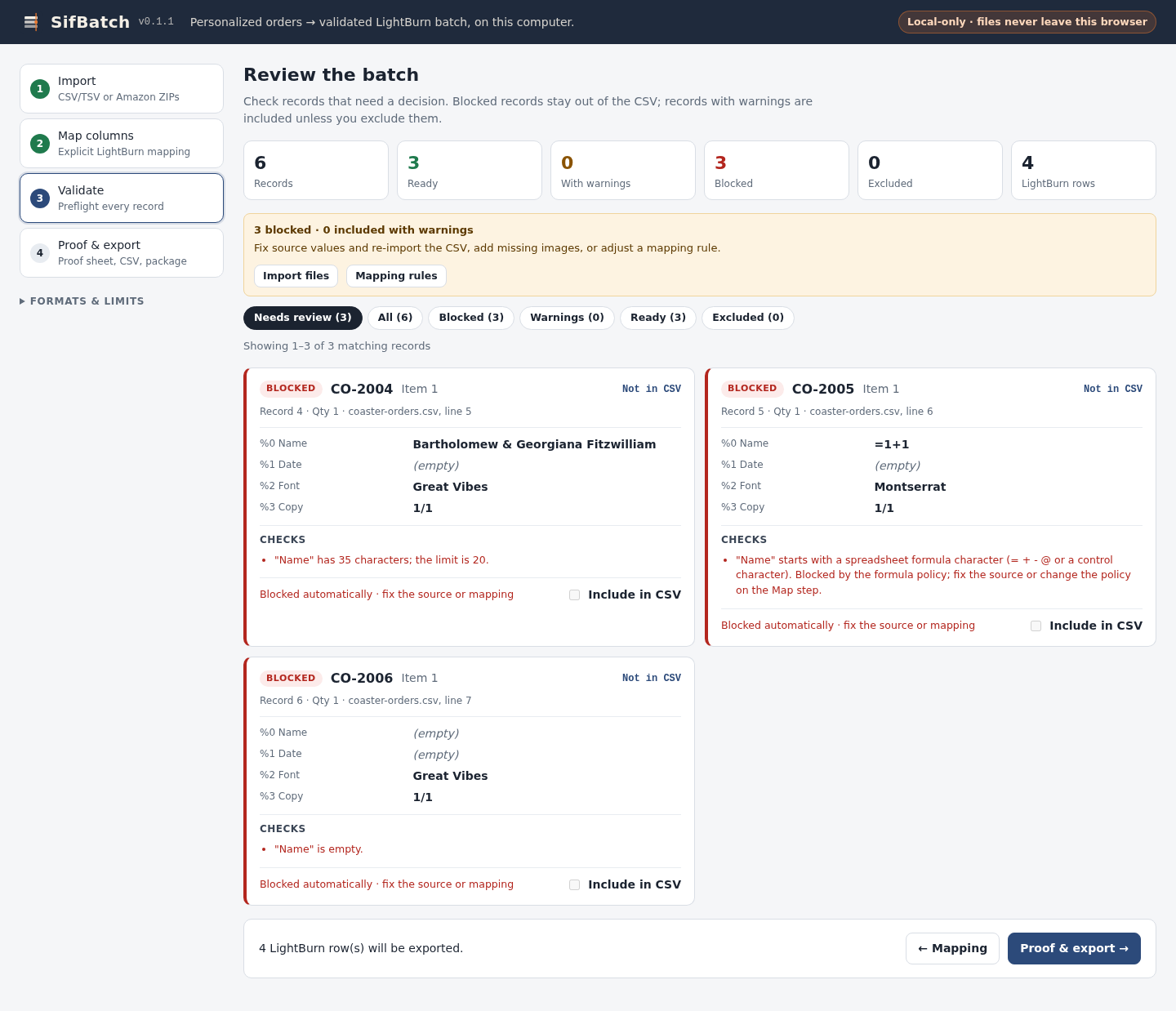
- Review three blocked records and the proof sheet.
- Export the CSV or complete batch ZIP.
Show every click and setting
- Start SifBatch with node server.mjs and open http://127.0.0.1:8787/ in Chrome.
- Under “Generic CSV / TSV”, choose coaster-orders.csv, then click “Continue to mapping →”.
- Click “Import mapping…” and choose coaster-mapping.json, then click “Confirm mapping and validate →”.
- Review the three BLOCKED rows, then click “Proof & export →”.
- Click “LightBurn CSV only” and “Download batch package (.zip)”.
3. The result
Inspect the result
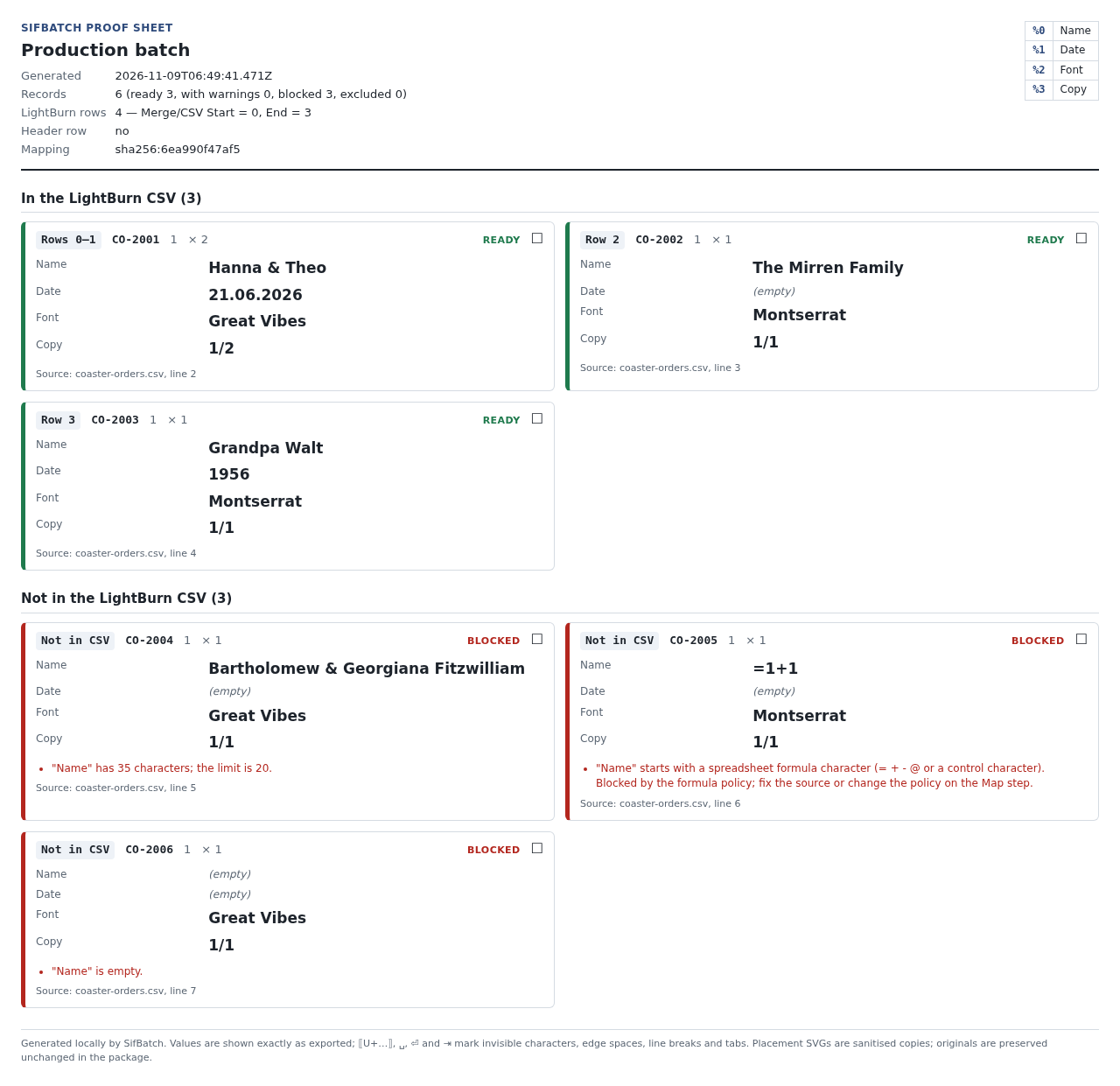
Three ready orders yield four CSV rows because one order has two copies. The three blocked records are omitted; LightBurn import is unverified.
What to check in the practice result
Review shows 6 records: 3 ready, 0 with warnings, 3 blocked, 4 LightBurn rows. Blocked reasons: “"Name" has 35 characters; the limit is 20.”, the formula rule for =1+1 (“"Name" starts with a spreadsheet formula character …”), and “"Name" is empty.” The CSV (SifBatch_Production-batch_lightburn-merge.csv) has 4 lines, the two-coaster order expanded to copies 1/2 and 2/2: “Hanna & Theo,21.06.2026,Great Vibes,1/2”. The batch ZIP contains lightburn/merge.csv, lightburn/COLUMNS.txt, proof/proof-sheet.html, reports/validation-report.csv and .json, mapping/sifbatch-mapping.json, originals/coaster-orders.csv, README.txt and manifest.json.
The review screen, proof sheet and CSV come from one run of the guide’s coaster example. Physical engraving and LightBurn import were not tested.
See the workflow at a glance
Choose a short explanation, then follow the worked example below. Check the requirements and compatibility before using your own files.
Check the names before you prepare the batch.
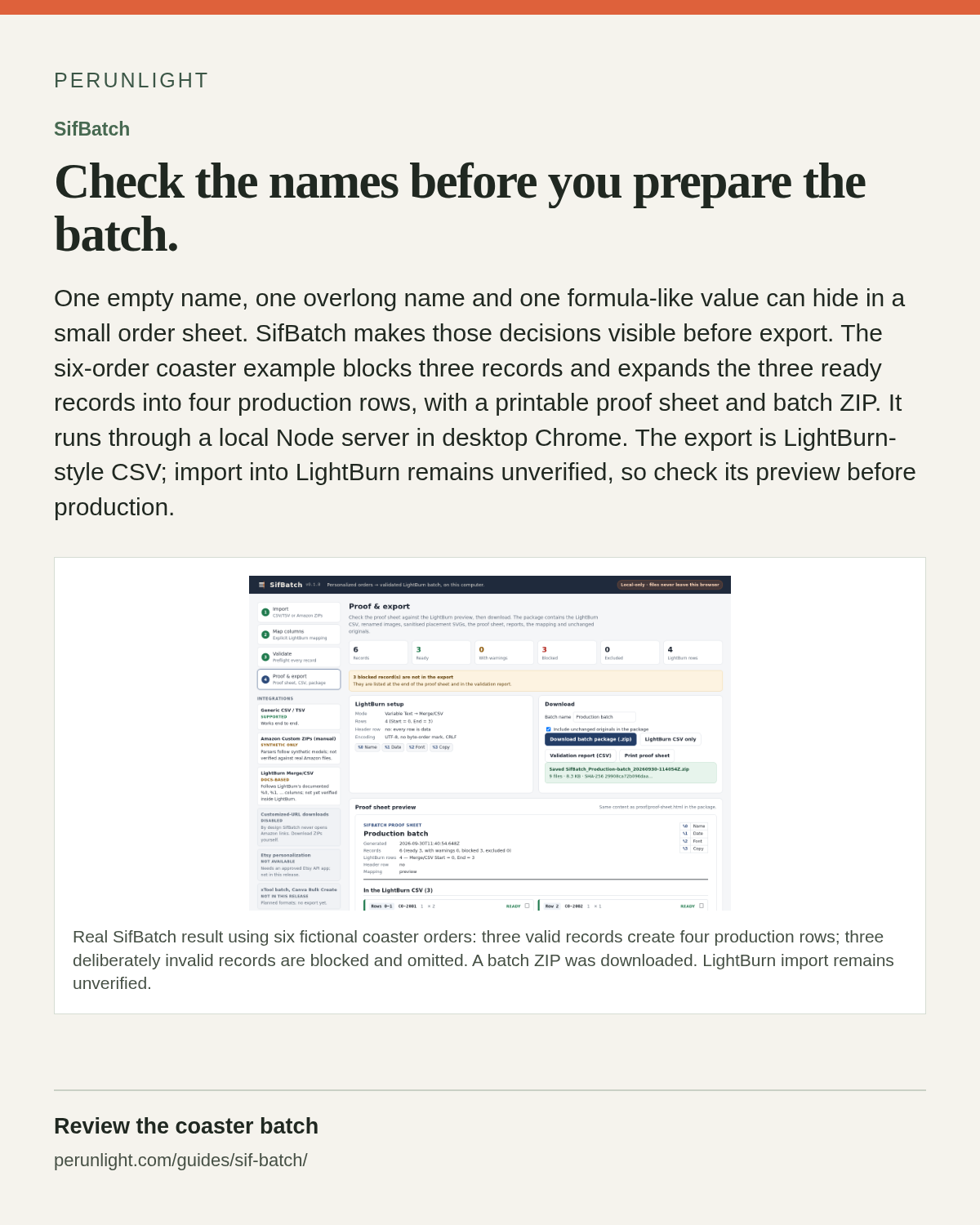
One empty name, one overlong name and one formula-like value can hide in a small order sheet. SifBatch makes those decisions visible before export. The six-order coaster example blocks three records and expands the three ready records into four production rows, with a printable proof sheet and batch ZIP. It runs through a local Node server in desktop Chrome. The export is LightBurn-style CSV; import into LightBurn remains unverified, so check its preview before production.
55-second silent illustrated overview. Reference images and educational illustrations explain the documented workflow; this is not a new recording of it.
Read the complete video transcript · Download MP4
View the illustrated card
Check the Setup Before You Buy
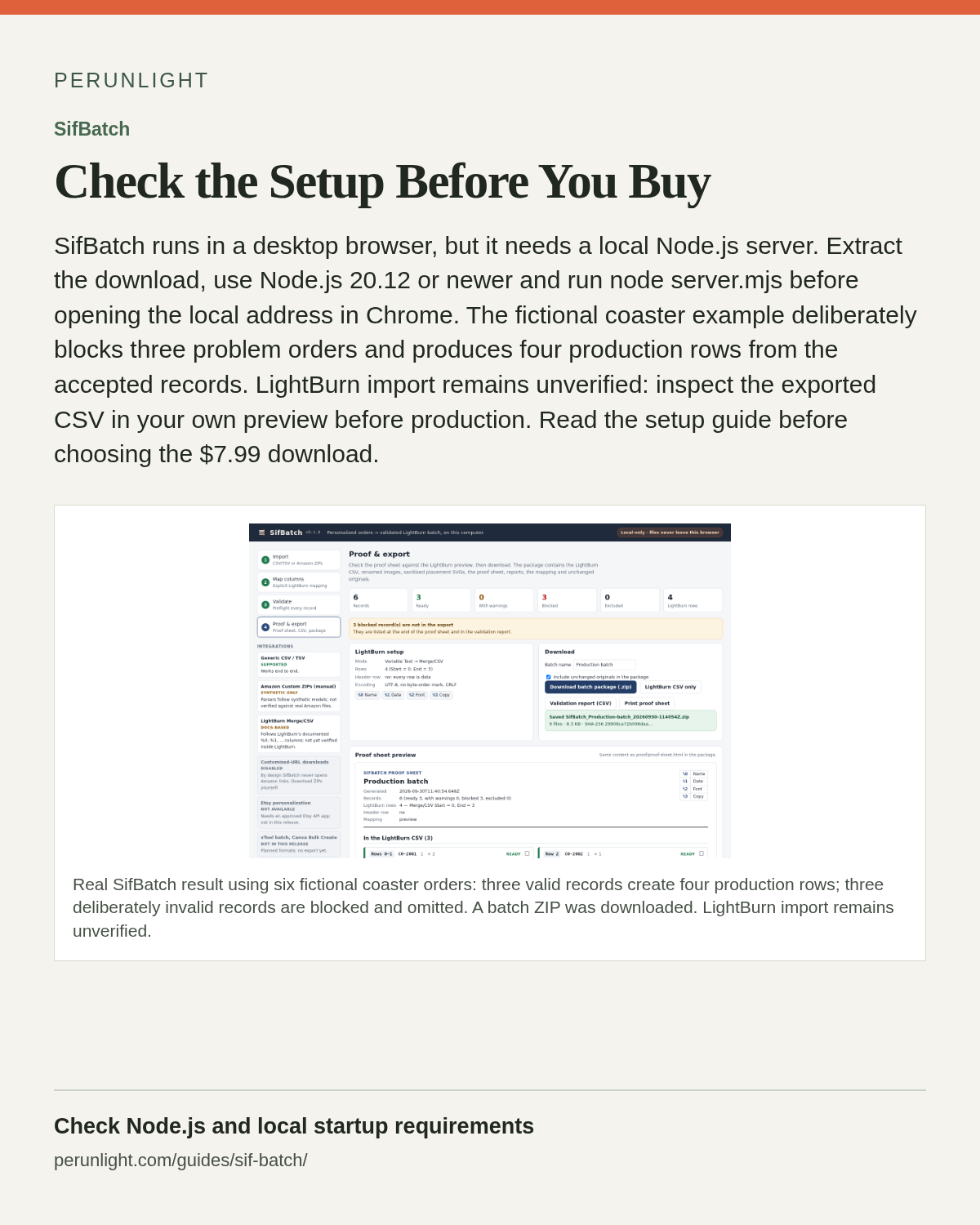
SifBatch runs in a desktop browser, but it needs a local Node.js server. Extract the download, use Node.js 20.12 or newer and run node server.mjs before opening the local address in Chrome. The fictional coaster example deliberately blocks three problem orders and produces four production rows from the accepted records. LightBurn import remains unverified: inspect the exported CSV in your own preview before production. Read the setup guide before choosing the $7.99 download.
View the illustrated card
Check the local setup before you buy
SifBatch runs through a local Node.js server. This readiness check separates a command you can run now from the application command used after extracting the tool.
Check Node now
Open a terminal and run
node --version. The requirement is Node.js 20.12 or newer. If the command is missing or the version is older, resolve that setup first; on a managed computer, check whether installation is allowed.Understand how the purchased tool starts
After extracting SifBatch, open a terminal in its folder and run
node server.mjs. Open the local address it prints and keep that terminal running. This is not a single HTML file you can start by double-clicking.Check whether the workflow fits
Use the free guide and practice files to inspect the six-order example and its three ready / three blocked outcome. That example does not verify a LightBurn import or provide xTool, Canva or Etsy integration.
Before you start
- Node.js 20.12 or newer (to start the local server) and desktop Google Chrome.
- Your orders as a CSV, TSV or TXT file with column names in the first row and one row per personalized item.
- Optional: buyer images as image files or a ZIP of images (PNG, JPEG, GIF, WEBP, BMP), matched by file name.
Your first result
Buy, download and extract
Buy from /store/sif-batch/ and download sif-batch-0.1.1-20261031.zip from the checkout page. Extract it; you get a folder named sif-batch with server.mjs, the app, synthetic samples and README.txt.
Start SifBatch
Open a terminal in the sif-batch folder and run: node server.mjs. It prints “SifBatch is running at http://127.0.0.1:8787/ (loopback only; press Ctrl+C to stop)”. Open that address in Chrome. Keep the terminal open while you work; press Ctrl+C there when you are done. If port 8787 is busy, start it with node server.mjs --port 8790 and open that port instead.
Try the synthetic sample first (optional)
On the Import step, click “Generic CSV sample”. It loads invented orders together with a saved mapping so you can walk through all four steps safely.
1 Import
Keep “Generic CSV / TSV” selected. Click the “Drop a .csv / .tsv / .txt file or click to choose” area and pick your order file. Encoding and Delimiter can stay on automatic. Add buyer images under “Buyer images” only if your orders reference image files. Click “Continue to mapping →”.
2 Map columns
Under “Record identity” choose the Order ID column (required) and, if you have them, the order line, quantity and image file name columns. Under “LightBurn columns” each row becomes %0, %1, … in LightBurn: pick its Source column, tick Required only for values that must never be empty, and set “Max chars” to what fits your item. “Suggest from source names” fills this in quickly but marks every suggested column Required, so review it. “Import mapping…” loads a saved mapping file and “Export mapping” saves the current one for next time. Click “Confirm mapping and validate →”.
3 Review the batch
Review every record before export. The list shows 100 matching records per page; use Previous and Next to reach later pages, including record 501 on page 6. Filter to Needs review, All, Blocked, Warnings, Ready or Excluded. READY records are included by default; use “Include in CSV” to exclude an individual record. Blocked records stay out of the CSV. Warnings remain included unless you exclude them, so read each warning. Fix source values and import again, or adjust mapping rules. The proof, CSV and ZIP all use the current inclusion choices. Click “Proof & export →”.
4 Proof & export
Check the proof sheet preview and the “LightBurn setup” box (mode Variable Text → Merge/CSV, the Start/End rows, header row, UTF-8 encoding). Set a “Batch name”, then click “Download batch package (.zip)”, “LightBurn CSV only”, “Validation report (CSV)” or “Print proof sheet”. Files go to Chrome's downloads folder.
Use the CSV in LightBurn
In LightBurn, use Variable Text in Merge/CSV mode with the downloaded merge CSV and the Start/End rows shown on the export step. Check LightBurn's preview for every row before production.
A worked example
Six engraved-coaster orders with three deliberate problems
Input: examples/sif-batch/coaster-orders.csv (6 fictional orders: one with quantity 2, one name longer than 20 characters, one that starts like a spreadsheet formula, one with an empty name) and examples/sif-batch/coaster-mapping.json (Name required, max 20 characters; Date optional; Font required; Copy number).
- Start SifBatch with node server.mjs and open http://127.0.0.1:8787/ in Chrome.
- Under “Generic CSV / TSV”, choose coaster-orders.csv, then click “Continue to mapping →”.
- Click “Import mapping…” and choose coaster-mapping.json, then click “Confirm mapping and validate →”.
- Review the three BLOCKED rows, then click “Proof & export →”.
- Click “LightBurn CSV only” and “Download batch package (.zip)”.
Expected result: Review shows 6 records: 3 ready, 0 with warnings, 3 blocked, 4 LightBurn rows. Blocked reasons: “"Name" has 35 characters; the limit is 20.”, the formula rule for =1+1 (“"Name" starts with a spreadsheet formula character …”), and “"Name" is empty.” The CSV (SifBatch_Production-batch_lightburn-merge.csv) has 4 lines, the two-coaster order expanded to copies 1/2 and 2/2: “Hanna & Theo,21.06.2026,Great Vibes,1/2”. The batch ZIP contains lightburn/merge.csv, lightburn/COLUMNS.txt, proof/proof-sheet.html, reports/validation-report.csv and .json, mapping/sifbatch-mapping.json, originals/coaster-orders.csv, README.txt and manifest.json.
Troubleshooting
Optional columns such as Date block orders with “"Date" is empty.”
On “2 Map columns”, untick Required for that LightBurn column (“Suggest from source names” ticks every column), then confirm the mapping again.
A name is blocked because it “starts with a spreadsheet formula character”.
Values starting with = + - or @ are blocked by default to protect spreadsheet users. Fix the source text, or on the Map step choose “Prefix with an apostrophe” (the apostrophe will be engraved) or “Export exactly as typed” (only if you never open the CSV in a spreadsheet app).
The page does not open or the terminal shows an error when starting.
Check node --version shows 20.12 or newer and that you ran the command inside the sif-batch folder. If the port is in use, add --port with another number.
Accented or non-Latin names look wrong.
On the Import step set Encoding to the one your spreadsheet used (for example Windows-1252 for Excel “CSV” on Western Windows) instead of automatic.
My work is gone after closing the tab.
SifBatch does not store orders between sessions. Use “Export mapping” (or keep the mapping inside the batch ZIP) and re-import the order file next time.
Compatibility & limits
- Tested from the exact 0.1.1 buyer ZIP with Google Chrome 152.0.7977.82, Node.js v22.22.2 and synthetic orders. Import into LightBurn itself has not been verified: confirm every row in LightBurn preview before production.
- The Amazon Custom ZIP mode reads synthetic models only; real Amazon exports are unverified.
- No xTool, Canva or Etsy export, no HEIC/TIFF images and no ZIP64. The PDF proof is made with the browser's print-to-PDF.
- Nothing is saved between sessions except the files you download.
Need a hand?
Tell us the product, host application and version, what you tried, and the exact error. Contact support with a fictional example; keep private customer files and passwords out of your message.