Step-by-step guide
SkuldTurn
Choose where you can turn a printed music part. Review the systems in your PDF, mark those turn points, then arrange single pages or binder spreads and export a new PDF.
You read a part from paper and need its physical turns to fall at places you have reviewed.
Before you start
- Desktop Google Chrome. Tested with Chrome 152 on Linux; other hosts and browsers are unverified.
- Extract the entire buyer ZIP and open app/index.html. Keep the bundled files together.
- An upright PDF you may copy and rearrange. Scans are supported when they are inside a PDF.
- Use the included practice score to understand bands and turns before preparing your own part.
Your first result
Load the practice score
Open app/index.html and choose Load the example score. The example has three source pages and fifteen numbered systems.
Review all three pages
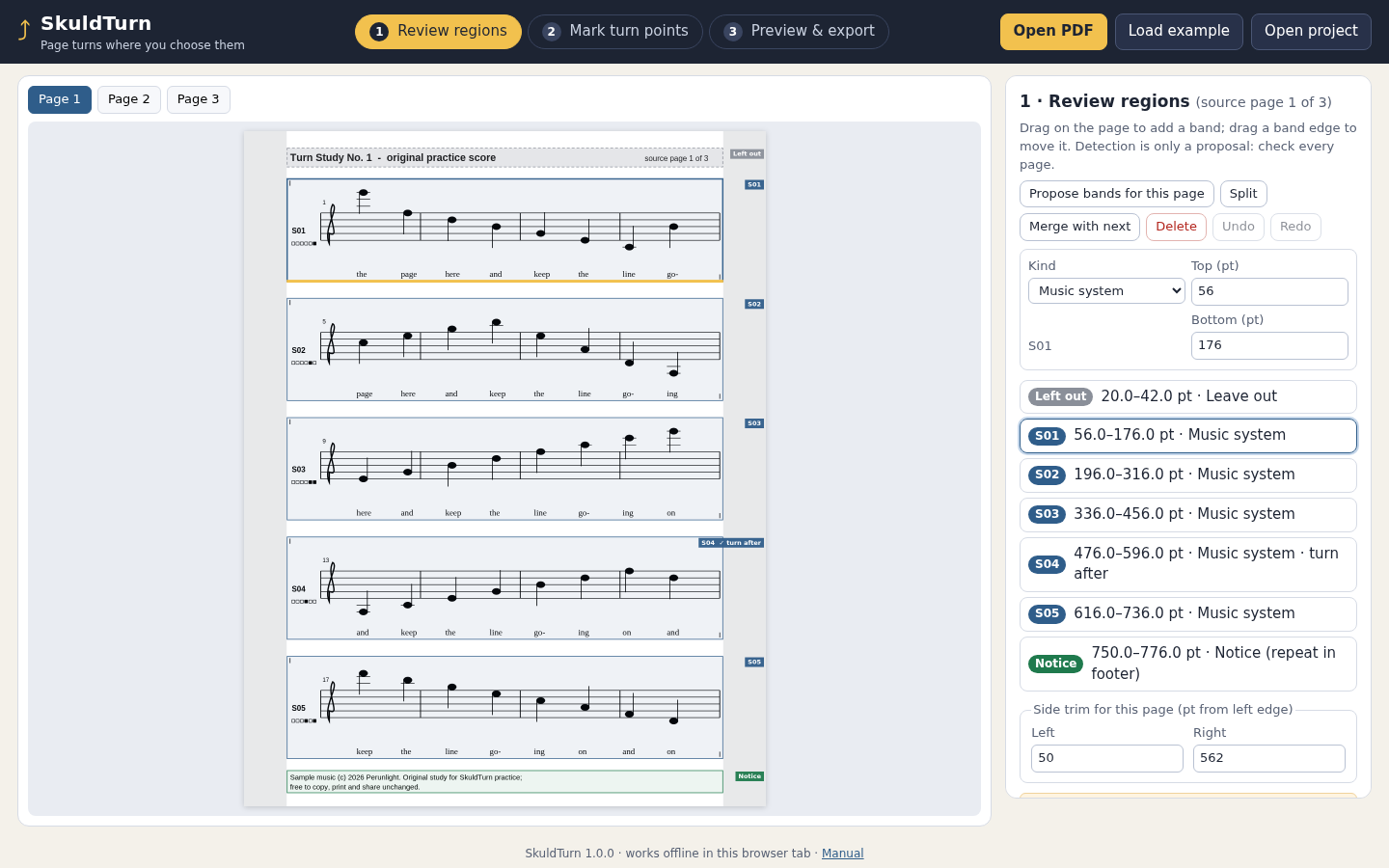
In Review regions, select each source page and inspect the blue music bands, the excluded header and the notice. Tick I reviewed this page on each page. This approval is required for export.
Confirm the marked turns
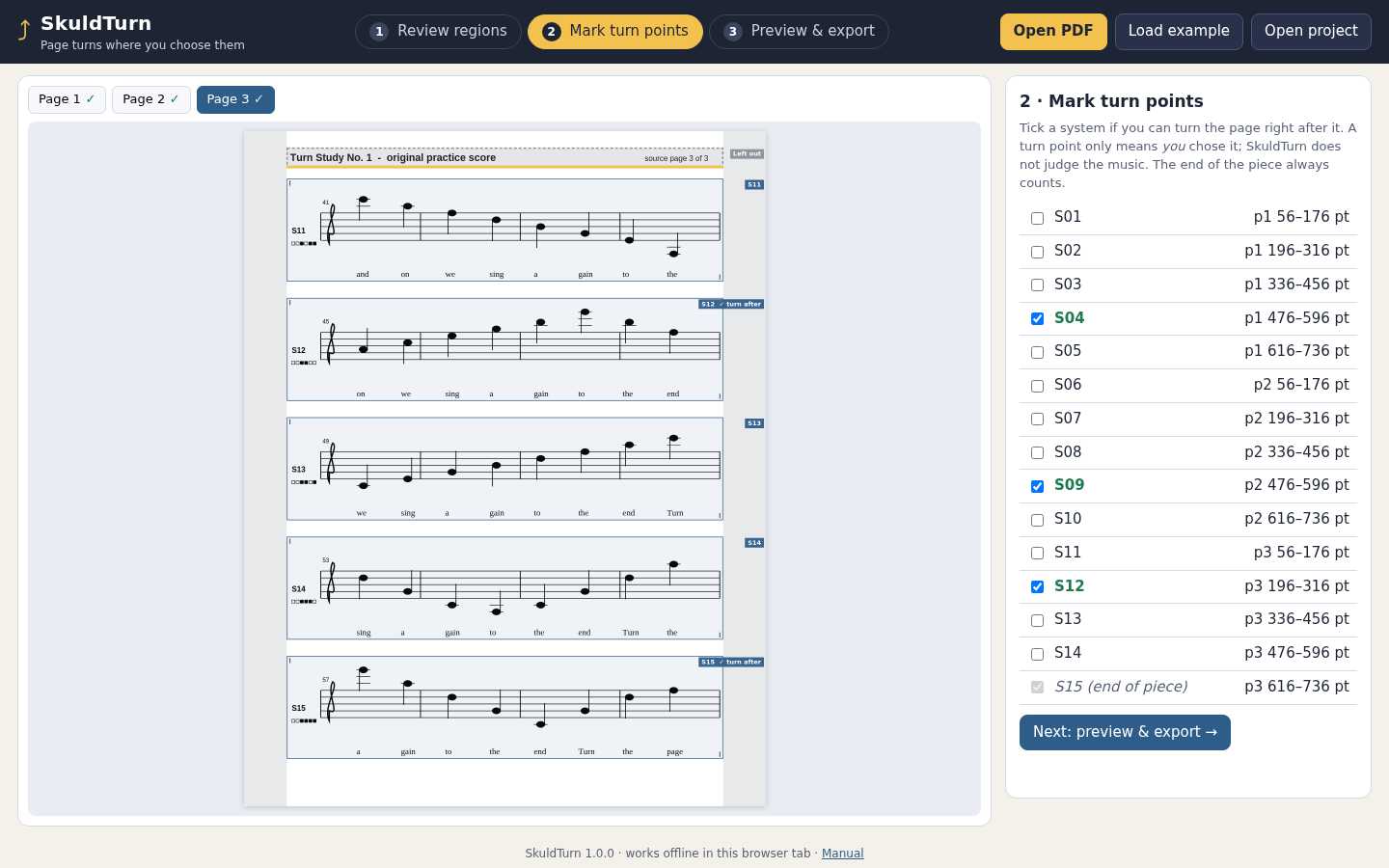
In Mark turn points, keep the example marks after S04, S09, S12 and S15. The end of the piece always counts as a permitted end.
Make the first output
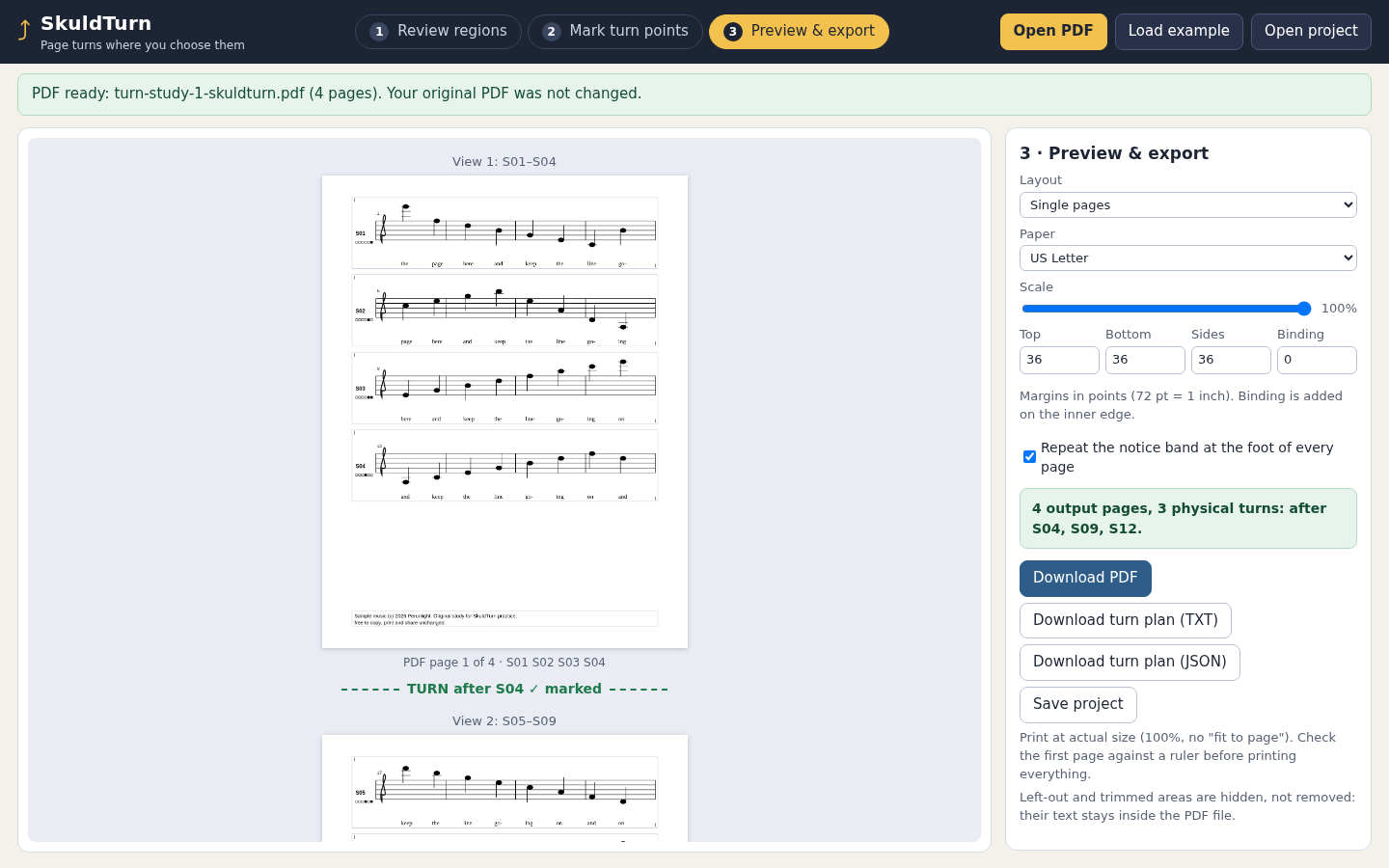
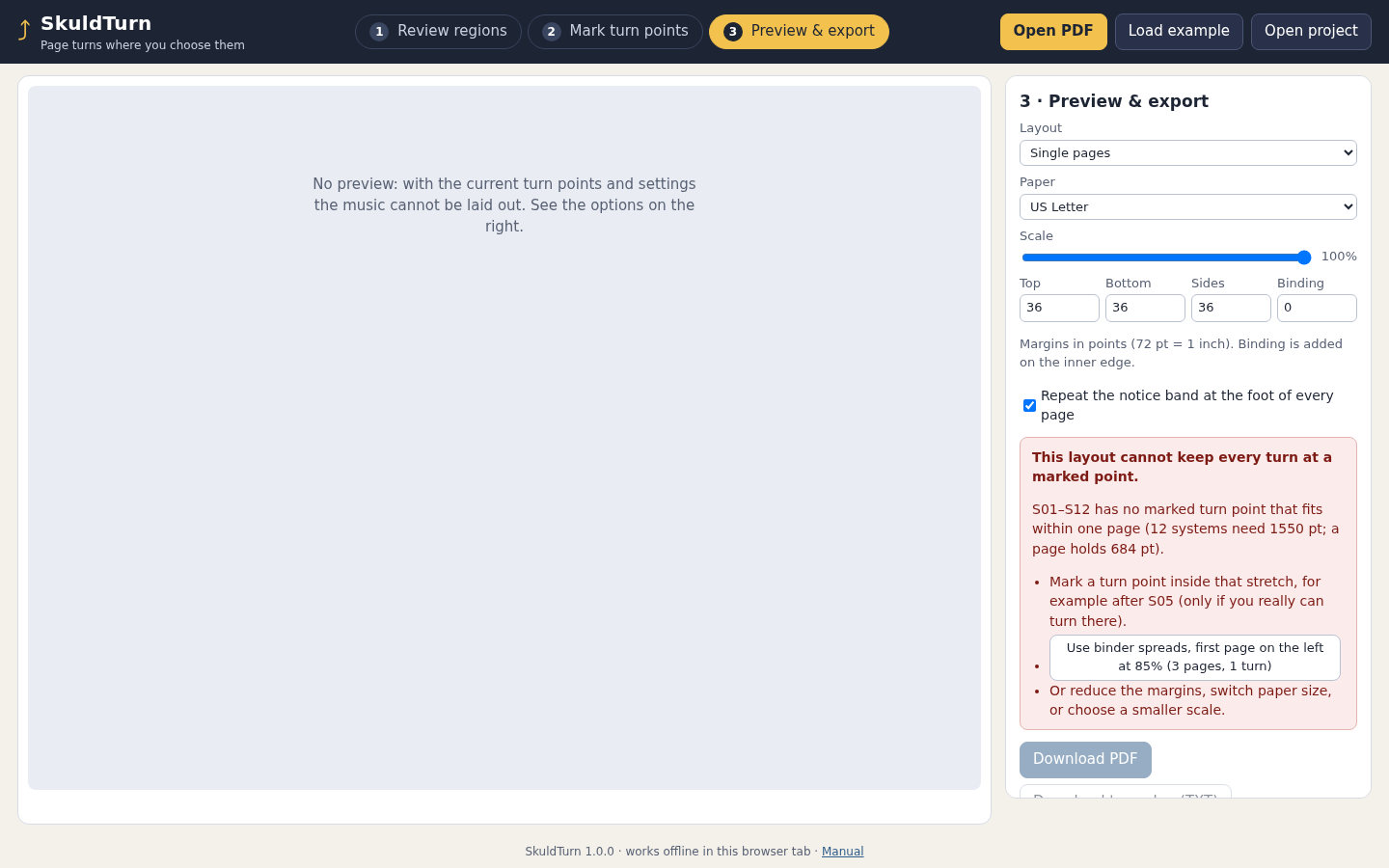
In Preview & export, choose Single pages, US Letter, 100%, top/bottom/side margins of 36 points and zero binding allowance. Keep the notice repeated. Expect four output pages and turns after S04, S09 and S12.
Compare a binder layout
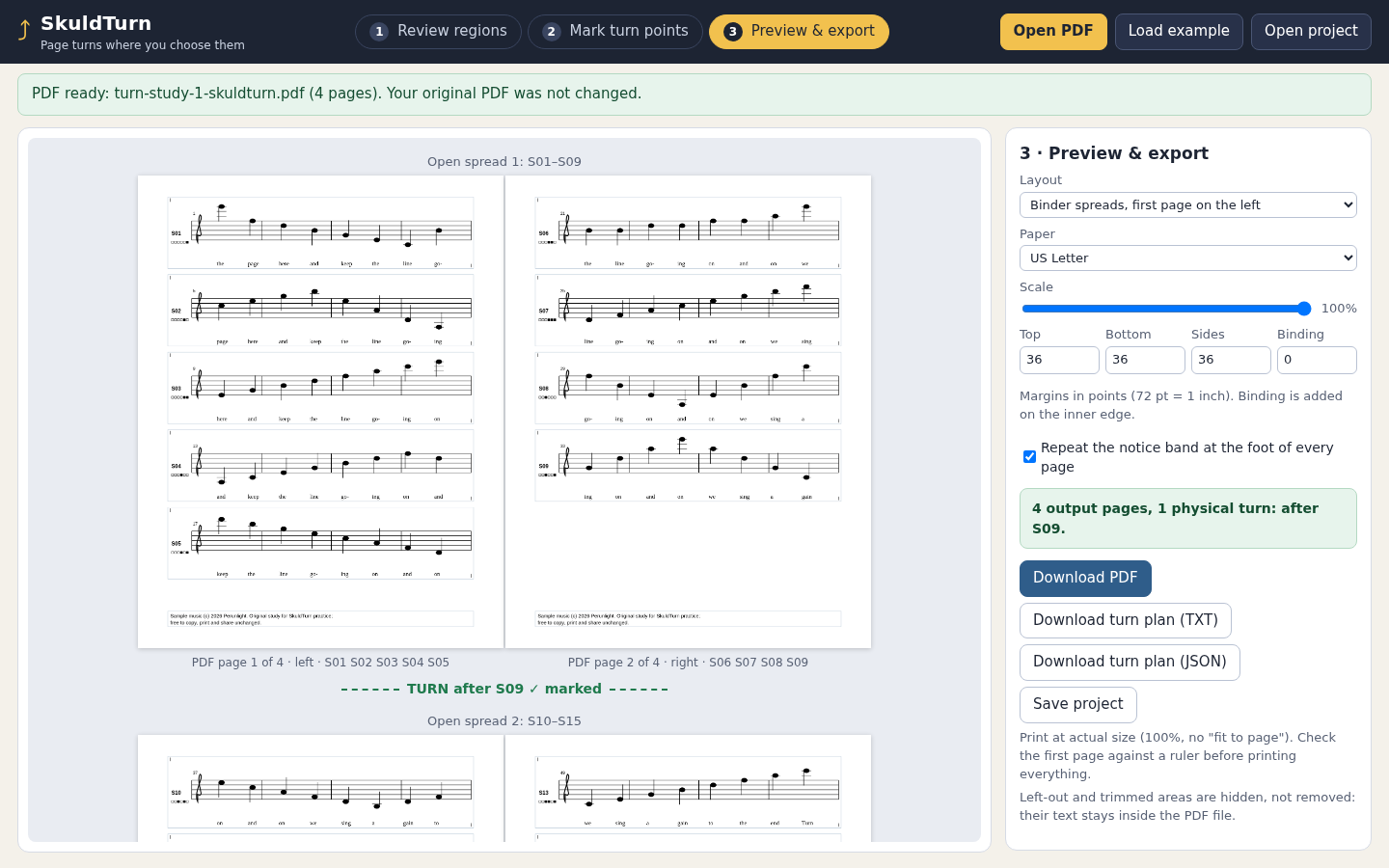
Choose the binder layout with the first page on the left. Expect four pages in two spreads and one physical turn, after S09. Review the left and right pages in each spread.
Download and reopen
Download the PDF and turn plan, then choose Save project. Keep the project with the original PDF: reopening checks the PDF fingerprint. Print a test page at actual size and check it before printing the full part.
Review your own music
Open your PDF, saving current work first. Proposals are a starting point. Adjust band edges and side trims so notes, lyrics and dynamics stay intact. Use the title, notice and leave-out kinds only after checking their content, then review each page and mark your own turn points.
A worked example
Turn Study No. 1 — original fictional practice score
Input: Three Letter pages contain fifteen 120-point systems. Turn marks follow S04, S09, S12 and S15. Use 36-point margins, no binding allowance and the repeated notice.
- At 100%, compare the single-page layout with both binder orientations.
- At 80%, compare the three-page single layout.
- Try keeping only the S12 and S15 marks in single-page mode to see why that stretch cannot fit.
Expected result: Single pages at 100%: [S01–S04], [S05–S09], [S10–S12], [S13–S15]. At 80%: [S01–S04], [S05–S09], [S10–S15]. Binder first-left: [S01–S05][S06–S09] | [S10–S12][S13–S15], turning after S09. Binder first-right: [S01–S04] | [S05–S08][S09–S12] | [S13–S15], turning after S04 and S12. With only S12/S15 marked, single-page mode reports that S01–S12 cannot fit.
From source bands to a turnable part
Actual SkuldTurn screens in Chrome on Linux, using the original Turn Study No. 1 example.
1. Review regions
2. Turn points
3. Preview single
4. Preview binder
5. Infeasible
Troubleshooting
Export is unavailable
Read the summary and review every source page. Every retained band must fit and all physical turns must land on your marks.
No marked turn fits
Review a real turn point inside the named stretch, try smaller scale or margins, or compare the binder layouts. Suggested changes are not applied silently.
Part of a lyric or dynamic is missing
Return to the source-page view and extend the band edge or side trim. Review that page again before exporting.
The PDF is refused
Read the stated format restriction. Use a suitable upright, flattened, unprotected copy that you may edit.
The saved project does not match
Open the exact original PDF used for that project. Renaming a different PDF does not change its fingerprint.
The print size looks wrong
Choose actual size or 100% in the print dialog, disable fit-to-page, and check one test sheet before printing the full part.
Compatibility & limits
- One PDF per project, up to 20 pages and 32 MiB. At most 120 full-width bands. Pages must be upright and 216–1296 points on each side.
- US Letter or A4, at one uniform scale from 70% to 100%. Source order is preserved; repeats and jumps are not interpreted.
- You review every source page and mark the turns yourself. Staff-line proposals can miss notes, lyrics or other content, especially in noisy scans.
- Encrypted or restricted PDFs, forms, signatures, layers, active content, rotated pages and visible annotations are refused. Link annotations may open, but links and other interactive features are not exported.
- No music recognition, rest detection, transposition or automatic musical judgement.
- Excluded regions are visually clipped, not securely redacted; source content may remain extractable from the exported PDF.
- Desktop Chrome on Linux tested. Other browsers, operating systems and physical printer behaviour remain unverified. Save your project before closing the tab.
- Band positions are in PDF points, with 72 points per inch. The guide lists the exact margin and saved-project limits. Narrow-window layout was checked; editing music bands is intended for a desktop.
Need a hand?
Tell us the product, host application and version, what you tried, and the exact error. Contact support with a fictional example; keep private customer files and passwords out of your message.