Step-by-step guide
SvarogImpose
Repeat a finished card or label PDF across a sheet, with explicit margins, cut marks and front/back mapping.
Use this for repeated copies of one print-ready design. Prepare a fresh sheet PDF, a duplex test sheet and job notes. Physical registration, cutting and colour need your own proof; the app is not preflight or PDF/X software.
Before you start
- Google Chrome on Linux. Tested with Chrome 152 on Ubuntu 22.04; other browsers and operating systems are unverified.
- Extract the entire buyer ZIP and open SvarogImpose.html. The app and its PDF library are bundled and work offline.
- One unencrypted PDF up to 50 MB with one page, or two pages with matching finished sizes. Forms, signatures, active content, automatic actions and three or more pages are refused.
Your first result
Open the app and try the example
Extract the full ZIP and open
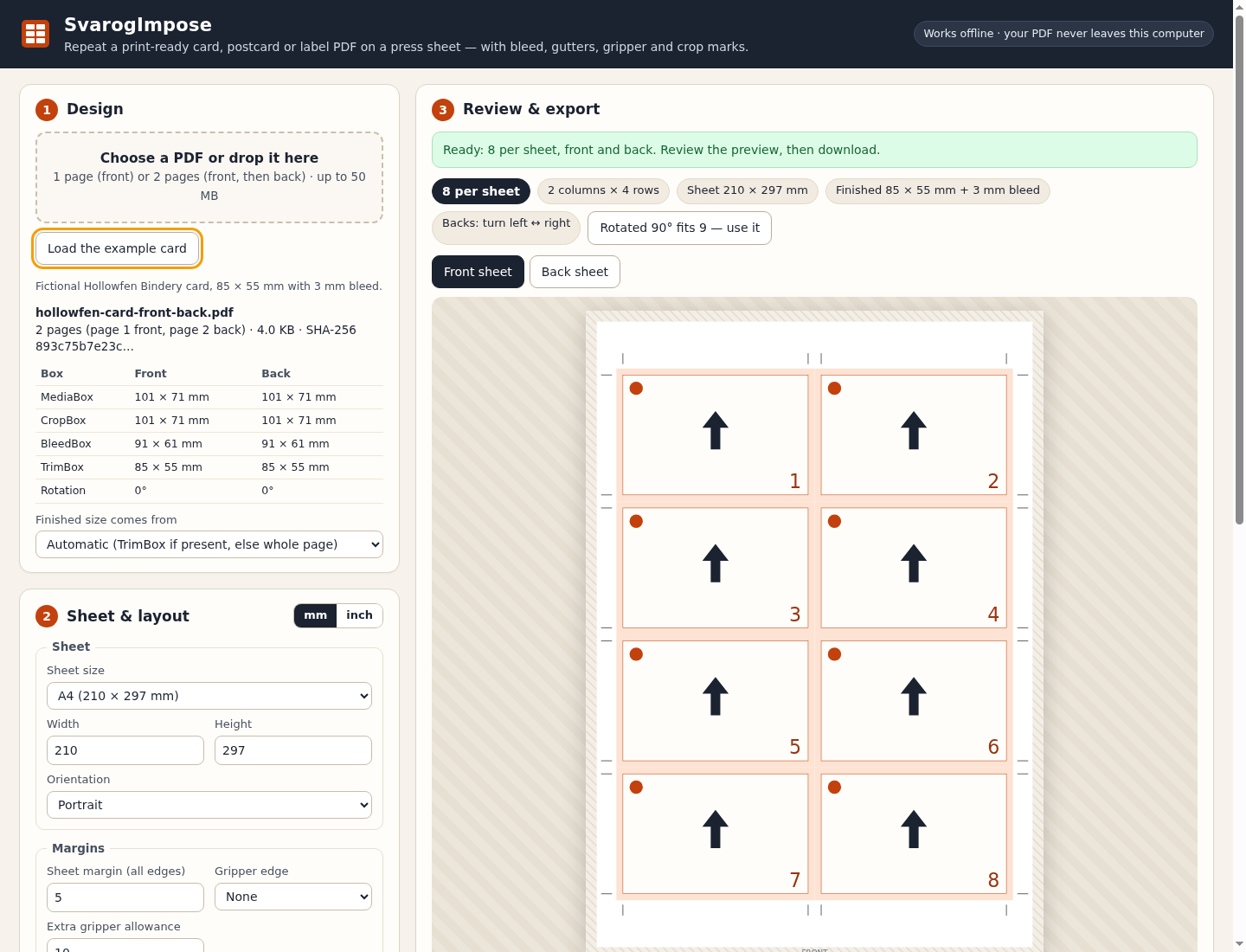
SvarogImpose.htmlin Google Chrome. Choose Load the example card. Expect 8 per sheet, 2 columns × 4 rows on A4. The rotated alternative should report nine.Inspect the actual PDF
Choose Download imposed PDF and open the result in your PDF viewer. Page 1 has the fronts; page 2 has the backs. The in-app diagram shows positions and orientation, not the artwork itself.
Load your finished design
Choose one unencrypted PDF containing one page (front) or two matching pages (front and back), up to 50 MB. Check the detected page boxes and Finished size comes from. Use the TrimBox when correct, the whole page, or the page minus an entered bleed. The design is never scaled.
Set up the sheet
Select a sheet preset or custom dimensions. Set margins, gripper edge and allowance, bleed, row/column gutters, and crop-mark length and offset. Choose automatic fit or fixed rows and columns. The bleed setting cannot create artwork outside the bleed present in your source.
Proof the front/back mapping
Choose left-right or top-bottom turn-over, and head-to-foot if required. Download and print the duplex test sheet at actual size. Measure the result on the target printer and, if needed, enter a back offset up to ±10 mm. Reprint a proof after changing the settings.
Export and keep the job record
Download the imposed PDF and job sheet, or the ZIP containing all outputs. Save the settings JSON for reuse. Check the result in your normal PDF viewer and approve a physical proof before production. The source file is unchanged. To remove the app, delete its extracted folder; keep any jobs you still need.
A worked example
Hollowfen Bindery: eight cards on A4
Input: examples/hollowfen-card-front-back.pdf — fictional 85 × 55 mm card, 3 mm bleed, 5 mm purple slug, front and back with different coloured corners
- Use the supplied fictional two-page PDF or click Load the example card.
- A4 portrait, 5 mm margin, no gripper, 3 mm bleed, 0 gutter, crop marks 2 mm offset and 5 mm long, left↔right turn-over
- Review both schematic sides, export the imposed PDF, and compare it with the expected PDF in the free pack.
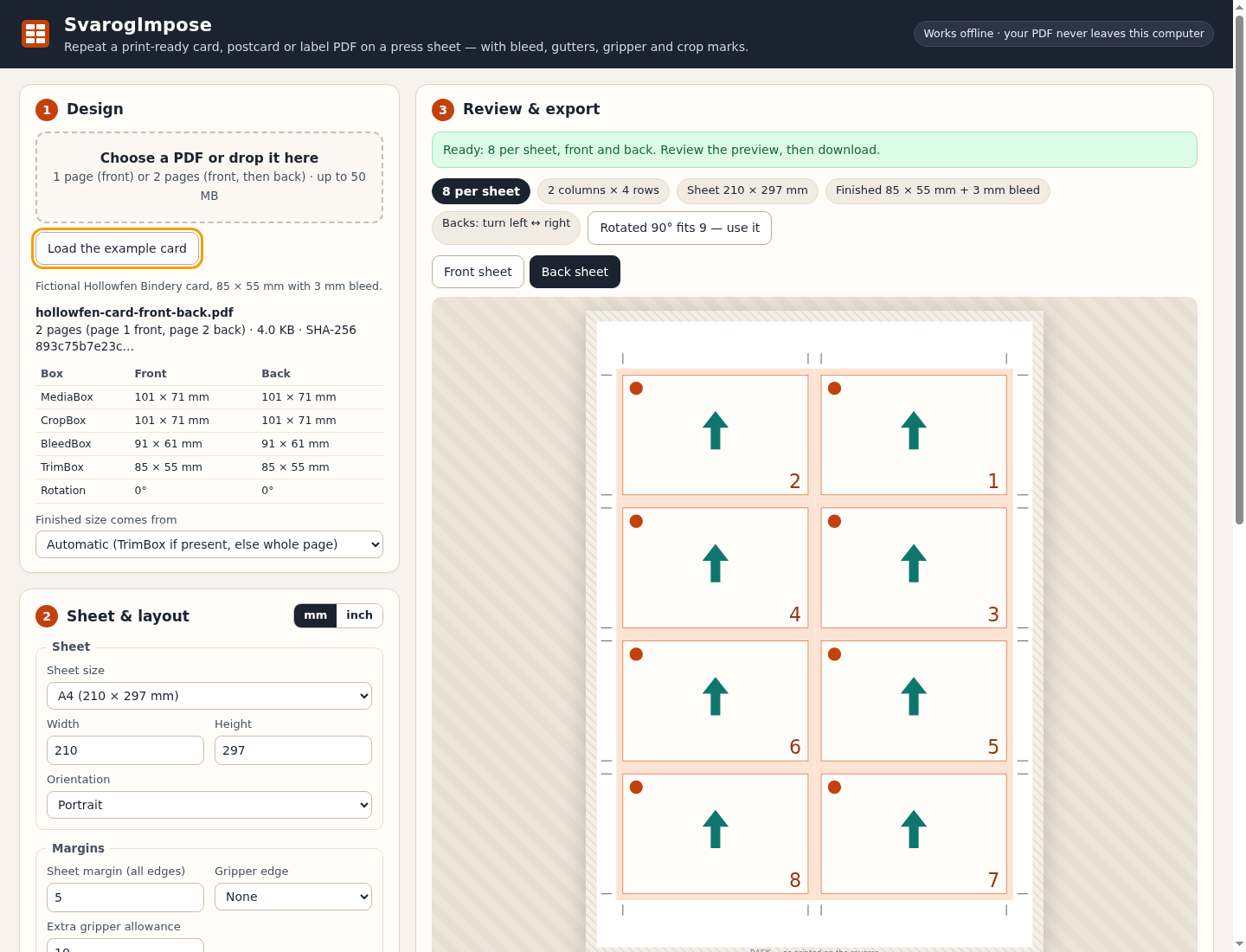
Expected result: 8 per sheet (2 columns × 4 rows). The first finished card edge is 17 mm from the left and 29.5 mm from the top of the sheet. Vertical cut lines are at 17, 102, 108 and 193 mm. No slug appears. On page 2 each back's yellow corner sits behind its front's green corner. Rotating the design would fit 9.
One design, matching fronts and backs
Actual SvarogImpose 1.0.0 screens in Chrome on Linux. These are layout schematics; use the exported PDF to inspect the artwork.
1. Eight fronts on A4
2. Match the backs
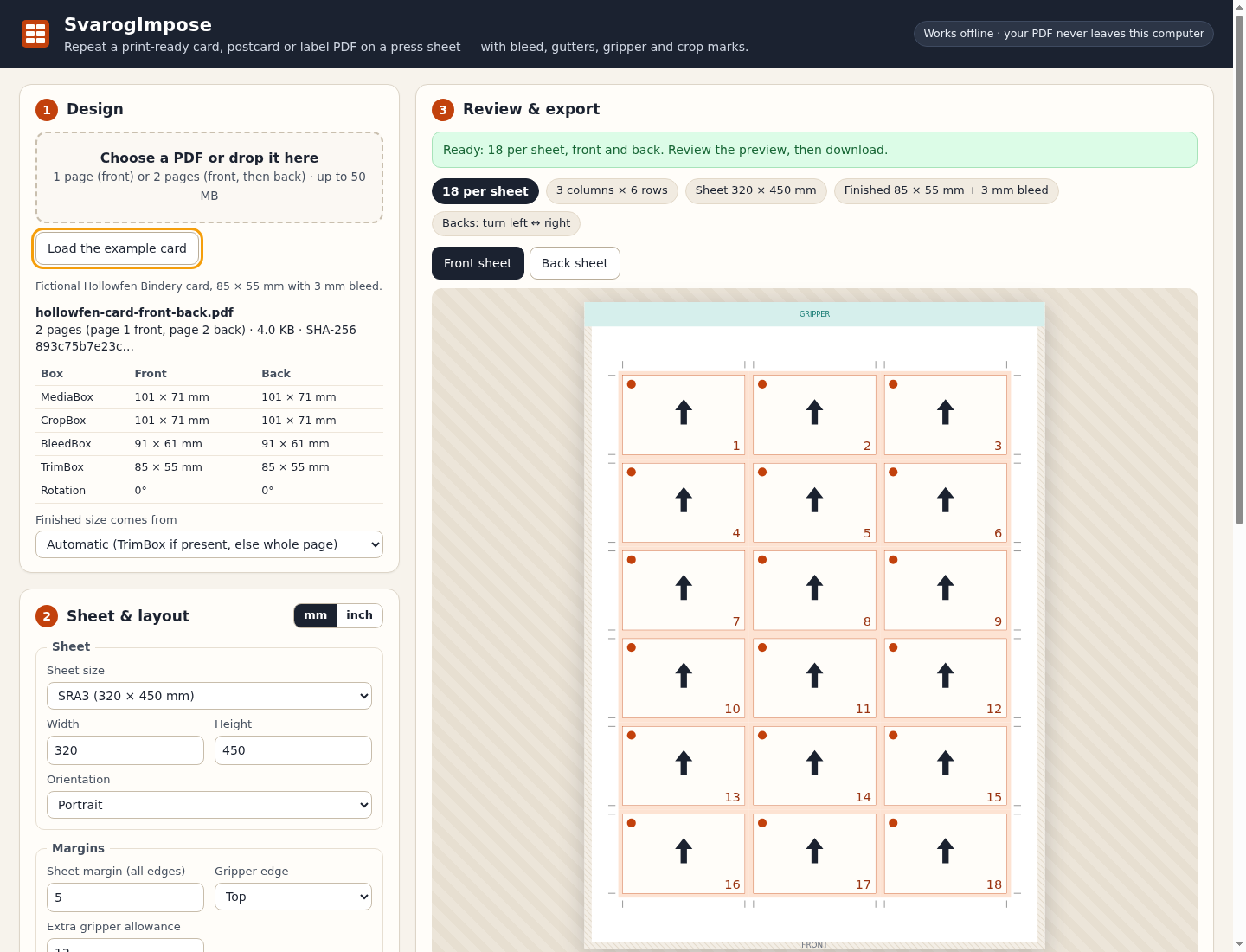
3. Allow for the gripper
Troubleshooting
“The PDF provides only 0 mm of bleed”
Set Bleed to 0, re-export the design with bleed, or choose “The page minus bleed I enter” if the page already includes bleed.
“does not fit the usable area”
Use a larger sheet, reduce the margins, marks or gutters, or try Rotate design 90° (the message tells you whether rotating would fit).
“different finished sizes”
Export front and back as a matching pair of pages.
Encrypted, JavaScript, form-field or signed PDF refused
Export an unprotected, flattened copy of the design.
Backs upside down or offset on paper
Switch the turn-over option or head-to-foot, then enter the back offset you measured on the duplex test sheet.
Compatibility & limits
- Only tested on Google Chrome 152 on Linux; other browsers and operating systems are not claimed
- One design per job; no mixing of different designs on one sheet, variable data, booklets or page reordering
- Does not measure printers or cutters: duplex registration, paper movement and cutting accuracy must be checked with the test sheet and a proof
- Not a preflight or PDF/X tool. Spot colours, overprint and ICC profile preservation are not verified
- Annotations, links, layer visibility, page transparency group settings and the output intent are not carried over (a warning is shown)
- Refuses encrypted, damaged, signed and form-field PDFs; JavaScript, launch or automatic actions; files over 50 MB or with three or more pages. Plain links can be accepted but are not carried over.
- Bleed can't exceed the bleed in the file; designs are never scaled
- The in-app preview is a placement schematic, not rendered artwork. Inspect the exported PDF with your normal PDF viewer before printing.
- Fine hairlines can appear in anti-aliased screen views where bleed edges meet at zero gutter; physical output and cutting remain unverified.
Need a hand?
Tell us the product, host application and version, what you tried, and the exact error. Contact support with a fictional example; keep private customer files and passwords out of your message.