Step-by-step guide
VesnaLessons
Build and review a weekly private-lesson schedule offline. Import a roster and availability CSV, set studio rules, solve or edit the schedule, then export CSV, ICS, per-family ZIP or print/PDF.
You teach individual lessons (music, tutoring and similar) and need to fit every student into the week around their availability, sibling wishes, breaks and locations.
Before you start
- Desktop Google Chrome.
- Families' availability as a CSV file, for example a Google Forms or Microsoft Forms response export or your own spreadsheet with a student name column and availability text such as “Mon 15:30-18:00; Wed 15:30-18:00”.
Your first result
Buy, download and open
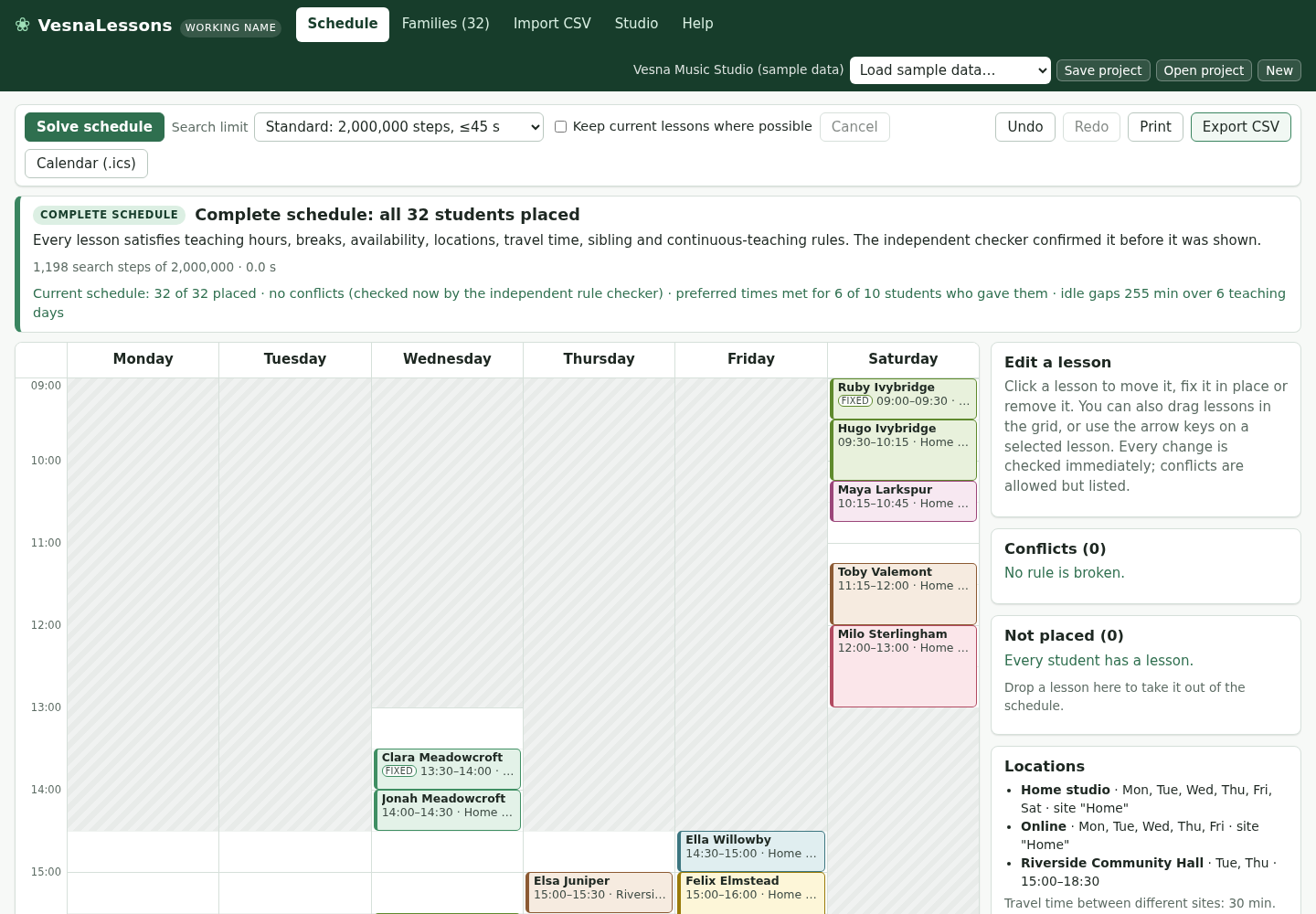
Buy from /store/vesna-lessons/ and download vesna-lessons-0.1.1.zip from the checkout page. Extract it and open vesna-lessons/index.html in Chrome. The first time, it opens a fictional 32-student sample studio; press “Solve schedule” to see how it works. Later it opens your last project from the browser; use “Load sample data…” to see the samples again.
Set up your studio
On the Studio tab enter Studio name, Teacher and “Lesson name in calendars”, the time display, the grid step for lesson start times, default lesson length and sibling default. Under “Teaching hours” tick your teaching days with From and To times, add Breaks, set the Rules (maximum continuous teaching, minimum break, travel time between sites) and list your Locations. Click “New” first if you want to start from an empty project instead of the sample settings.
Import families
On the Import CSV tab click “Choose CSV file…” (or “Use pasted text”). In “2. Match the columns” check which column is “Student name(s)” (required), family, email, lesson length, location, availability, preferred times, fixed lesson time and siblings; columns with matching names are picked automatically. “3. Preview” lists every student with warnings. Choose the Import mode — “Replace all families and students (settings and locations stay)” or “Add to the current families” — and click “Import … students”, or “Discard”.
Check families
On the Families tab review each family: lesson lengths, allowed locations, sibling rule (back-to-back, same day or independent), fixed lessons and availability. The email field is only written into files you export.
Solve and adjust
On the Schedule tab choose a “Search limit” (Quick, Standard, Thorough or Custom) and click “Solve schedule”. The banner states the outcome: “Complete schedule”, “Not everyone fits” (with the reason), “No schedule possible with these fixed lessons”, “Search limit reached” or “Search cancelled”. Click or drag a lesson to move it, fix it or remove it; Conflicts and “Not placed” update immediately, and “Why not placed?” explains a missing student. Undo and Redo are next to Solve.
Export and share
“Export CSV” downloads the schedule. “Calendar (.ics)” asks for “First day of term”, “Last day of term” and “Holidays / skipped dates”, then offers “Whole studio (your calendar)”, “One file per family (ZIP)” or one family; click Download. Each lesson becomes a weekly repeating event. “Print” opens Chrome's print dialog, where you can also choose Save as PDF. VesnaLessons never sends messages; share the files yourself.
Saving and backups
Your project is saved automatically in this browser's local storage and reopens next time. Browser data can be cleared, so click “Save project” to download a .vesnalessons.json copy and “Open project” to load it again. The Help tab has a button to delete the data stored in this browser.
A worked example
Six fictional piano students in the sample studio
Input: examples/vesna-lessons/piano-studio-families.csv: 6 fictional students in 5 families (Family, Child, Minutes, Where, availability text, best times, a kept Monday 16:00 slot for one returning student, siblings together). It uses the sample studio's teaching hours and its “Home studio” location.
- Open vesna-lessons/index.html in Chrome (if your own project opens, choose “Sample studio: 32 students, complete schedule exists” under “Load sample data…” first; save your project before that).
- On Import CSV click “Choose CSV file…” and pick piano-studio-families.csv.
- Check that the preview says “6 students in 5 families” and “No warnings.”, keep “Replace all families and students (settings and locations stay)” and click “Import 6 students”.
- On Schedule keep “Standard: 2,000,000 steps” and click “Solve schedule”.
- Click “Export CSV”; then “Calendar (.ics)” with term 2026-10-05 to 2026-12-18, skip 2026-10-26, “One file per family (ZIP)”, Download.
Expected result: The banner reads “Complete schedule: all 6 students placed”, Conflicts (0) and “Not placed (0)”. Monday: Noah Copperfield 16:00–16:30 (FIXED), Emma Ashgrove 16:30–17:00 and Liam Ashgrove 17:00–17:30 back-to-back; Tuesday: Sofia Brookfield 17:30–18:15; Wednesday: Oliver Elderby 16:00–16:30; Thursday: Mia Dunlin 17:30–18:30. The CSV has one row per lesson (Status, Day, Start, End, Minutes, Student, Family, Location, Fixed, …). The ZIP contains Ashgrove.ics, Brookfield.ics, Copperfield.ics, Dunlin.ics and Elderby.ics with weekly events until 18 December and 26 October skipped. File names start with the studio name, here “Vesna-Music-Studio-sample-data”, until you rename the studio on the Studio tab.
Troubleshooting
“Not everyone fits”.
The banner shows why (for example too many students for the only available hours). Widen teaching hours or availability, shorten lessons, relax sibling rules, or place remaining students by hand using “Why not placed?”.
“Search limit reached”.
The search stopped before it found a complete answer or proved there is none; a valid draft is shown. Try “Thorough” or a custom step limit, or reduce fixed lessons.
“No schedule possible with these fixed lessons”.
Two fixed lessons already break a rule (for example the same time). Change one of them on the Families tab.
Availability like “3-5” is read at the wrong time of day.
In “2. Match the columns” keep “Read hours 1–7 without am/pm as afternoon” ticked, or write times as 15:00-17:00.
Lessons appear at the same clock time in a different time zone.
Calendar files use floating local times without a time zone, so calendar apps show the same clock time wherever they are opened.
Compatibility & limits
- One teacher per project and one lesson per student per week; back-to-back sibling groups of up to five (use same day for larger families).
- Calendar times are floating local times without a time zone.
- Tested with Chrome 152 on Linux and synthetic data; real form exports, calendar-app imports, other browsers and physical printing are unverified.
- No Google Forms/Sheets connection, messaging to families or online calendar sync.
Need a hand?
Tell us the product, host application and version, what you tried, and the exact error. Contact support with a fictional example; keep private customer files and passwords out of your message.