Step-by-step guide
VidrRegister
Build a drawing issue register and transmittal from text-layer PDF sets, on your computer. Map title-block regions, review sheet numbers and revisions, record issues, then export a CSV register and PDF or printable transmittal.
You issue sets of drawing PDFs (exported from CAD with real text) and want a register of which sheet went out at which revision, plus a transmittal for each issue, without retyping title blocks.
Before you start
- Desktop Google Chrome and a mouse or trackpad (marking title-block regions needs a pointer).
- Drawing PDFs with a text layer. Scans and PDFs whose text was exported as outlines cannot be read (there is no OCR).
- Somewhere to keep the project file between issues: your work is saved only when you click Save project.
Your first result
Buy, download and open
Buy from /store/vidr-register/ and download vidr-register-0.1.0.zip from the checkout page. Extract it and open vidr-register/index.html in Chrome (double-click, or drag it onto a Chrome window). The samples folder contains a fictional project and drawings; “Load sample project” on the Project step shows a full example with deliberate problems.
1 Project
Click “New project” and fill in Project name, Project number, Client, “Issuing organisation (your practice)”, Default “issued by” and the “Transmittal number prefix” (numbers continue as prefix + 001, 002 …). Choose the revision Sequence your office uses (letters, numbers, P-series then C-series, or a custom order) and add recipients with “Add recipient”.
2 Drawings & regions
Click “Choose PDF files…” and select the drawings for this issue. Files without a text layer are listed as Rejected with the reason. On the first page of each paper size, pick a field (Sheet no., Title, Rev, Date, Status) and drag a box around the value only, not its label; text whose centre falls inside the box is read. The table below shows what was read from the page. Every page of the same size is then read the same way. Click “Continue to review →”.
3 Review sheets
Check the table and correct anything read wrongly. The counters show sheets included, errors to fix, decisions pending and warnings; checks include duplicates, file name not matching the sheet or revision, revision going back, unknown revision order, same revision re-issued and pages without regions. Tick “Only rows with open problems” to focus. Click “Continue to issue →”.
4 Issue & transmittal
Fill in Transmittal number, Issue date, “Purpose of issue”, Format, “Issued by”, Recipients and Remarks. “Draft PDF” and “Print draft” produce a transmittal marked DRAFT. When everything is fixed, click “Record issue” and confirm in the dialog. Recorded issues cannot be edited; a wrong issue can later be voided with a reason and stays in the history.
5 Register
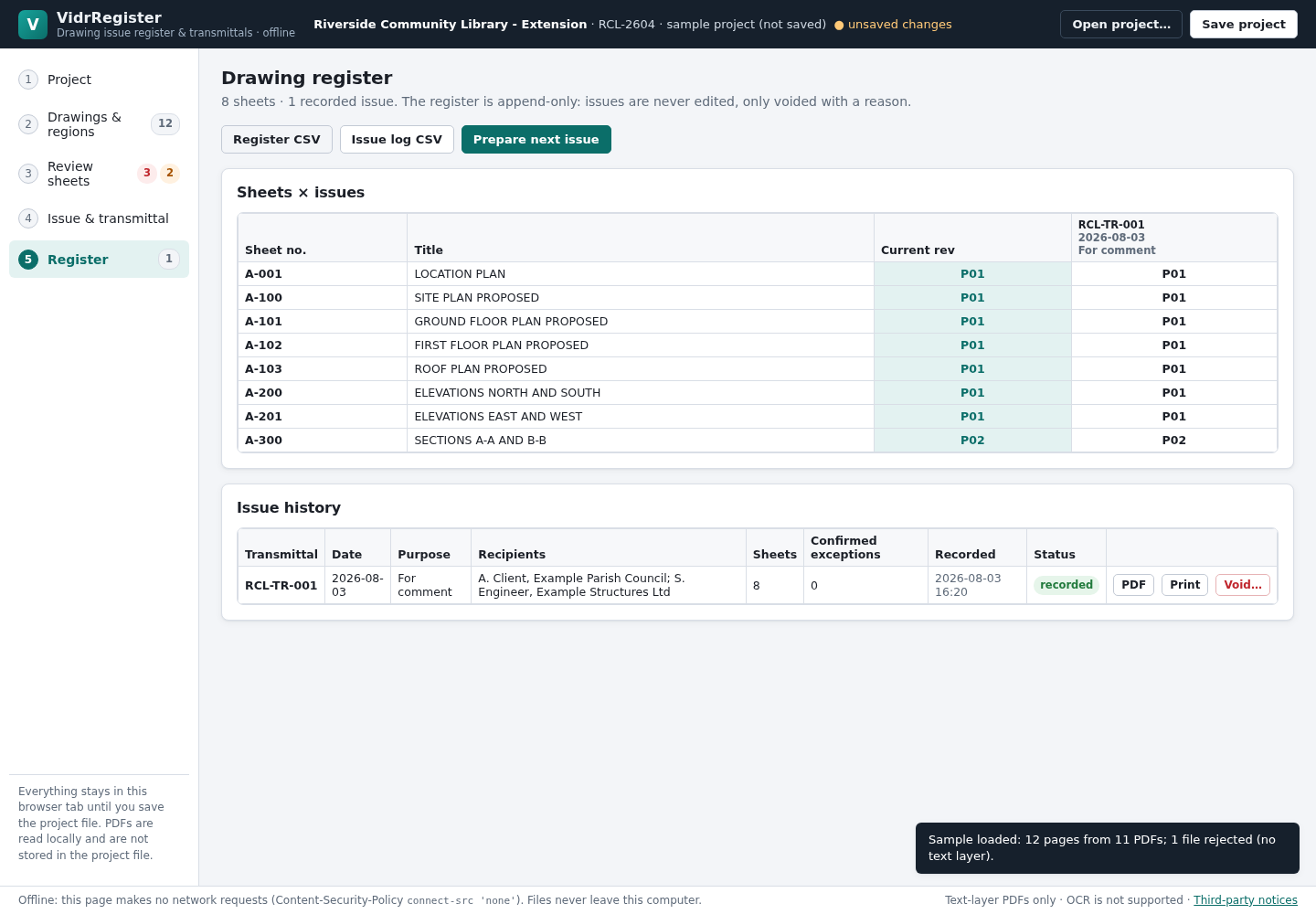
The register shows every sheet by issue. Click “Register CSV” or “Issue log CSV” to download spreadsheets, and use “PDF” or “Print” on an issue in the history for its transmittal. Use “Prepare next issue” when the next set of drawings is ready.
Save the project
Click “Save project” (or press Ctrl+S) to download the project file, named after the project number, for example HB-26.vidrregister.json. It holds project details, regions, recipients and recorded issues; the PDFs are not stored in it. VidrRegister keeps nothing in the browser: next time, click “Open project…”, choose that file and add the new PDFs. Chrome warns you if you try to close the page with unsaved changes.
A worked example
First issue of a three-sheet fictional project
Input: examples/vidr-register/: three fictional A3 drawings with a text-layer title block (HB-100_Site-Plan_RevP01.pdf, HB-101_Ground-Floor-Plan_RevP01.pdf, HB-201_Elevations_RevP01.pdf) and harbour-boathouse-project.json, a project file whose A3 title-block regions are already marked (project HB-26, prefix HB-TR-, two recipients, draft issue HB-TR-001 For comment).
- Open vidr-register/index.html in Chrome and click “Open project…”; choose harbour-boathouse-project.json.
- Go to “2 Drawings & regions”, click “Choose PDF files…” and select the three HB PDFs.
- Go to “3 Review sheets” and check the counters.
- Go to “4 Issue & transmittal”, click “Record issue” and confirm “Record issue” in the dialog.
- Go to “5 Register” and click “Register CSV”; click “PDF” in the issue history; click “Save project”.
Expected result: Drawings: 3 accepted, each read as A3 with its sheet number (HB-100, HB-101, HB-201), title, revision P01, date 12.10.2026 and status PRELIMINARY. Review: 3/3 sheets included, 0 errors, 0 decisions, 0 warnings. The dialog asks “Record HB-TR-001?”. The register lists the three sheets at P01 under HB-TR-001. Downloads: HB-26_drawing-register_<today>.csv (Sheet number, Title, Current revision, one column per issue), HB-26_HB-TR-001.pdf (the transmittal) and HB-26.vidrregister.json (the project file).
Troubleshooting
A PDF is listed as Rejected: “No text layer found on any page.”
The drawing is a scan or its text was exported as lines. Re-export it from CAD with text kept as text, or enter that sheet manually.
A page shows “No regions”.
That paper size has no title-block regions yet (for example an A3 sheet in an A1 set). Open the page on “2 Drawings & regions” and drag boxes for its fields.
A field reads the label (for example “Sheet no.”) or nothing.
Redraw the box around the value only. Use “Title block” zoom and “Show text runs” to see where the text sits.
“Rev order unknown” or “Rev goes back”.
The revision is outside, or earlier in, the project's revision sequence. Correct the value or confirm it; you can change the sequence on “1 Project”.
Non-Latin characters are replaced in the PDF transmittal.
The direct PDF uses Helvetica (Western European characters) and reports replacements. Use “Print” and choose Save as PDF in Chrome's print dialog; printing supports every script.
Compatibility & limits
- Tested with Chrome 152 on Linux and synthetic drawing PDFs only; check outputs before issuing real drawings.
- No OCR, CAD/Revit import, Excel (.xlsx) export, email sending or cloud sync.
- Very large PDFs may pause the page.
- Nothing is stored in the browser; keep the saved project file and your PDFs.
Need a hand?
Tell us the product, host application and version, what you tried, and the exact error. Contact support with a fictional example; keep private customer files and passwords out of your message.