Step-by-step guide
YmirCage
Fit a lattice to meshes without applying their geometry. Create and fit an editable lattice around selected meshes without applying their modifiers or mesh geometry.
You want to bend, taper or squash one mesh, or a few independent meshes, with a lattice, and you want the lattice sized to the selection in one click and removed cleanly later.
Before you start
- Blender 4.5 LTS (any 4.5.x). Other Blender versions are outside its supported range.
- Object Mode, with one mesh or a few independent meshes selected.
- Checked on Linux with Blender 4.5.14. Windows and macOS have not been checked yet.
- The purchased ymircage-0.1.1-guide-bundle.zip download. It contains program/ymircage-0.1.0.zip; the program itself is unchanged from the earlier release.
Your first result
Download and extract your bundle
Buy the YmirCage bundle at /store/ymircage/ and extract ymircage-0.1.1-guide-bundle.zip. Keep program/ymircage-0.1.0.zip zipped: Blender installs that inner ZIP. Open GUIDE.html for this manual and PRACTICE.txt for the worked exercise.
Install it in Blender
In Blender 4.5 open Edit › Preferences › Get Extensions, click the ⌄ menu at the top right, choose Install from Disk… and select ymircage-0.1.0.zip. You can also drag the ZIP into the Blender window.
Open the YmirCage tab
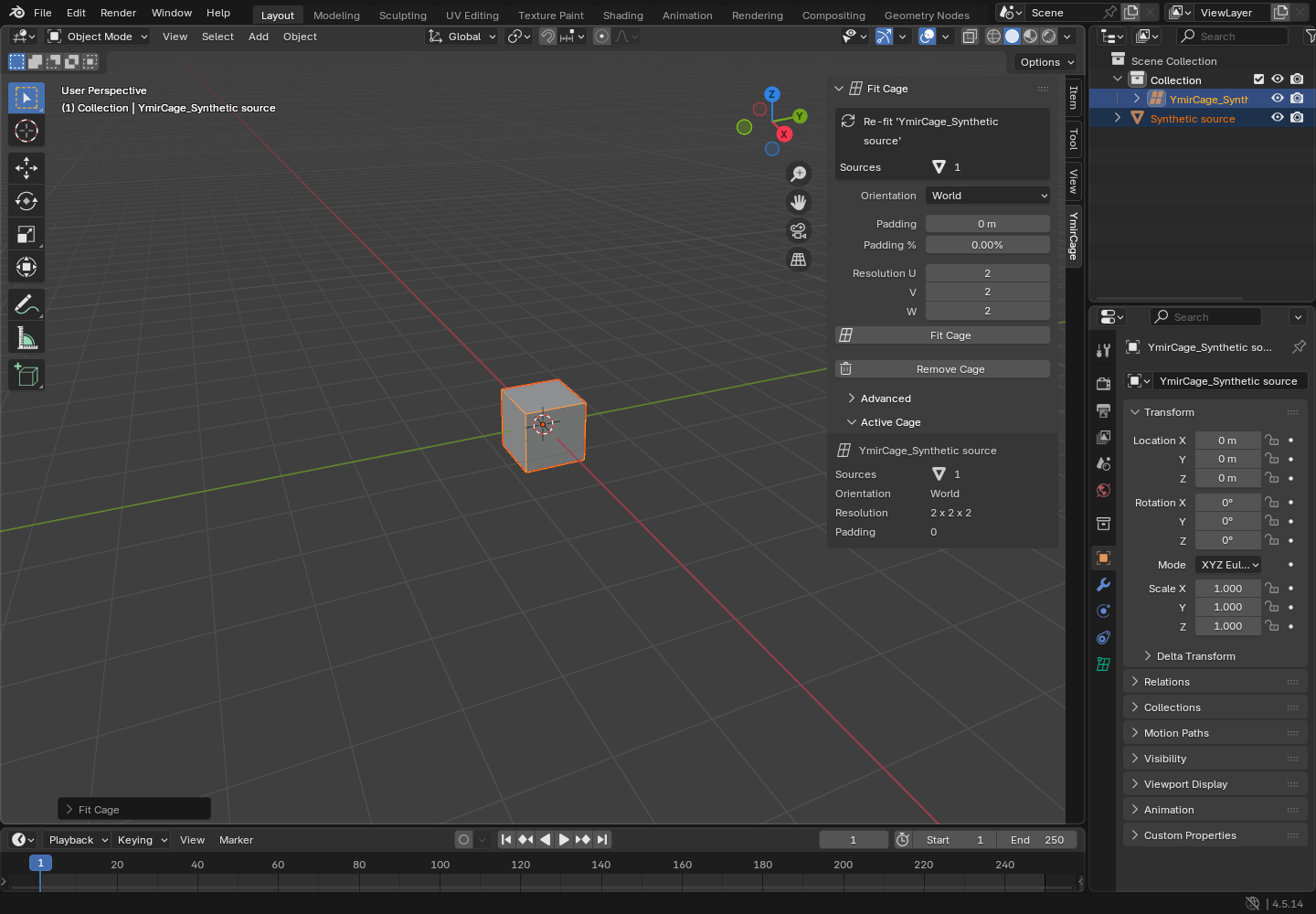
In the 3D Viewport press N and click the YmirCage tab. The same commands are also in the Object › YmirCage menu.
Select and set up
In Object Mode, select the mesh or meshes. In the Fit Cage panel choose Orientation (World, or Active Local to follow the active object's rotation and scale), Padding, Padding % and Resolution (U, V, W control points). The defaults are World, 0, 0% and 2 × 2 × 2.
Fit the cage
Click Fit Cage. A lattice named YmirCage_<object name> appears, sized to the selection, and each selected mesh gets one Lattice modifier. The Active Cage section lists its sources, orientation, resolution and padding.
Deform
Select the cage, press Tab for Edit Mode and move its control points; the meshes follow. The meshes themselves are not changed: the effect comes from the modifier until you decide to apply it yourself.
Re-fit when the selection changes
With the cage or its meshes selected, Fit Cage updates the same cage instead of adding a second one (the button area says Re-fit 'YmirCage_…'). Read “Changes from the last fit:” and “Not selected, so unbound: …” before you click. Moved control points are kept at the same resolution; changing the resolution of an edited cage requires ticking Reset Edited Points in the Advanced section.
Remove cleanly and save
In Object Mode select the cage and click Remove Cage: the cage and the modifiers it created are deleted, nothing is applied. Ctrl+Z undoes Fit Cage and Remove Cage. Nothing is saved automatically: the cage, the modifiers and the panel settings are stored in your .blend file when you save it (File › Save).
A worked example
Cage Blender's monkey head
Input: Blender's built-in test mesh: Add › Mesh › Monkey (named Suzanne) in a new General file. No file to download.
- Install YmirCage as above, start a new General file, delete the default cube and add Add › Mesh › Monkey.
- With Suzanne selected in Object Mode, open the YmirCage tab and keep the defaults (World, Padding 0, Resolution 2 × 2 × 2).
- Click Fit Cage.
- Select YmirCage_Suzanne, press Tab and move one corner point; then return to Object Mode and click Remove Cage.
Expected result: Fit Cage reports “created 'YmirCage_Suzanne' for 1 object(s)”. A 2 × 2 × 2 lattice exactly the size of Suzanne's bounding box (2.734 × 1.703 × 1.969 m) appears, and Suzanne's modifier list shows one Lattice modifier using YmirCage_Suzanne. Moving a corner point bends the head. Remove Cage reports that it removed 1 cage and 1 modifier; Suzanne is left with no modifier and its mesh was never applied or edited.
Troubleshooting
Fit Cage or Remove Cage is greyed out.
Both work only in Object Mode with something selected; hover the button to see the reason. Remove Cage needs a cage made by YmirCage in the selection.
A re-fit is refused after you changed the resolution.
The cage has moved control points, which a new grid would lose. Tick Reset Edited Points in the Advanced section to rebuild it, or keep the old resolution. A lattice with shape keys cannot change resolution at all: remove the shape keys or remove the cage and fit a new one.
You deleted the cage with X and the meshes still show a Lattice modifier.
Blender leaves a modifier with no lattice object. It changes nothing, but delete it yourself in Modifier Properties. Next time use Remove Cage.
The re-fit gave a different size than before.
A re-fit uses the current sidebar settings, not the ones used last time. Check “Changes from the last fit:” and set the old values first if you want the same cage.
Compatibility & limits
- One cage per fit around the selection's bounding box. It does not apply modifiers, repair meshes or detect shapes.
- Blender 4.5 LTS only; checked on Linux with 4.5.14. Windows, macOS and other 4.5 patch versions are not checked yet. Work on a copy of important scenes.
- No automatic updates: to update, install a newer ZIP from the YmirCage page the same way.
- Free software under GPL-2.0-or-later: you may use, study, share and change it under that licence. The full text is inside the ZIP (LICENSE).
- Blender 4.5 LTS only; small groups of independent meshes. Does not apply modifiers. Linux Blender 4.5.14 GUI checked; macOS, Windows and real artist acceptance unverified.
Need a hand?
Tell us the product, host application and version, what you tried, and the exact error. Contact support with a fictional example; keep private customer files and passwords out of your message.