Step-by-step guide
EirDance
Plan a dance recital run order with quick-change checks, locally on your computer. Import a roster CSV, set change-gap and show rules, review and adjust the order, then export run-order and change-sheet CSV or PDF.
You organise a recital or showcase and need an order in which every dancer has enough time to change between routines, plus sheets for dancers and backstage helpers.
Before you start
- Desktop Google Chrome.
- A roster CSV: one row per routine with columns such as ID, Title, Class, Style, Duration and Dancers (names separated by ;). “Download CSV template” gives you a starting file.
Your first result
Buy, download and open
Buy from /store/eir-dance/ and download eir-dance-0.1.1.zip from the checkout page. Extract it and open eir-dance/eirdance.html in Chrome. “Try the synthetic sample” loads a fictional show if you want to explore first.
Prepare the roster
Use one row per routine with a Dancers column (names separated by ;), or one row per routine and dancer with a Dancer column. Recognised columns: ID, Title (or Routine), Class, Style, Duration (m:ss, or minutes like 3.5), Dancers/Dancer, Fixed (first, last, a position number, before intermission, after intermission), Part (1 = before the first intermission), Notes and Position. Comma, semicolon and tab separated files are detected automatically. The “Help & CSV format” tab shows the same rules.
Import
Click “Import roster CSV” (or File ▾ → “Import roster CSV…”), then “Choose a file”, or paste CSV text into the box. A preview lists the routines, dancers and which columns were used. Enter a “Show name” if you like and click the “Import … routines” button. Importing replaces the current routines; Undo (↶) goes back.
Set the rules
Open “Rules” in the side panel. “Minimum change time (hard rule)” needs both a number of “Routines between” and a “Time between” two routines of the same dancer (new shows start at 2 routines and 5:00; 0 turns a limit off). “Quick-change flag (soft)” marks tight changes that are still allowed. Also set “Transition between routines”, “Show starts at”, intermissions (“+ Add intermission”), style preference and the PDF page size (US Letter or A4).
Check and optimize
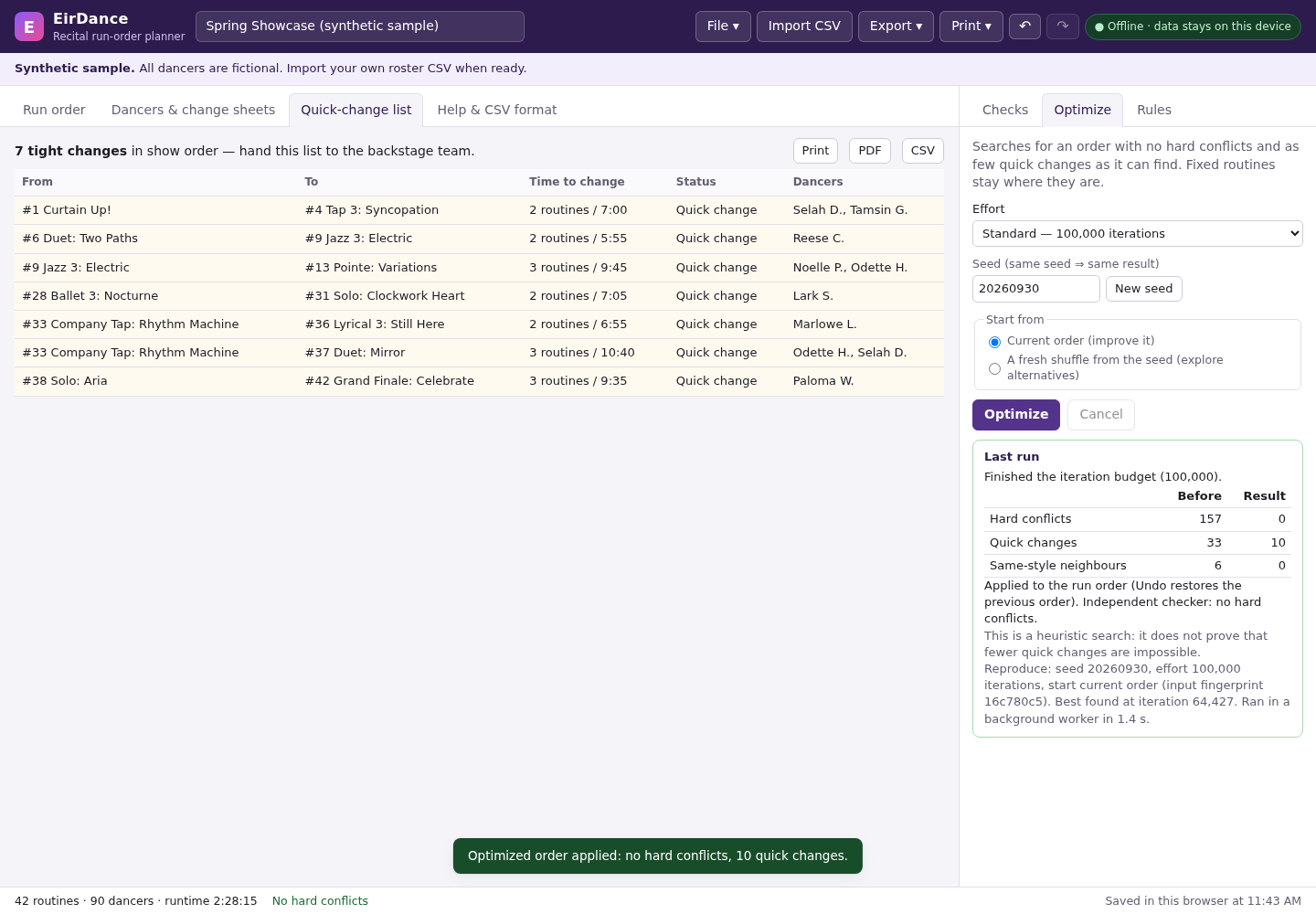
“Checks” lists hard conflicts with the dancers involved, quick changes and same-style neighbours, and can state that no order can meet the rules (for example when a dancer is in too many routines). Open “Optimize”, choose an Effort (Quick, Standard, Thorough or Maximum), keep “Current order (improve it)” and click “Optimize”. Fixed routines stay in place. The result table compares Before and Result; Undo restores the previous order. You can also drag rows or use ▲▼ to move routines by hand; every change is re-checked.
Export and print
Use Export ▾ for CSV (Run order, Change sheets (all dancers), Backstage quick-change list, Roster (re-importable)) or PDF (the same sheets plus Complete packet). Print ▾ sends the same sheets to Chrome's print dialog; use that for names in non-Latin scripts. Files go to Chrome's downloads folder.
Saving and backups
EirDance saves the show in this browser automatically (the status bar shows “Saved in this browser at …”) and reopens it next time. Browser storage can be cleared, so also use File ▾ → “Save project file” to download a .eirdance.json backup, and “Open project file…” to load it. “Clear data in this browser…” removes the stored show.
A worked example
A nine-routine fictional spring recital
Input: examples/eir-dance/spring-recital-roster.csv: 9 fictional routines and 14 dancers (first names with an initial). The opening (R01) is fixed first and the finale (R09) fixed last; four company dancers appear in the opening, one middle routine and the finale.
- Open eirdance.html in Chrome and click “Import roster CSV”.
- Click “Choose a file”, pick spring-recital-roster.csv and click “Import 9 routines”.
- Open “Checks” and read the conflicts.
- Open “Optimize”, keep Standard — 100,000 iterations and the default seed, and click “Optimize”.
- Export ▾ → CSV “Run order” and PDF “Complete packet”; then File ▾ → “Save project file”.
Expected result: Before optimizing, Checks shows 8 hard conflicts (for example Opening: Sunrise straight into Tap Attack leaves Ava M. and Ben K. 0 routines / 0:30 to change; the rule needs 2 routines and 5:00). After Optimize the result table shows hard conflicts 8 → 0 and Checks says “No hard conflicts”, with some quick changes still flagged for backstage. The run order keeps Opening: Sunrise first and Finale: Together last, runtime 27:35 from 6:00 PM. Downloads: spring-recital-roster-run-order.csv (position, start time, routine, dancers, conflicts), spring-recital-roster-packet.pdf and spring-recital-roster.eirdance.json. Reopening the page restores the show from the browser.
Troubleshooting
Checks says the rules are “Proven impossible”.
Some dancer is in too many routines for the show length with the current hard rule. Lower “Routines between” or “Time between”, add an intermission, or change the casting; the optimizer cannot fix it.
Conflicts remain after optimizing.
Run again with a higher Effort or a fresh shuffle, check that fixed positions are really needed, and review remaining conflicts by hand. The optimizer is a bounded search and does not guarantee a conflict-free order.
Durations or dancers were not recognised.
Use m:ss (3:05) or minutes (3.5) for Duration and separate dancer names with ; in the Dancers column. Check the import preview before clicking Import.
Names with non-Latin letters look wrong in the PDF.
Direct PDF export uses built-in Latin fonts. Use Print ▾ and choose Save as PDF in Chrome's print dialog instead.
My show is gone.
The browser's stored data was cleared or you used another browser or profile. Use File ▾ → “Open project file…” with your saved .eirdance.json, or import the roster again.
Compatibility & limits
- Tested with Chrome 152 on Linux and synthetic rosters; real school rosters, other browsers and physical printing were not tested.
- The optimizer does not guarantee a conflict-free order; review every conflict and exported sheet before a live show.
- One show per project; no per-dancer exceptions.
- No cloud sync, email to families or studio-software connection.
Need a hand?
Tell us the product, host application and version, what you tried, and the exact error. Contact support with a fictional example; keep private customer files and passwords out of your message.