Step-by-step guide
Svarn
Export Aseprite slices and frames with a checked manifest. Export saved Aseprite slices across frames into PNGs with a manifest of dimensions and file hashes for a clear handoff.
You keep icons, tiles or UI parts as slices in one Aseprite document and want each slice written as its own PNG, per frame, with predictable names, a new folder per run and a manifest that says what was written and verified.
Download free exporter (ZIP)Optional guide bundle · $9
Exporting is free under the included preview permissions, including use for real work. The optional $9 guide bundle packages the same exporter with instructions and practice files. Svarn Audit Pack is a separate, optional tool.
Before you start
- Aseprite 1.3, installed and licensed separately. Checked with Aseprite 1.3.18.6-dev on Linux; other versions and Windows or macOS are not checked yet.
- A document saved to disk, with at least one rectangular slice inside the canvas. Animated slice bounds are not detected.
- RGB or Indexed colour mode. Grayscale is not supported.
- The free svarn-preview-20260929.zip exporter, or the optional paid svarn-0.1.1-guide-bundle.zip package. Both contain the same exporter; payment is not required to export slices.
Your first result
Get the exporter and practice files
Download the free exporter using the button above and extract svarn-preview-20260929.zip. Download the guide & practice files ZIP from Worked example below and extract it separately. If you bought the optional guide bundle instead, extract svarn-0.1.1-guide-bundle.zip, then its program/svarn-preview-20260929.zip. Either way, app/, extension/, samples/ and docs/ below refer to the extracted program folder. The paid bundle puts the same exporter, guide and practice files into one prepared download; it does not add exporter features.
Install the extension
In Aseprite open Edit › Preferences › Extensions › Add Extension…, choose app/svarn-0.1.0.aseprite-extension, and restart Aseprite if asked. The command Svarn: Batch Export Slices... then appears in the File menu, just below the Export submenu.
Prepare the sprite
Open the sprite, make sure its slices are where you want them, and save it (File › Save). Svarn refuses unsaved documents. If you use Save As, open Svarn again afterwards so it follows the new file.
Open Svarn
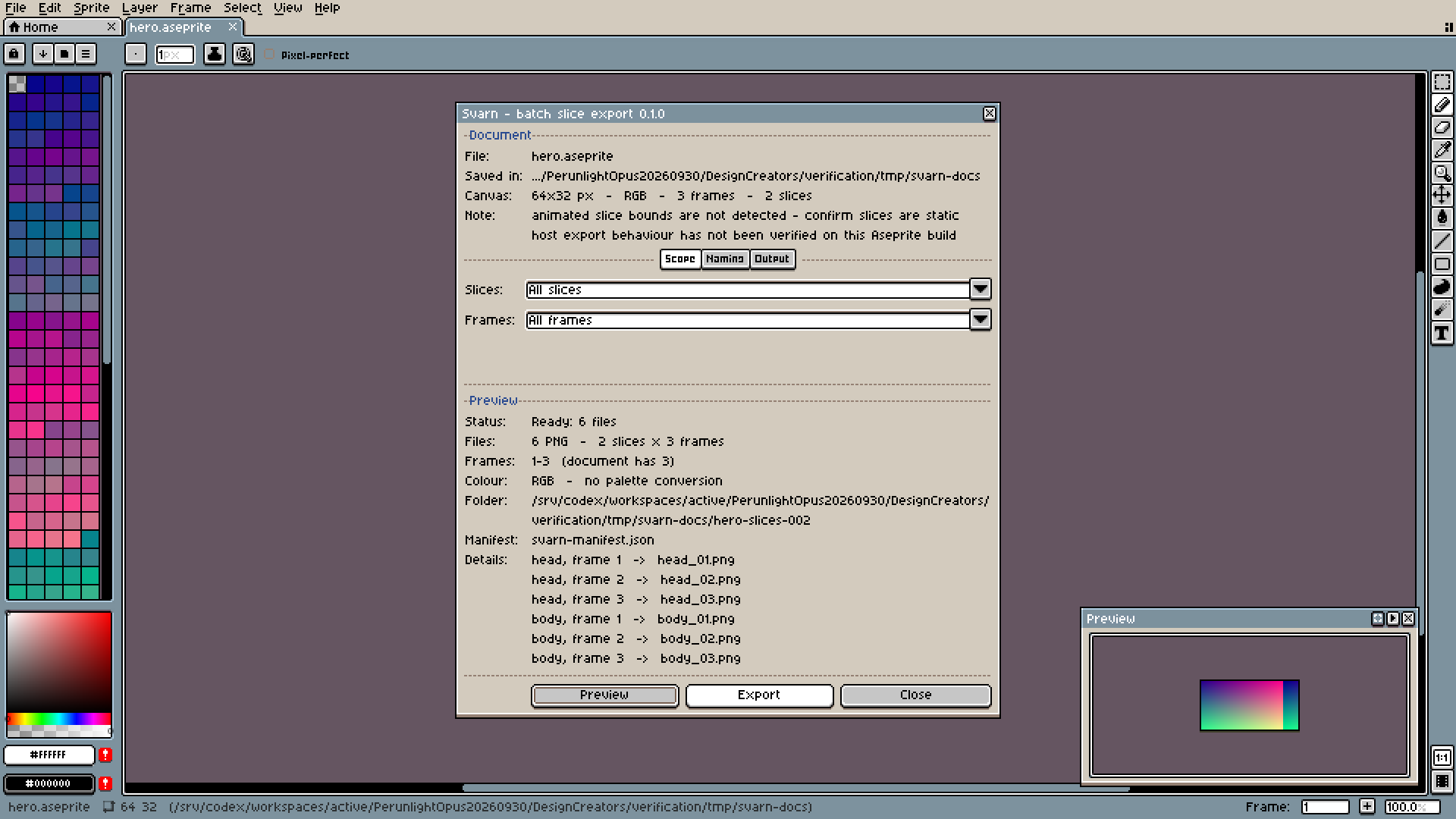
Choose Svarn: Batch Export Slices... from the File menu. The window Svarn - batch slice export 0.1.0 shows the Document (File, Saved in, Canvas), then Scope, Naming, Output and Preview. It stays open while you keep working.
Choose what to export
Scope: Slices is All slices or Slices selected in the timeline; Frames is All frames, Current frame or Custom range (for example 1-3,5). Naming: pick a Profile such as slice_frame {slice}_{frame} or type your own Template, set Frame digits (default 2), and choose whether Spaces are replaced with _ and whether to force lowercase.
Choose where it goes
Output: Base folder must be a full path; Use document folder fills in the sprite's own folder. Every run writes a new <name>-slices-NNN folder inside it (001, 002, …) and never writes into an existing folder.
Preview, then Export
Click Preview to see the file count, the target folder and the first file names, plus any problem such as a name collision or a slice outside the canvas. Export stays disabled until the plan is valid. Click Export; if Aseprite asks for file access for the script, allow it. The Status row then reads, for example, Exported and verified 6 of 6 files in hero-slices-001.
Check the result
Open the new folder: one PNG per slice and frame, plus svarn-manifest.json listing expected files, actual files, failures, warnings and settings, with status complete, complete_with_warnings or incomplete. Your dialog choices are remembered by Aseprite for next time; Svarn makes no network requests and writes nothing outside the folder you chose. To remove it: Edit › Preferences › Extensions, select Svarn, Uninstall.
A worked example
Export two pickup icons
Input: examples/svarn/pickups.png (a fictional 32 × 16 image with a coin and a gem) and examples/svarn/slices.csv, which lists the two slices to draw: coin at x 0, y 0, 16 × 16 and gem at x 16, y 0, 16 × 16.
- In Aseprite open examples/svarn/pickups.png.
- With Aseprite's Slice tool draw the two slices from slices.csv and name them coin and gem in each slice's properties.
- Save the sprite with File › Save As… as pickups.aseprite (the .aseprite format keeps slices).
- From the File menu choose Svarn: Batch Export Slices... and keep All slices, All frames, profile slice_frame and Frame digits 2. Click Use document folder, then Preview, then Export.
Expected result: Preview plans 2 PNG files (coin, frame 1 -> coin_01.png and gem, frame 1 -> gem_01.png). Export creates a folder pickups-slices-001 next to pickups.aseprite containing coin_01.png and gem_01.png (16 × 16 each) and svarn-manifest.json with status complete; the Status row reads Exported and verified 2 of 2 files in pickups-slices-001. Exporting again creates pickups-slices-002 instead of overwriting.
Troubleshooting
Export stays disabled.
The Preview lists a blocking problem and ends with a Next - row saying what to do: for example save the document, fix a name collision, move a slice back inside the canvas, or correct the frame range.
Export says the document changed (E_CONTEXT_CHANGED or E_CONTEXT_LOST).
Svarn only exports the document it was opened for. Make that document the active tab again (reopen it if it was closed) and click Preview, or close Svarn and open it for the other document.
Export stopped. Nothing was written.
Something changed after your last Preview. The window now shows the new plan; check it and click Export again.
The run is marked INCOMPLETE.
Some files could not be written or checked, for example because file access was declined. The folder and its manifest are kept for diagnosis; fix the cause and export again into a new folder.
Compatibility & limits
- Rectangular static slices only. No colour conversion, atlas packing, game-engine import, GIF or video export, and no cancel button while an export runs.
- Checked in Aseprite 1.3.18.6-dev on Linux only; Windows, macOS and large production documents are not checked yet. Keep a copy of your source file.
- No automatic updates: to update, add a newer package over the old one in Edit › Preferences › Extensions.
- The original program keeps its included preview permissions: you may use it, including for real work, and keep what you create, but not sell or redistribute it (see PREVIEW-PERMISSION.md). Aseprite has its own licence.
- Aseprite licensed separately. Linux 1.3.18.6-dev GUI verified; Windows, macOS, large projects and upgrades unverified. No grayscale or animated slice bounds.
Need a hand?
Tell us the product, host application and version, what you tried, and the exact error. Contact support with a fictional example; keep private customer files and passwords out of your message.
Need to check a handoff or compare two exports?
Svarn Audit Pack is a separate $9 tool for checking saved export folders. It checks the manifest, PNG structure and file hashes, then reports added, removed or byte-changed PNGs between versions. It runs from a terminal with Python 3.10+. It does not compare artwork visually and is not required to export with Svarn.
See Svarn Audit Pack · $9 once